Last Updated: October 18, 2026
📄 In This Review
What a monitor webcam needs to do differently
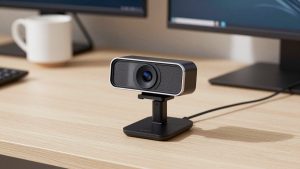
A webcam for a computer monitor lives a harder life than a laptop webcam. It sits farther from your face, has to deal with screen glare, and gets judged on every Zoom, Teams, and Google Meet call. The good news is you do not need to overthink this. For most desk setups with a 24 to 32 inch monitor, a basic clip-on 1080p webcam with decent autofocus and a dual microphone is enough to look sharp and sound clear.
Where monitor mounting matters is stability, framing, and field of view. A camera clipped to the top bezel sits about 2 to 3 feet from you. If the lens is too wide, you will look small and show your whole messy office. If it is too narrow, you will cut off your shoulders every time you lean. For a single person at a desk, 65 to 78 degrees is the sweet spot. Wider than 90 degrees only makes sense if you regularly have two people in frame.
Mount first, sensor second
See also: Best Monitor for MacBook Air: Two USB-C 4K Screens and Six Adapter-Dependent Alternatives • Best Monitor for MacBook Pro: Eight Listings Sorted by Cable, Sharpness and Scaling
Most buyers compare resolution first. For monitor use, test the mount first. A wobbly hinge ruins more calls than a slightly softer sensor. Thin-bezel monitors, curved monitors, and monitors with a thick lip on the back all cause problems for cheap clips.
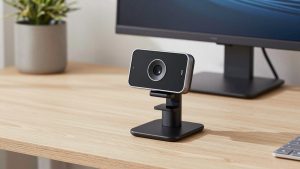
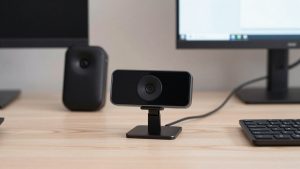
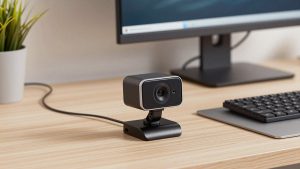
Look for three things: a clip that opens wide enough for your monitor, a non-slip pad on the front so it does not slide, and a 1/4-inch tripod thread on the bottom. That thread is your escape hatch. If the clip does not fit, you can put the camera on a small mini tripod for webcam behind the monitor or on a monitor shelf. Cameras without that thread lock you into the included mount.
Failure mode to watch: spring clips that rely only on friction. They slowly tilt down during long calls, especially on warm monitors. You end up looking at the top of your head. A clip with a folding stabilizer arm that rests against the back of the monitor stays level.
The three monitor setups that actually work
There are really only three sensible options for a desktop monitor. Everything else is a variation.
| Setup | Best for | Strengths | Trade-offs |
|---|---|---|---|
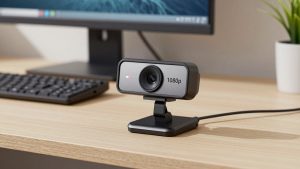
| Standard 1080p clip-on webcam | Work calls 4-6 hours per day | Reliable plug-and-play, good autofocus, low light is usually adequate | Looks soft if you crop or zoom in; mics pick up keyboard noise |
| 4K webcam with auto-framing | Presenters, managers, teachers | Sharper image, can crop without blur, stays centered if you move | Costs 2-3x more, needs good lighting to see benefit, uses more USB bandwidth and CPU |
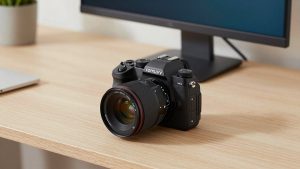
| Mirrorless / action camera + capture setup | Streaming, YouTube, high-stakes webinars | Much better color and blurry background | Complex, needs dummy battery and capture card, overheating risk |
For home office workers on a Mac or Windows laptop docked to a monitor, the first row covers about 80 percent of people. The image is clear at full-screen on the other person’s laptop, setup takes two minutes, and you can unplug it for privacy.
The second row makes sense if you present a lot and want to look crisp on a large conference room screen. Just do not expect miracles. A 4K webcam for desktop monitor still looks bad in a dark room. You are paying for better glass and processing, not night vision.
1080p vs 4K on a monitor: honest trade-offs
On paper, 4K wins. In practice, most video call apps compress you to 720p or 1080p anyway. Zoom and Teams will downscale a 4K feed unless everyone has excellent bandwidth. So when does 4K help?
It helps when the software crops. Auto-framing, digital zoom, and background replacement all throw away pixels. Starting from 4K leaves you with a sharp 1080p crop. Starting from 1080p leaves you with a soft 720p crop. If you sit still and use no effects, you will barely see a difference between a good 1080p camera and a 4K camera in daylight.
Lighting matters more than either number. Monitor webcams face you, with a bright screen below and often a dark wall behind. That fools auto-exposure. If your face is dark and the background is blown out, add a cheap bias light behind the monitor or turn on a desk lamp aimed at the wall in front of you. It will do more for image quality than spending an extra 100 dollars on resolution.
Failure mode: 4K cameras on old laptops or hubs. If you plug a 4K camera into an unpowered USB 2.0 hub with a keyboard, mouse, and headset, expect freezes, stutter, or the camera dropping to 720p. Plug direct into the computer or a powered USB 3.0 dock.
Mac and laptop-dock specifics
If you use a MacBook closed in clamshell mode with an external monitor, remember macOS camera handling. Most USB webcams are UVC compliant and work without drivers, but features like background blur, auto-framing, and manual exposure often require a Windows-only app to change the setting once. That setting usually sticks when you move back to Mac, but you need access to a Windows PC to set it.
Also check cable length. The short 3-foot cable bundled with many webcams barely reaches from the top of a 27-inch monitor down to a laptop dock hidden behind the desk. A 6-foot USB-A to USB-C cable or active extension solves it, but cheap long cables cause disconnects. If the camera keeps disappearing from Teams, the cable is the first suspect, not the camera.
For work security, prefer cameras with a physical shutter or a front LED that cannot be disabled in software. IT departments like that, and it avoids the tape-over-lens look.
Do not rely on the monitor webcam mic
Built-in mics have improved, but physics is against them. The mic sits on top of your monitor, 30 inches from your mouth, next to a humming monitor and a clicking keyboard. It will sound echoey in a room with hard walls.
If you take calls all day, use earbuds or a dedicated USB headset for audio and use the webcam for video only. You can disable the webcam mic in Teams or Zoom settings. This single change makes you sound more professional than any camera upgrade.
For framing, put the lens at or slightly above eye level. With a monitor webcam, that means tilting the monitor so the camera points straight, not down. If the camera looks down at you, it emphasizes your forehead and picks up keyboard reflections. A small monitor riser or arm fixes this better than digital tilt.
When the cheaper option is fine
Buy the basic 1080p model if you mostly do internal standups, 1-on-1s, and job interviews from a lit home office. Spend the savings on lighting and a stable mount. No one on a 13-inch laptop window will see the difference.
Step up only if you check two boxes: you present to clients or large groups weekly, and you have decent lighting. Then a mid-range autofocus camera with a larger sensor and better noise handling is worth it. Look in the range of a solid 1080p autofocus webcam with shutter to a basic 4K model without gimmicks like gesture control or built-in ring lights. Those extras break first and add bulk to the monitor bezel.
Avoid ultra-cheap no-name 1080p cameras that claim 4K via interpolation. Tell-tale signs: fixed focus, no tripod thread, 15 fps at full resolution, and over-sharpened color. They look okay in the product photo and terrible in a real dim office.
FAQ
Where should I mount a webcam on a monitor?
Centered on the top bezel, lens flush with the screen. That keeps eye contact natural. Side mounting or below-screen mounting creates a distracting angle. If your monitor bezel is too thin for the clip, use a tripod thread mount on a small stand just behind the monitor.
Will any webcam work with a curved ultrawide monitor?
Most clips will fit, but framing is tricky. Center mount on a 34-inch ultrawide puts you far back. You will look small unless you use a narrower field of view or slight digital zoom. Test 65-degree mode first before buying a new camera.
Do I need 4K for a 27-inch monitor?
No. Your monitor size does not change what the other person sees. 4K helps only if you crop, use auto-framing, or want better digital zoom. For normal head-and-shoulders calls, a good 1080p camera with solid autofocus is enough.
Why does my monitor webcam keep freezing?
Usually power or bandwidth. Plug it directly into your computer, not a cheap hub, switch to USB 3.0 port, and close other camera apps. If you run 4K, drop to 1080p in the camera app. That fixes most stutter on older Macs and work laptops.