Last Updated: October 18, 2026
If you spend your day on Zoom, Teams, or Google Meet, a high definition camera for video conferencing is not about looking cinematic. It is about being readable: sharp face, clean audio, no stutter, no hunting for focus every time you lean forward. Most laptop cameras still fail at that, especially in a dim home office.
I test webcams for work use, mostly on Macs and Windows laptops in real home offices, not studios. Here is what actually matters and where spending more makes sense.
📄 In This Review
What “high definition” means for calls
For video conferencing, high definition almost always means 1080p at 30 frames per second. That is the resolution Zoom and Teams actually deliver in most meetings. A camera that can output a clean, well-exposed 1080p image will look better than a cheap 4K sensor that is noisy and soft.
Do not shop by megapixels alone. Look for autofocus that holds, automatic exposure that does not blow out your face when a window is behind you, and a lens in the 70 to 90 degree field of view range. Wider than 90 degrees makes you look small and shows your whole room. Narrower than 65 degrees feels cramped if you move around.
Audio matters as much as video. Most webcam mics are usable for backup, but they pick up keyboard noise and room echo. If you take calls all day, plan on a separate USB headset or desktop mic. Buy the camera for picture, not for the mic.
1080p vs 4K: who should pay more
See also: Best Monitor for MacBook Air: Two USB-C 4K Screens and Six Adapter-Dependent Alternatives • Best Monitor for MacBook Pro: Eight Listings Sorted by Cable, Sharpness and Scaling
For most people, a good 1080p webcam is fine. It uses less CPU, works better on older laptops, and causes fewer issues with corporate VPNs and underpowered USB hubs. It also looks more consistent in low light because the pixels are larger and the processing is simpler.
4K makes sense in three cases: you present and need to crop or digitally zoom without going blurry, you record training videos locally while also streaming at 1080p, or you sit far from the camera and need to stay sharp. The trade-off is real: 4K needs more light, more USB bandwidth, and a newer machine. On a 2019 Intel MacBook Air or a budget work laptop, 4K often drops frames or runs hot.
A practical middle ground is a quality 1080p camera with good glass and autofocus. That will beat a budget 4K camera in a typical home office with one lamp and a window to the side. Only step up to 4K if you have good lighting and a machine that can handle it.
The three work setups that cover almost everyone
There are really three categories worth buying. Everything else is a variation.
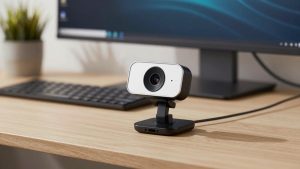
First is the basic fixed-focus 1080p webcam. No moving focus, wide compatibility, plug it in and it works. Best for IT-managed laptops, shared desks, and anyone who wants zero troubleshooting. The image will not be stunning, but it is stable. If you sit at a consistent distance and have decent light, this is often enough. A simple 1080p fixed focus webcam for laptop is the cheapest reliable upgrade from a grainy built-in camera.
Second is the 1080p autofocus webcam with better low-light handling and dual noise-reducing mics. This is the sweet spot for home office workers, managers, therapists, tutors, and anyone on camera four-plus hours a day. Autofocus keeps you sharp when you lean in to read, and the larger sensor handles backlight better. Look for a physical privacy shutter, tripod thread, and USB-A with a USB-C adapter in the box. A mid-range 1080p autofocus webcam with noise canceling mic is what I recommend to most remote workers on Mac and Windows.
Third is the 4K business webcam with digital zoom, auto-framing, and manual controls. Best for presenters, team leads running hybrid meetings, and creators who also record. Auto-framing can be useful if you stand and use a whiteboard, but it can also drift and crop awkwardly. Buy this only if you will turn off auto features when you do not need them and you have light to feed the sensor. For that use, shop a dedicated 4K webcam for video conferencing with autoframing rather than a generic streaming camera.
| Setup | Best for | Strengths | Weaknesses |
|---|---|---|---|
| Basic 1080p fixed-focus | Occasional calls, second desk, locked-down work laptop | Cheap, reliable, low CPU load, works with any USB port | Soft in low light, no flexibility, wide angle can look flat |
| Mid-range 1080p autofocus | Daily home office use, MacBooks, client-facing roles | Sharper face, better exposure, usable mics, privacy shutter | Autofocus can hunt in very dim rooms, needs decent light for best results |
| 4K business webcam | Presenting, recording, small-group rooms | Crop and zoom headroom, framing features, best detail in good light | Needs light and CPU, more expensive, features can misbehave on some apps |
Laptop and Mac issues people miss
On Macs, especially Apple Silicon Macs, most modern webcams are plug-and-play in FaceTime, Zoom, and Teams. The failure mode is usually the hub. Run the camera straight into the Mac or into a powered dock, not through a cheap passive USB hub shared with a hard drive and a light. If you see flicker or disconnects, that is almost always power or bandwidth.
On Windows work laptops, check permissions and corporate camera settings first. Many Teams issues blamed on the camera are actually Windows privacy settings, or Teams defaulting back to the integrated camera after an update. After plugging in a new camera, open the app settings and lock the default camera and mic. Unplug the old USB camera if you are not using it, because apps love to switch back.
Mounting matters more than specs. Clipping a webcam to the top of a 27-inch monitor puts it too high and makes eye contact hard. If you use a laptop on a stand, mount the camera at eye level on the external monitor, not on the laptop off to the side. A six-inch difference in height is the difference between looking engaged and looking distracted.
Common failure modes and how to avoid them
Autofocus hunting is the most common complaint. It happens when light is low, when you have a busy background, or when you sit too close. Fix it with more light on your face, not behind you, and sit at least two feet back. If your camera software allows manual focus lock, use it for desk work.
The second failure is exposure blowout from a window behind you. No webcam can fix strong backlight well. Turn 90 degrees to the window or close blinds and use a $20 desk lamp bounced off a wall in front of you. This improves a $40 camera more than upgrading to a $150 camera in a bad room.
The third is stutter from 4K on an old machine. If your fan spins up and video lags, drop the camera to 1080p in its settings app or in Zoom under Video settings. You will look better at a stable 1080p than a choppy 4K. Also close the camera vendor app after setting preferences, because two apps fighting for control causes freezes.
Finally, check cable length and USB type. Many desks need six feet, not three. An active USB extension works better than chaining two cheap extensions. If your laptop only has USB-C, get a camera that includes a USB-C adapter or use a reliable dock, not a loose dongle that gets bumped.
What to buy for your situation
If you take two to three calls a week in a bright room, keep it cheap. A basic 1080p camera plus facing a window is enough. Spend the savings on a headset.
If you lead meetings, meet clients, teach, or interview, buy the mid-range 1080p autofocus option. It is the most forgiving across different rooms and lighting, and it works on almost any laptop without driver drama. Add a simple lamp in front of you and a privacy shutter habit.
Buy 4K only if you present, record, or need digital zoom. Pair it with real light and a machine from the last three years. Otherwise you pay more to look worse.
When shopping, filter for 1080p30 minimum, autofocus unless you want simplicity, 75 to 90 degree field of view, physical shutter, and Mac and Windows support without required software. If a listing hides frame rate, sensor size, or field of view, skip it.
FAQ
Is a separate webcam really better than my laptop camera?
Yes, in most cases. Even a mid-range external camera gives you a larger lens, better low-light handling, and eye-level placement on an external monitor. The jump is biggest in dim rooms and on older laptops with 720p built-ins.
Do I need 4K for Zoom or Teams?
No. Both platforms usually display you at 1080p or lower. 4K helps if you crop, zoom, or record locally, but for normal calls a clean 1080p image with good light looks the same or better and runs more reliably.
Why does my HD webcam look blurry on calls?
Usually low light, autofocus hunting, or the app lowering resolution to save bandwidth. Add front light, sit back two to three feet, lock focus if you can, and check Zoom or Teams video settings for HD and low-light enhancement.
Will these webcams work with Mac?
Most UVC-compliant webcams work on Mac without drivers. Plug directly into the Mac or a powered dock, then select the camera in Zoom, Teams, or FaceTime settings. Avoid running the vendor tuning app and the meeting app at the same time if you get freezes.
Related Reviews & Guides
Best External Camera for Laptop

6 Best Laptop Riser Stands 2026