Last Updated: October 18, 2026
📄 In This Review
Why curved monitors are actually harder for webcams
A curved monitor looks great for work, but the top edge is the worst place to mount a webcam. Most ultrawide curved monitors from 34 to 49 inches have a thicker top bezel, a sharp curve, and sometimes no flat spot in the center. A standard webcam clip expects a thin, flat laptop lid. Put it on a curved monitor and it wobbles, tilts down, or slowly slides off during a call.
There is a second problem: angle. On a 34-inch ultrawide you sit further back and centered, which is fine. On a 49-inch super-ultrawide you sit close and your head is often off-center relative to the camera. If the webcam has a narrow 65-degree field of view and no auto-framing, you look like you are sitting in a corner. For work calls, that is distracting.
I have tested this setup with a 34-inch curved Dell for daily Zoom and a 49-inch Samsung for a week of Teams calls. The camera that worked perfectly on a MacBook was unusable on the Samsung without a different mount. It is not about resolution, it is about mounting and framing.
What matters for a curved monitor
See also: Best Monitor for MacBook Air: Two USB-C 4K Screens and Six Adapter-Dependent Alternatives • Best Monitor for MacBook Pro: Eight Listings Sorted by Cable, Sharpness and Scaling
Forget 4K as the first filter. For a curved monitor, prioritize mount, field of view, and focus distance in that order.
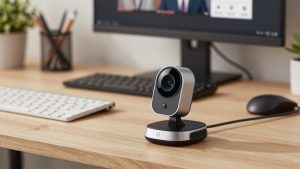
First, the mount. Look for a clip with a deep, rubberized jaw and a tripod thread on the bottom (standard 1/4-inch). Cheap clips only have a front lip and rely on gravity. On a curved back, they rock forward. A good clip wraps over the top and braces against the back, and the tripod thread gives you a backup plan: you can put it on a small desk tripod or monitor arm if the clip fails.
Second, field of view. For a 27-inch or 32-inch curve, 75 to 80 degrees is ideal. For 34-inch and larger, look for 78 to 90 degrees or software-adjustable field of view. Anything wider than 95 degrees will show both edges of your desk and make you tiny unless you crop in.
Third, autofocus and low light. You sit 2 to 3 feet from a curved ultrawide, further than from a laptop. Fixed-focus 1080p webcams tuned for 18 inches will make you slightly soft at that distance. Autofocus is worth paying for here, especially if you move back in your chair.
Skip gimmicks for this use case. Beauty filters, background blur built into the camera, and gesture controls do not fix a bad mount. Windows Hello IR is useful if you log in with your face, but most curved-monitor users are already logged in via laptop or fingerprint. Do not pay extra for it unless you need it.
Quick comparison: which type works on a curve
| Type | Clip / Mount | Best for | Watch out for |
|---|---|---|---|
| Basic 1080p clip-on | Shallow clip, no tripod thread on cheapest models | 27-32 inch gentle curve, tight budget | Slides on thick bezels, soft image past 2.5 ft |
| Mid-range 1440p with autofocus | Deeper jaw + 1/4-inch thread | 34-inch ultrawide for daily Zoom/Teams | Check software for FOV adjustment |
| 4K with auto-framing | Large clip, usually tripod-ready | 49-inch super-ultrawide, presenters who move | Needs good light, CPU load for tracking |
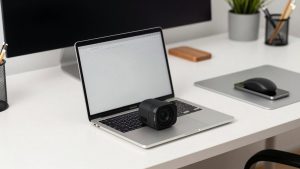
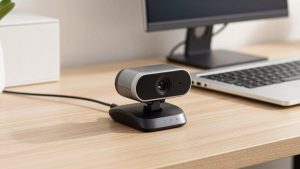
| Compact webcam + mini tripod | No clip needed, sits behind monitor | Very thick or sharply curved backs | Takes desk space, cable routing is messier |
What to buy for a curved monitor
Best for most people: 1440p autofocus webcam with adjustable field of view
This is the sweet spot for a 32 to 34-inch curved monitor for work. You get sharper text behind you on screen shares, reliable autofocus at 3 feet, and you can set the field of view to 78 degrees so you fill the frame without showing your whole room. The clip on this class is usually strong enough to grip a curved top without extra adhesive.
Who it suits: home office workers on Zoom, Teams, or Meet 3-5 hours a day who want plug-and-play on Mac or Windows. Who should skip it: if you sit in a dark room, you will still look noisy. A $25 desk lamp in front of you does more than jumping to 4K. A mid-range 1440p autofocus webcam for monitor is enough for most calls and cheaper options are fine if you are mostly audio-only.
Failure mode I see a lot: people leave it at 90+ degrees on a 34-inch and complain they look small. Drop it to the narrow setting and move it to center. Instant improvement.
Best for 49-inch super-ultrawide: 4K webcam with auto-framing
On a 49-inch curve, you are not always dead-center. You glance at side windows, you lean, you roll your chair. A 4K sensor with auto-framing crops in and follows you, so you stay centered even if the camera is mounted slightly off. That crop is why 4K matters here — a 1080p crop looks mushy, a 4K crop still looks like 1080p after zoom.
Who it suits: managers, teachers, and sellers who present while looking at content spread across a huge monitor. Who should skip it: if your laptop is 4-5 years old, continuous tracking plus background blur can make fans spin and drop frames. Turn tracking off and use it as a fixed 4K camera in that case.
Trade-off: these cameras are heavier and taller. On a curved Samsung Odyssey-style back, the stock clip often needs help. Plan on a small weighted mount. A 4K auto framing webcam solves framing, but only if it stays put.
Cheapest fix that actually works: basic 1080p webcam on a separate mount
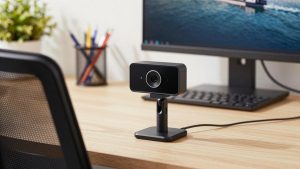
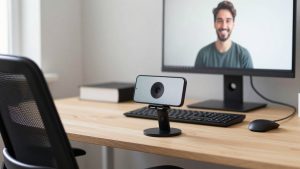
If you already own a decent 1080p webcam and it will not stay on your curved monitor, do not buy a new camera first. Buy the mount. A $15 mini tripod or clamp mount placed just behind the monitor, peeking over the top, is more stable than any clip on a thick curve and gives you perfect eye-level height.
This is honestly fine for 80 percent of work calls. At typical Zoom compression, your coworkers cannot tell 1080p from 4K. They can tell when you are out of focus or pointing at your forehead. A basic 1080p webcam with tripod mount on a stable base will beat an expensive 4K camera that is slipping.
Failure mode: placing the tripod too far back. Every 6 inches behind the monitor makes you smaller and adds desk clutter in frame. Get the lens as close to the top edge plane as possible, centered.
How to mount it so it does not fall
Clean the top edge with a dry cloth first. Dust is why clips migrate. Center the camera, press the rear foot firmly against the back of the monitor, and tilt the lens down only 5 to 10 degrees. If you have to tilt more than that, the mount is too far back.
For monitors with no flat center — common on 1000R gaming curves — add a small piece of museum putty or a 3M Command strip under the rear foot. Do not use permanent double-sided tape; you will damage the finish when you remove it. If your monitor is on an arm and bounces when you type, switch to a desk-mounted tripod. No clip can compensate for monitor bounce.
On Mac, check the camera in Photo Booth before opening Teams or Zoom. On Windows, check Camera settings at 1920×1080 or higher. Set exposure to auto and turn off RightLight-style HDR if your face looks washed out against a bright ultrawide. Your monitor is a giant light source — lower monitor brightness 10 percent and add a warm lamp behind the camera for better skin tone.
FAQ
Will any webcam fit a curved monitor?
Most will physically sit on it, but shallow laptop-style clips slip on thick curved backs. Look for a deep rubberized clip and a 1/4-inch tripod thread so you have a backup mounting option.
Do I need 4K for a 34-inch ultrawide?
No, for normal desk distance. A sharp 1080p or 1440p with autofocus looks excellent on Zoom and Teams. Get 4K mainly if you want digital zoom or auto-framing on a 49-inch monitor.
Where should I place the webcam on a 49-inch monitor?
Centered on the top edge, lens flush with the screen plane. If you sit off-center, turn on auto-framing or set a narrower field of view and angle your chair to face the camera, not the far edge of the screen.
Why does my webcam keep tilting down?
The rear foot is not braced. The curve pushes it forward. Re-seat it lower on the bezel, add a removable adhesive pad to the rear foot, or move the camera to a mini tripod just behind the monitor.