Last Updated: October 18, 2026
If you use a desktop PC for work, you need an external webcam. Most desktops don’t have one built in, and a lot of laptop webcams are still grainy 720p units tucked into a bad angle. For video calls on Teams, Zoom, Meet, or Slack, an external USB webcam is the fastest upgrade you can make — more noticeable than a new microphone or light in many home offices.
The good news for PC users: you don’t need to spend much. Windows handles basic UVC webcams without drivers, and Teams and Zoom do a lot of noise reduction and auto-exposure on their own. The trick is buying the right class of camera for how you work, and avoiding the two classic PC failure modes: a 4K camera that stutters on an old office PC, and a cheap no-name 1080p camera with terrible low-light performance.
📄 In This Review
What actually matters on a PC
Resolution is not the first thing to check. For full-screen head-and-shoulders calls, clean 1080p with good exposure beats smeary 4K every time. What matters more is autofocus reliability, low-light handling, field of view, and how the camera exposes your face when you have a window behind you. A camera that holds focus when you lean in to read, doesn’t blow out to white when the sun comes out, and doesn’t make your office look like a cave at 4pm will make you look better than extra pixels will.
Connection is the second PC-specific issue. Most desktops still want USB-A. Many new webcams ship with USB-C cables or short 1.5m cables meant for laptops. Check what is in the box and measure to your tower — if your PC is on the floor under the desk, you may need a longer cable or an active USB extension. Avoid running a high-resolution camera through a cheap unpowered hub with a hard drive and headset on the same port. That is a common cause of freezing, black screens in Teams, and cameras that work in the Camera app but not in Zoom.
If you log into Windows with your face, look specifically for Windows Hello support with infrared. Not every webcam has it, even expensive ones. If you don’t care about Hello, don’t pay extra for it. A fingerprint reader or PIN is cheaper than upgrading your webcam just for login.
Quick comparison by use case
See also: Best Monitor for MacBook Air: Two USB-C 4K Screens and Six Adapter-Dependent Alternatives • Best Monitor for MacBook Pro: Eight Listings Sorted by Cable, Sharpness and Scaling
| Type | Typical resolution | Best for | Watch out for |
|---|---|---|---|
| Basic 1080p fixed-focus | 1080p / 30fps | Daily Teams/Zoom on a desktop, good light | Soft image in dim rooms, narrow dynamic range |
| Mid-range 1080p/1440p autofocus | 1080p to 1440p / 30-60fps | Home office all-day use, glasses, moving around | Some models over-sharpen faces |
| 4K with digital zoom and auto-framing | 4K / 30fps | Presenters, whiteboards, cropping without losing sharpness | Needs good CPU/USB bandwidth, can look noisy in low light |
| Wider-angle conference cam | 1080p to 4K | Two people at one PC, small huddle space | Distortion at edges, picks up more background |
Best for most PC workers: a simple 1080p webcam
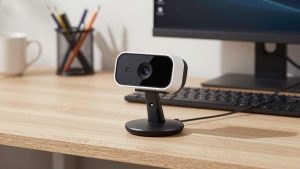
For a single person on Teams or Zoom in a home office, the cheaper option is usually fine. A basic 1080p webcam for PC from a known brand with dual microphones and a privacy shutter will beat any built-in laptop camera and is completely plug-and-play on Windows 10 and 11.
Who it suits: office workers, students, customer support, anyone sitting 2-3 feet from the monitor in decent light. Mount it on top of your monitor, plug directly into the back of the PC, select it once in Teams under Settings > Devices, and leave it.
Trade-offs and failure modes: Fixed-focus models are sharp at desk distance but soft if you hold a document up close. Low-light performance varies a lot. In a dim room, cheap sensors smear motion and turn skin waxy. If your calls are mostly after dark, add a $20 desk light in front of you before you buy a more expensive camera. Light fixes more than resolution does. Also check the mount — wide curved gaming monitors and thin office monitors can defeat flimsy clips. A tripod thread on the bottom is useful if you need to put it on a small tripod to clear a monitor light bar.
Step up if you move around: autofocus 1080p or 1440p
If you lean back, stand at a sit-stand desk, wear glasses, or show paperwork, autofocus is worth paying for. Mid-range cameras typically add better auto-exposure, wider dynamic range, and less aggressive noise reduction. You look clearer when you move, and text you hold up is readable for a second instead of a blur.
A 1440p autofocus webcam with dual microphones is the sweet spot for home-office leads, managers, coaches, and freelancers who are on camera four to six hours a day. 1440p gives you a little headroom to crop in Teams without going soft, but it doesn’t demand as much CPU and USB bandwidth as full 4K.
Failure modes to know: autofocus can hunt in low light or when something moves behind you — a fan, a monitor with video playing, a window with trees. If that happens, lock focus in the vendor app if available, or switch to manual focus at desk distance. Also turn off “auto framing” if you don’t need it. On underpowered office PCs it can cause stutter and make you look seasick as it slowly reframes.
When 4K makes sense — and when it doesn’t
4K on a webcam is not really about sending 4K to other people. Teams and Zoom usually compress you down to 720p or 1080p anyway. The benefit is flexibility on your end: you can use digital zoom, auto-framing, or presenter tracking and still send a sharp 1080p crop. If you present, teach, demo products, or record training videos locally with OBS, that matters.
For pure meetings on an older office PC, 4K can hurt. Full 4K at 30fps over USB needs consistent bandwidth and CPU for decoding, background blur, and noise reduction. Symptoms are familiar: camera freezes when you turn on background blur, audio stays but video locks, or the camera drops to 720p without telling you. If your PC is more than five years old, or you use a dock with a lot attached, a clean 1080p camera will be more reliable than a struggling 4K one.
If you do want 4K, look for a model that lets you set it to 1080p mode in its Windows app and leave it there for calls, then switch to 4K only for recording. A 4K webcam for PC Teams and Zoom with a larger sensor and a physical privacy shutter is more useful than one that advertises the highest megapixel count. Larger pixels and good HDR handling beat spec-sheet resolution for evening calls.
PC setup tips that prevent most problems
Mount eye-level and centered. On a 27-inch or larger monitor, the top edge is often too high and looks down at your forehead. Lower the camera with a small riser or tripod so the lens is roughly at eye level. Sit an arm’s length away, face a window or lamp, don’t sit with a bright window directly behind you unless your camera has good HDR.
In Windows, test in Start > Camera first. If it looks good there but bad in Teams, the problem is Teams settings, not the camera — check device selection, background effects, and bandwidth. Plug into a rear USB port directly on the motherboard for desktops. If you must use a front-panel port or hub, use USB 3.0 (blue port) for 1440p and 4K. Keep cables under 2 meters unless you buy an active extension rated for USB 3.0 video.
Don’t rely on webcam mics for all-day work if your room echoes. They are fine for quick calls, but a $30 USB headset or earbuds will beat even a good webcam mic in a noisy house. Use the webcam for video, a headset for audio.
FAQ
Do I need drivers for an external webcam on Windows?
Usually no. Most modern webcams are UVC-compliant and work as soon as you plug them in on Windows 10 and 11. Vendor software is optional and only needed for zoom presets, manual focus, firmware updates, or background features.
Is 4K worth it for Teams and Zoom?
For most PC users, no. Calls are compressed, so a good 1080p image looks the same to others. Buy 4K only if you want to crop, auto-frame, or record locally at higher resolution and your PC has spare CPU and USB bandwidth.
Why does my webcam freeze when I turn on background blur?
Background blur and auto-framing use extra CPU or GPU. On older office PCs or crowded USB hubs, that can overload the system. Try plugging directly into a rear USB 3.0 port, lowering to 1080p, and turning off HD or auto-frame in Teams or the camera app.
Can I use the same webcam with a Mac and a PC?
Yes, in most cases. UVC webcams work on both. Just check cable type — Macs may need USB-C — and note that Windows Hello infrared login only works on Windows, and some vendor tuning apps are Windows-only.
Related Reviews & Guides

Best Video Conference Camera for Home Office
Best Webcam with Zoom Capability