Last Updated: October 18, 2026
FaceTime is picky in a good way. It favors sharp, clean video with natural skin tones and reliable auto-exposure, and it does not need 4K to look good. On most modern Macs, the real question is not which webcam is best on paper, but whether you need an external webcam at all.
I have tested this setup on MacBook Air, MacBook Pro, Mac mini, and Mac Studio for daily calls. For most FaceTime users, the built-in camera or an iPhone used as a Mac webcam beats a cheap USB webcam. An external webcam only makes sense in three cases: you have a desktop Mac with no camera, your built-in camera is old or always looks soft, or you want better framing and low-light performance for a fixed home office desk.
📄 In This Review
How FaceTime handles external cameras
FaceTime on macOS lets you switch cameras from the Video menu during a call. Plug in a USB webcam, open FaceTime, go to Video, and select it. That part is simple. The catch is features.
Apple’s built-in cameras and iPhone Continuity Camera support Center Stage, Portrait mode, Studio Light, and Desk View on supported Macs. Most USB webcams do not. FaceTime will still show Portrait blur with some external cameras on newer macOS versions, but Center Stage auto-framing usually will not work unless you use an iPhone or an Apple display camera. If auto-framing matters to you because you move around while talking, that is a strong reason to use your iPhone instead of buying a webcam.
Audio matters too. FaceTime defaults to whatever mic you used last. Many USB webcams have harsh, echo-prone mics. After you switch video to the external camera, check the microphone setting separately and leave it on your Mac, iPhone, or a dedicated headset if the webcam mic sounds thin.
Do you need to buy anything?
See also: Best Monitor for MacBook Air: Two USB-C 4K Screens and Six Adapter-Dependent Alternatives • Best Monitor for MacBook Pro: Eight Listings Sorted by Cable, Sharpness and Scaling
Probably not if you own a MacBook from the last three to four years and an iPhone 11 or newer. That combination covers 80 percent of FaceTime users.
The built-in 1080p FaceTime cameras on Apple silicon MacBooks are genuinely decent in daylight. They struggle in warm indoor lamps and backlight, but they have correct color and no driver fuss. The failure mode is soft detail and noisy shadows at night, not dropped calls or incompatibility.
Continuity Camera is the better free upgrade. Mount your iPhone on top of your Mac display and your Mac offers it as a camera in FaceTime. Image quality is a clear step up from any built-in laptop camera, especially in low light. The trade-offs are practical: you need a mount, your iPhone is tied up during the call, it drains battery unless plugged in, and it can run warm on long calls. If you take FaceTime calls away from your desk all day, carrying a mount gets annoying.
Buy an external USB webcam if you use a Mac mini or Mac Studio, if your Intel Mac from 2017-2019 still has a grainy 720p camera, or if you want a permanent desk setup you do not have to assemble before every call.
Best options for FaceTime
Best for most people: iPhone as webcam. No purchase needed beyond a MagSafe mount. You get a much larger sensor than any webcam under $150, excellent auto-exposure, and all the Apple video effects. It suits laptop users who call from different rooms and want the best quality without adding another gadget. It does not suit people who need their phone free during calls or who do 4-hour calls where heat and battery become issues.
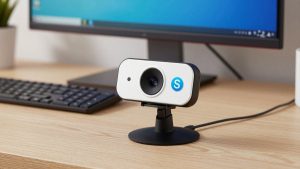
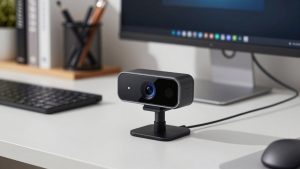
Best simple USB option: 1080p webcam with autofocus. If you want plug-and-play for a desktop Mac or shared family Mac, look for a 1080p USB webcam for Mac with autofocus, auto light correction, and a standard tripod thread. 1080p is enough for FaceTime, which compresses video anyway. Autofocus matters more than resolution because fixed-focus cheap cameras leave you soft if you lean back. Avoid bargain 1080p cameras without a lens cover or without Mac support listed on the box; many default to over-sharpened, waxy video on macOS.
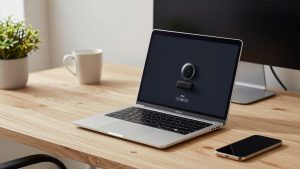
Best for a fixed home office: 4K webcam with a larger sensor. A good 4K webcam for Mac home office gives you cleaner 1080p output because it downsamples, plus room to crop and center yourself without moving the camera. This suits Mac mini users with a monitor-mounted setup and people who also use Zoom or Teams for work. The trade-off is price and USB load. Real 4K needs a direct USB port, not a cheap hub, and on older Macs it can stutter. Do not buy 4K for FaceTime alone unless you also care about recording or cropping flexibility.
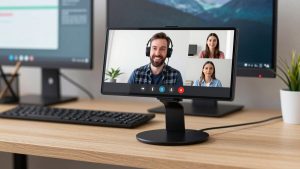
Best if you hate mounting gear: monitor with built-in camera. Apple’s Studio Display camera is convenient and supports Center Stage, but you are paying for a monitor, not just a camera. Its image quality was mediocre at launch and improved with software, but an iPhone still beats it. Only choose this route if you were already buying the display.
Quick comparison
| Option | FaceTime image quality | Best for | Main downside |
|---|---|---|---|
| Built-in MacBook camera | Good in daylight, noisy at night | Casual calls, travel | Soft detail, no framing control |
| iPhone Continuity Camera | Excellent, best low light | Most laptop users | Phone tied up, needs mount and power |
| 1080p USB webcam | Good, consistent | Desktop Mac, shared computer | Worse low light than iPhone, mic often poor |
| 4K USB webcam | Very good, allows cropping | Fixed home office, work + FaceTime | More expensive, needs good USB connection |
What to check before you buy
First, check macOS compatibility. Look for UVC compliance or explicit Mac support. Most modern USB webcams are driverless on Mac, but some budget models advertise Windows-only software for zoom, focus, and background effects. On Mac you will get basic video only, which is fine for FaceTime but frustrating if you paid for features you cannot adjust.
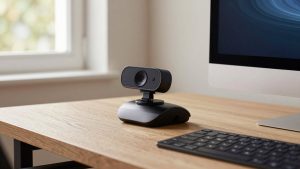
Second, think about mounting. Clip mounts work on laptop lids and most monitors, but they wobble on ultra-thin displays and cannot fix bad angle. If your monitor sits high, you will look like you are looming over people. A small tripod or stack of books behind the monitor often gives more flattering eye-level framing than the clip alone.
Third, test your lighting before blaming the camera. A $70 webcam with a window in front of you will beat a $200 webcam with a bright window behind you. FaceTime exposes for faces aggressively, so backlight turns you into a silhouette. The cheaper option is honestly fine if you fix light first. A simple desk lamp bounced off a wall does more than jumping from 1080p to 4K.
Common failure modes I see: USB hubs causing freezes, especially with 4K; wide-angle lenses that make a home office look cavernous; aggressive noise reduction that smears glasses and hair; and mics that pick up keyboard clatter. Buy from a listing with clear return terms. If you need a mount for the iPhone route, a basic iPhone MagSafe mount for MacBook is enough, you do not need the most expensive one.
FAQ
Can I use any USB webcam with FaceTime on Mac?
Yes, in most cases. If the webcam is UVC-compliant, macOS recognizes it without drivers and FaceTime lets you select it under Video. Features like Center Stage usually will not carry over, but basic video and mic will work.
Is 4K worth it for FaceTime?
Usually no. FaceTime compresses calls and most recipients watch on a phone or small window. 4K helps if you want to crop in, record locally, or use the same camera for work meetings. For pure FaceTime, a good 1080p camera with autofocus and decent lighting looks just as good.
Why does my external webcam look worse than my iPhone?
Sensor size. Phones have much larger sensors and stronger image processing than most webcams. USB webcams win on convenience for a desk setup, not on raw image quality. If quality is the priority and you already own a recent iPhone, use Continuity Camera.
Why is my FaceTime video choppy with a new webcam?
Plug it directly into your Mac instead of a hub, close other camera apps, and drop the resolution to 1080p in the camera’s app if available. On older Macs, 4K plus background blur plus screen sharing can overload USB bandwidth or the CPU.