Last Updated: October 18, 2026
📄 In This Review
What proctored exams actually check
Most proctored exam platforms — ProctorU, Examity, Honorlock, Respondus LockDown Browser, Proctorio — do not need 4K or cinematic color. They need three things to work without flags: your face stays in frame and in focus, your ID is readable when you hold it up, and your audio is clear enough that the proctor does not ask you to repeat yourself.
That is why people fail the equipment check. Common reasons are autofocus hunting during the room scan, a wide-angle lens that makes an ID unreadable, a dim room that turns the image to noise, and a laptop mic that picks up keyboard and fan noise. A boring, stable 1080p webcam with good autofocus and a decent mic solves 90% of this.
Before you buy, check your school or testing service rules. Some require a 360-degree room scan with an external camera you can pick up and turn around. Some require you to stay on a built-in laptop camera. If a handheld room pan is required, do not buy a fixed monitor-mounted camera with a short cable. Get a webcam with a 5-6 foot cable or a detachable mount you can lift.
What to look for
See also: Best Monitor for MacBook Air: Two USB-C 4K Screens and Six Adapter-Dependent Alternatives • Best Monitor for MacBook Pro: Eight Listings Sorted by Cable, Sharpness and Scaling
Resolution matters less than focus and low-light handling. For exams, 1080p at 30fps is the sweet spot. It is sharp enough for ID checks, works on weak school laptops, and does not overload proctoring software. 720p can pass, but ID text gets blurry and proctors are more likely to stop you.
Autofocus is worth paying for. Fixed-focus webcams are fine if you sit perfectly still at a desk, but they go soft when you lean in to show ID or lean back during a long test. Autofocus keeps you and the ID card sharp without you thinking about it. Look for autofocus plus auto light correction.
Field of view should be 78 to 90 degrees. Wider than 95 degrees pulls in more background and makes your face smaller, which can trigger “face not visible” warnings on some auto-proctoring tools. Narrower than 70 degrees is hard to aim on a laptop and easy to drift out of frame.
Microphone quality matters because the live check-in is verbal. Dual noise-reducing mics are enough. You do not need a separate USB mic for an exam — in fact, many proctors prefer you use the webcam mic so audio and video stay in sync.
Mac and laptop compatibility is usually plug-and-play over USB-A, but newer MacBooks need a USB-C adapter or a USB-C webcam. Respondus and some lockdown browsers also block virtual camera software like OBS, Snap Camera, and background effects. Use the webcam’s native feed with no filters during the test.
Quick comparison
| Type | Best for | Focus | Trade-off |
|---|---|---|---|
| Basic 1080p fixed-focus | Tight budget, bright room, short exam | Fixed | Cheapest, but ID close-ups can blur |
| Mid-range 1080p autofocus | Most students, ID checks, dim dorms | Autofocus | Best pass rate for the money |
| Business 1080p with long cable | Room scans, desktop + laptop setups | Autofocus | Costs more, bulkier mount |
| 4K autofocus | Shared webcam for work + exams | Autofocus | Overkill for exams, heavier on old laptops |
What to buy
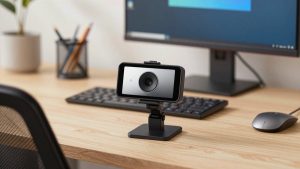
Best for most students: mid-range 1080p autofocus webcam. This is the category with models like the Logitech C920s and similar 1080p autofocus cameras from Anker and Dell. You get reliable autofocus for ID checks, 78-degree framing that keeps you centered, and a privacy shutter. Failure mode is minimal: in very dark rooms the image gets grainy, so add a $15 desk lamp in front of you rather than behind you. If you take 1-3 proctored exams per semester on a laptop, stop here. The cheaper fixed-focus option is fine only if your room is bright and you will not need to do a handheld room scan.
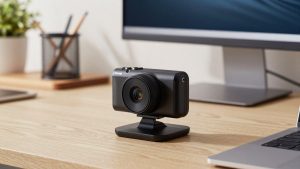
Best if you need room scans: business webcam with detachable mount. Look at the Logitech C930e class of 1080p business webcams with a wider 90-degree lens and a longer cable and tripod thread. You can unclip it from the monitor, hold it up to show your desk, and pan the room without dragging your laptop around. Trade-off: the wider view makes your face smaller, so sit a little closer than usual during the exam. This suits desktop users, nursing / certification test-takers, and anyone whose proctor explicitly asks for a 360-degree scan.
Best if this is also your work webcam: 4K or high-end 1080p with great mics. A camera like the Logitech Brio 500 series gives you sharper video for daily Zoom calls and excellent auto-light correction for evening study sessions. For exams it will usually be downscaled to 1080p or 720p by the proctoring tool anyway, so you are not buying it for the exam — you are buying it because you will use it 5 days a week for work. Failure mode: on older laptops 4K mode can stutter or overheat the CPU. Set the software to 1080p for exam day. Do not buy 4K just to “look clearer” to a proctor; it will not reduce flags.
Skip anything that relies on manual focus rings, beauty filters, or 60fps gaming features. Manual focus is one more thing to get wrong under stress, and filters can get you flagged for obscured face detection. A physical privacy shutter is useful after the exam, but leave it open and remove the lens cap well before check-in.
Setup that prevents flags
Do your equipment check in the same chair, light, and USB port you will use on test day. Plug directly into the laptop, not a dock. Close Teams, Zoom, and OBS so the proctoring browser actually gets the camera. In Windows Settings / macOS System Settings, confirm the external webcam is selected for both camera and microphone.
Light your face from the front. Put a lamp or window in front of you, not behind you. Backlight is the number one reason for “we can’t see you” delays. Frame from mid-chest up, with eyes in the top third. Test holding your ID up at arm’s length — you should be able to read the name and photo on the preview without freezing.
If you use a MacBook with only USB-C, bring the adapter to the test and practice the room scan with the webcam unmounted. Many students discover too late that their cable is too short to reach the door and desk in one pan. A small tripod helps, but your hand is fine if the cable reaches.
FAQ
Can I just use my laptop’s built-in webcam?
Yes, if it passes the system check and your room is bright. Built-ins are usually 720p with small sensors, so external 1080p webcams fail less often on ID readability and low light. If your school allows external cameras, a mid-range 1080p autofocus model is a worthwhile upgrade.
Do I need 4K for a proctored exam?
No. Most proctoring platforms compress to 720p or 1080p. 4K does not help you pass and can cause lag on older laptops. Buy 4K only if you also want better quality for work calls.
What if my proctor requires a room scan?
Get an external USB webcam you can lift off the monitor, with at least a 5-foot cable. Practice unclipping it and panning slowly. Fixed built-in laptop cameras force you to pick up the whole laptop, which risks disconnecting power or knocking the camera out of focus.
Why does my webcam work in Zoom but not in the exam browser?
Usually because another app is holding the camera, or the lockdown browser is blocking virtual cameras and background blur. Quit Zoom, Teams, OBS, and effects apps, then select the USB webcam directly in the exam check. Restart the browser if the preview stays black.