Last Updated: October 18, 2026
If you are shopping for a high def computer camera, ignore the big resolution number on the box for a minute. For work calls, what looks “HD” on Zoom, Teams, or Meet has more to do with lens quality, autofocus, low-light handling, and your internet connection than whether it says 1080p or 4K. I have tested cheap laptop webcams next to $150 externals in the same home office, and the difference is rarely just sharpness.
Here is how to pick the right one without overpaying for specs you will never use.
📄 In This Review
What “high def” actually means for a computer camera
High def on a computer camera usually means 720p, 1080p (Full HD), or 2160p (4K). That is the pixel count of the sensor output, not the quality you will actually send.
Most video apps compress your feed aggressively. Zoom in Gallery View often drops you to 720p or lower to save bandwidth, even if you own a 4K camera. Teams does the same on group calls. So a clean, well-exposed 1080p signal almost always looks better to coworkers than a noisy 4K signal that gets crushed by compression.
Think of resolution as a ceiling. It does not guarantee you will hit it. A good 1080p camera with a decent lens and fast autofocus will look sharper on a real call than a cheap 4K camera with slow focus and bad white balance.
1080p vs. 4K for work calls
See also: Best Monitor for MacBook Air: Two USB-C 4K Screens and Six Adapter-Dependent Alternatives • Best Monitor for MacBook Pro: Eight Listings Sorted by Cable, Sharpness and Scaling
For most home office workers, 1080p at 30fps is the sweet spot. It is sharp enough for face-to-face calls, screen-share-plus-camera layouts, and recording Loom-style updates. It also works better on older laptops and MacBook Airs because it uses less CPU and USB bandwidth.
4K makes sense in three specific cases: you want to crop or digitally zoom without getting blurry, you record video to edit later, or you present products, documents, or whiteboards close to the camera. If you just sit at a desk and talk, 4K will not make you look more professional. Good lighting will.
| Resolution | Best for | Trade-off | Who should buy it |
|---|---|---|---|
| 720p built-in | Quick calls on the go | Soft image, poor low light, no framing control | Students and anyone who takes 1-2 calls per week |
| 1080p external | Daily Zoom / Teams work | Needs decent lighting to look its best | Most remote workers, managers, job seekers |
| 1440p (QHD) | Sharper image without 4K file sizes | Fewer options, some apps downscale it anyway | Mac users who want a middle ground |
| 4K external | Cropping, streaming, recording | Higher price, more CPU load, needs USB 3.0 | Creators, trainers, and presenters |
What matters more than resolution
After testing cameras in a dim spare bedroom and a bright office, these four things changed image quality more than going from 1080p to 4K:
1. Autofocus speed. Cheap fixed-focus cameras keep your face soft if you lean in and out. Look for fast autofocus if you move, gesture, or hold things up to the camera. Failure mode: hunting focus that pulses in and out during calls. If reviews mention that, skip it.
2. Low-light performance. Most home offices are darker than you think, especially for 8 a.m. calls. A larger sensor and f/2.0 or wider aperture helps more than extra pixels. If your image is grainy, add a $25 desk lamp behind your monitor before you buy a new camera.
3. Field of view. 65 to 78 degrees is ideal for one person at a desk. It frames head and shoulders without showing your whole messy room. Wider 90-degree cameras are good for two people or small conference huddles, but they make a solo speaker look small and distant.
4. Microphone and mounting. Even “high def” cameras often have thin, echoey mics. Plan on using earbuds, a headset, or a USB mic for important calls. Also check the clip: some mounts slip on thin laptop lids or thick external monitors.
Built-in vs. external: when to upgrade
MacBook and most modern Windows laptop cameras have improved to 1080p, but they are still small sensors stuck above a thin screen. They struggle in backlight and low light, and you cannot adjust the angle without moving the whole laptop.
Stay with your built-in camera if your calls are short, your room is bright, and no one has complained. The cheaper option is fine here. Spend the money on light and a stable internet connection instead.
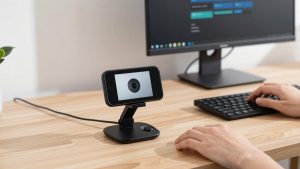
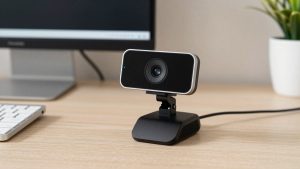
Buy an external camera if you take calls daily, you interview or lead meetings, your built-in image is noisy or washed out, or you use an external monitor with the laptop closed. An external 1080p webcam for laptop video calls is the most practical upgrade for most people: plug-and-play over USB, better color, and a privacy shutter.
Which type to buy for a home office
For general remote work, get a 1080p camera with autofocus, dual mics, and a 65-78 degree field of view. It will look sharp on Zoom and Teams, run cool on older machines, and cost half what most 4K models cost. Look for a physical privacy shutter and tripod thread – both are genuinely useful if you work from home.
For Mac setups, check macOS compatibility specifically. Some Windows-focused cameras lose features like background blur controls or firmware updates on Mac. A basic UVC-compliant Mac compatible 1080p webcam that works without extra software is less hassle than a feature-packed camera that needs a Windows app to unlock 4K.
For presenting, teaching, or recording, consider 4K or at least 1440p with digital zoom. You can frame wider and crop in post without turning text to mush. Just know the trade-offs: you will need good light, a USB 3.0 port, and a laptop from the last 3-4 years to avoid stutter. A 4K webcam with autofocus and privacy shutter suits trainers and small business owners who record demos, not someone who just needs to look clear in standup.
Common failure modes to watch for: cameras that overheat and drop frames after 40 minutes, mics that pick up keyboard clatter, over-aggressive auto-exposure that blows out windows behind you, and wide-angle distortion that bends bookshelves. Sitting facing a window or lamp, 2-3 feet from the camera at eye level, fixes more complaints than any upgrade.
FAQ
Is 1080p enough for Zoom and Teams?
Yes for almost everyone. Both apps compress video heavily in group calls, so a clean 1080p feed looks HD to other people. Only upgrade to 4K if you crop, zoom, or record for editing.
Why does my HD webcam look blurry?
Usually low light, a dirty lens, slow autofocus, or limited upload bandwidth. Wipe the lens, add light in front of you, sit still for focus lock, and test with HD enabled in app settings. If it is still soft after that, the sensor or lens is the limit.
Do I need to install software for an external webcam?
Most 1080p cameras are plug-and-play on Windows and Mac via USB. Optional vendor software adds framing, zoom, and firmware updates, but avoid cameras that require it just to get basic 1080p.
Will a 4K webcam work on an older laptop?
Sometimes, but it may default to 1080p or stutter. 4K needs USB 3.0, a recent CPU, and good lighting. On a 5+ year old laptop or MacBook Air, a quality 1080p camera will be more reliable.
Related Reviews & Guides


Best Routers for Home Office in 2026: Compared and Ranked

Mesh Netgear (2026 Guide)