Last Updated: October 18, 2026
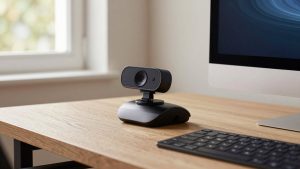
Macs have decent built-in cameras on paper, but in practice they fall apart in home offices. Fixed angle, no height adjustment, noisy image in warm lamplight, and you are stuck staring slightly off-center on an external monitor setup. A good USB camera fixes framing and low-light handling without any driver hassle, because on macOS most modern webcams are truly plug-and-play.
For work calls, you do not need the most expensive sensor. You need reliable autofocus, correct exposure on faces, a microphone that does not pick up the whole room, and a mount that stays put on a Studio Display, iMac, or laptop lid. That is a different checklist than streaming or content creation.
📄 In This Review
What Macs actually need from a USB camera
macOS handles USB Video Class (UVC) cameras natively. If a box says no driver required for Mac, believe it. Where people get into trouble is USB hubs, long extension cables, and camera utility software. A camera that works fine plugged directly into a MacBook Air can stutter or drop to lower resolution through an underpowered dock. If your desk setup relies on a single-cable dock, plug the camera into the Mac once first to confirm baseline performance.
The other Mac-specific issue is permissions and app control. Zoom, Teams, Meet, and FaceTime will ask for camera access under System Settings > Privacy and Security. Many webcam settings like zoom, framing, or background blur live inside the calling app or the vendor’s Mac utility, not in System Settings. If you want to set it and forget it, prefer a camera with physical controls for privacy shutter and decent auto defaults, so you are not opening another app before every meeting.
Picks at a glance
See also: Best Monitor for MacBook Air: Two USB-C 4K Screens and Six Adapter-Dependent Alternatives • Best Monitor for MacBook Pro: Eight Listings Sorted by Cable, Sharpness and Scaling
For most desk workers, a solid 1080p camera with good autofocus beats a cheap 4K camera with a small sensor and aggressive sharpening. 4K makes sense if you present a lot, crop in, or want head-and-shoulders framing from farther back.
| Category | Resolution to look for | Best for | Trade-off |
|---|---|---|---|
| Everyday 1080p workhorse | 1080p at 30 or 60fps | Zoom and Teams all day, external monitors | Less cropping room than 4K |
| Sharper 1440p / 4K presenter | 1440p or 4K, autofocus | Leading meetings, teaching, demos | Costs more, needs good light to look its best |
| Budget plug-and-play | 1080p, fixed or basic autofocus | Second desk, kids’ Mac, occasional calls | Weaker low light, narrower useful range |
| MacBook lid upgrade | 1080p compact with tripod thread | Laptop-first workers, travel | Smaller mics, easier to knock loose |
Best everyday option: proven 1080p with autofocus
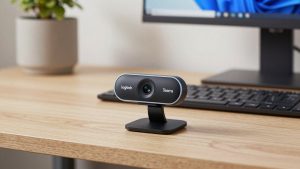
This is the safe buy for 80 percent of Mac home offices. Look for 1080p with real autofocus, dual noise-reducing mics, a physical privacy shutter, and a mount that fits both a thick iMac bezel and a thin laptop lid. In normal home light it looks cleaner than Apple’s older 720p FaceTime cameras and holds exposure better when you have a window behind you.
The failure mode here is buying fixed-focus to save money. Fixed-focus is fine at exactly one distance. Move a little closer with a laptop on a stand and you look soft for the whole call. Autofocus hunts less than it used to, and on a desk where you do not move much, it locks and stays. If you browse for this type, start with a 1080p USB webcam with autofocus for Mac and filter for UVC, Mac compatibility, and a shutter.
Who suits this: anyone on Zoom, Meet, or Teams 3 to 6 hours a day, especially with an external monitor where the built-in camera points at the ceiling or requires an awkward side glance. The cheaper fixed-focus option is fine only if you sit at the same distance every time and have decent frontal light.
Best for presenting: 4K or high-end 1440p with better glass
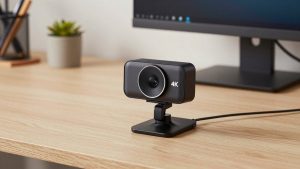
If you lead calls, record trainings, or sit 3 to 4 feet from the camera, resolution and lens quality matter more. A good 4K USB camera gives you sharper text on a whiteboard, cleaner digital zoom, and more headroom to crop to center yourself without turning to mush.
Trade-offs are real. Cheap 4K sensors can look worse than good 1080p in dim rooms because they spread limited light across more pixels, then compensate with noise reduction that makes skin look waxy. They also run warmer and can throttle on long calls. To avoid that, prioritize large pixels, autofocus, and 30fps stability over 60fps marketing. Good lighting helps more than extra pixels: a $25 desk lamp bounced off a wall does more than jumping from 1440p to 4K.
Look at a 4K USB webcam for Mac with autofocus if you present weekly, teach, or need to look crisp when clients screenshot your feed. Stick with 1080p if your office is dim and you will not add light. You will look better and save $60 to $100.
Best budget and second-desk option: simple 1080p
A basic 1080p camera is perfectly usable for check-ins, school calls, and a second Mac. Image will be flatter, colors less accurate, and low light grainier, but voice intelligibility is what matters for short meetings. Do not expect it to rescue backlighting or a dark corner office.
Common failure modes: mushy focus past 5 feet, mics that pick up keyboard clatter, and mounts that slide on curved monitors. Test the clamp on your actual display. If it wobbles, use the tripod thread with a small desktop tripod sitting behind the monitor; it is steadier and gives better eye level anyway. A basic budget 1080p webcam with privacy shutter is often enough for a guest room Mac mini or a kid’s homework desk.
Be honest about use: if you take two calls a week in a bright room, buy cheap and spend the savings on a lamp. If you are client-facing daily, the mid-range autofocus camera pays for itself in fewer “sorry, can you repeat that” moments.
Setup mistakes that make any USB camera look bad on Mac
Most bad webcam image on Mac is not the sensor. It is placement and light. Put the camera at or slightly above eye level, within 2 to 3 feet. Face a window or lamp; do not sit with a bright window behind you unless the camera has strong HDR. In Zoom and Teams, turn off “adjust for low light” auto-boost if you look glowing and grainy, then add frontal light instead.
For audio, USB webcam mics are usable in a quiet room at arm’s length. Past that, they pick up echo and room reverb that Mac noise removal cannot fully fix. If your room is hard-surfaced or you sit far back, use AirPods or a desk mic and set the webcam for video only in the calling app. Also check Activity Monitor if video stutters: two apps fighting over the camera, or a 4K stream through a USB 2.0 hub, will drop frames.
FAQ
Do I need drivers or software on Mac?
Usually no. Choose a UVC-compliant camera that lists Mac support and it should appear in FaceTime, Zoom, Teams, and Meet immediately. Vendor software is optional and mostly for firmware updates, zoom presets, or background effects.
Is 4K worth it for Zoom and Teams?
Often not. Most calls transmit at 720p to 1080p anyway. 4K helps if you crop, sit farther away, or record locally. In dim light, a quality 1080p camera with larger pixels can look cleaner than a cheap 4K model.
Why does my USB camera look dark on my Mac?
Backlighting and underpowered USB ports are the usual causes. Face your main light source, plug directly into the Mac to test, and avoid long passive extension cables. If exposure is still off, adjust it in your calling app rather than adding another utility.
Should I just use Continuity Camera with iPhone instead?
For occasional calls it is excellent and sharper than many webcams. For all-day desk work, a dedicated USB camera is more reliable: no battery drain, no mount falling off, no incoming call interrupting video, and no overheating on long meetings.