Last Updated: October 18, 2026
If you spend most of your day in Microsoft Teams, you do not need a streamer camera. You need something that starts fast, looks clean in bad office light, keeps you in focus when you lean in, and does not fight Teams for control of exposure and mic.
After testing webcams in real home offices and huddle rooms, the pattern is consistent: most Teams problems are not resolution problems. They are autofocus hunting, washed-out backlight, tinny mics, and narrow field of view that cuts off a second person. Buy for those, not for the biggest spec number.
📄 In This Review
What Teams actually needs
Teams compresses video aggressively, especially in large meetings or on weak connections. A clean 1080p image with good exposure will look better to other people than a noisy 4K image. What matters is the lens and processing: auto exposure that handles a window behind you, white balance that does not turn you orange under warm bulbs, and focus that locks once instead of pulsing every 20 seconds.
Audio matters more. Teams has decent noise suppression, but it cannot fix a distant, echoey laptop mic. If you sit 2-3 feet from the screen in a quiet room, a webcam with dual mics is usually fine. If you are in a shared space, near a kitchen, or more than 5 feet away, plan on a separate USB headset or speakerphone. That upgrade makes a bigger difference than jumping from 1080p to 4K.
Compatibility is simple on Windows and Mac: almost every modern USB webcam is UVC plug-and-play and shows up in Teams under Settings > Devices in seconds. The friction comes from vendor software. Some cameras need the brand app to enable background blur replacement, auto-framing, or firmware updates. Check whether that app works on Mac, because several business features are Windows-only.
The 4 types that cover most people
See also: Best Monitor for MacBook Air: Two USB-C 4K Screens and Six Adapter-Dependent Alternatives • Best Monitor for MacBook Pro: Eight Listings Sorted by Cable, Sharpness and Scaling
1. Use your laptop camera if: you take 1-2 calls a day, you are usually alone, and your laptop is from the last 3 years. The failure mode is well known: fixed position looking up your nose, soft detail in low light, and lots of keyboard noise. A cheap laptop riser plus a desk lamp in front of you fixes 60% of it for free. Do not buy a new webcam just for sharpness if lighting is your real problem.
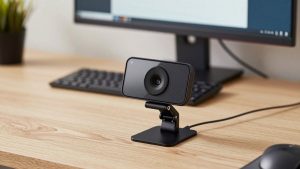
2. Basic 1080p USB webcam: This is the right buy for most full-time Teams users. You get autofocus, a wider 78-90 degree lens, dual mics with some noise reduction, and a privacy shutter. Look for 1080p30 with good low-light correction, not inflated still-photo megapixels. A basic 1080p webcam with microphone for Teams is often all a home-office worker needs, especially on a docked laptop with an external monitor where the built-in camera points at the wrong angle.
Trade-off: cheap 1080p models often over-sharpen and blow out highlights. If you sit with a bright window behind you, you will look like a silhouette unless the camera has backlight compensation or HDR. Read reviews specifically about window backlight, not just daylight image samples.
3. 4K business webcam with auto-framing: Worth it if you move around, whiteboard, or share a desk where distance changes through the day. The sensor crops in to keep you centered without looking pixelated on Teams, and background blur looks cleaner because there is more detail to separate you from the room. A 4K webcam with autofocus and auto-framing for Teams also helps if you mount it on top of a 32-inch monitor where 1080p looks soft at arm’s length.
Failure modes: higher price, more CPU load, and heat on long calls. Some run warm after 90 minutes and drop frames on older MacBook Airs. If your machine is 5+ years old, a clean 1080p camera will be more reliable than 4K. Turn off the vendor’s extra effects if Teams starts lagging.
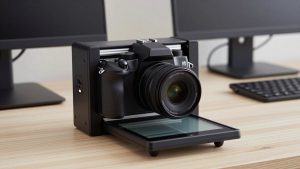
4. Small-room conference camera: For 2-6 people around a table using one Teams Room or laptop. You need 110-120 degree field of view, 6-12 foot mic pickup, and ideally speaker tracking or preset views. A single personal webcam will cut off the people on the ends and sound distant. For that setup, look at a wide-angle conference camera for Teams small rooms with built-in speakerphone rather than trying to make a desk webcam work.
Trade-off: conference cams look worse for a solo close-up than a good desk webcam. They are optimized for distance. Do not buy one for personal use because the wide lens makes you small and reveals the whole messy room.
Quick comparison
| Setup | Typical spec | Field of view | Mic range | Best for |
|---|---|---|---|---|
| Laptop built-in | 720p-1080p, fixed focus | 70-75 deg | 1-2 ft, noisy | Light use, travel |
| Basic 1080p USB webcam | 1080p30, autofocus | 78-90 deg | 3-5 ft, okay in quiet room | Daily 1:1 Teams calls |
| 4K business webcam | 4K30 / 1080p60, HDR | 80-95 deg + auto-frame | 4-6 ft, better noise cut | Presenters, bad light, external monitor |
| Conference cam | 4K sensor, wide lens | 110-120 deg | 8-15 ft, with speakerphone | Huddle room, 2-6 people |
Pick by your setup, not by price
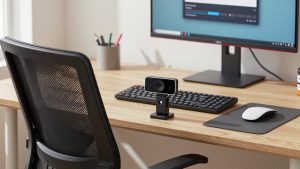
Home office, solo, external monitor: Get a basic 1080p webcam with a monitor mount and privacy shutter. Mount it at eye level on the monitor you actually look at during Teams calls, not the laptop off to the side. Eye contact will improve more than any sensor upgrade. If your room is dim after 4pm, prioritize a model noted for low-light performance over extra resolution.
Hot-desking or shared family space: Prioritize fast autofocus and noise-reducing mics. You will plug/unplug 5 times a day, so skip anything that requires a login or always-on background app. A simple UVC camera with on-device controls is less likely to fail right before a standup.
Manager who presents and records: Go 4K business class for the better lens, HDR backlight handling, and auto-framing. Keep it at 1080p output in Teams if your upload is under 10 Mbps – you still get the benefit of oversampling without stutter. This is also the case where 60 fps helps if you gesture a lot, but only if your PC can handle it.
Mac users: Verify three things: native Apple Silicon app for settings, mic that does not need drivers, and that auto-framing can be turned off. macOS Center Stage on newer Macs can fight with a webcam’s own tracking and cause double-cropping. Pick one tracking method and disable the other.
Setup mistakes that make any camera look bad
Most returns we see are not defective cameras. The camera is on top of a 27-inch monitor 30 inches away with an overhead light creating raccoon shadows. Fix light first: put a soft white light source in front of you, raise the camera to eye level, and sit 24-36 inches away for a desk webcam. In Teams, go to Settings > Devices > Camera preview and turn off Touch up and auto-brightness before judging quality, then add them back one at a time.
For audio, set the correct mic in Teams separately from the speaker. Common failure: video from webcam, audio still on laptop across the room. If echo appears when you add a second person, lower speaker volume to 60% and move the camera mic closer – Teams echo cancellation fails when the mic and speaker are at max in a hard-walled room.
FAQ
Do I need 4K for Teams?
No, for most 1:1 calls. Teams often delivers 720p-1080p to viewers. 4K helps if you want auto-framing crop without softness, or you sit far from a large monitor. If your internet or PC is older, a good 1080p camera will look more stable.
Why do I look dark with a window behind me?
The camera is exposing for the bright window. Move 90 degrees to the window if you can, close blinds, or enable backlight compensation / HDR in the camera app. A cheap front light fixes it faster than a new camera.
Can I use a webcam mic instead of a headset for Teams?
Yes if you are alone in a quiet, carpeted room within 4 feet. Use a headset or USB speakerphone if there is echo, typing noise, HVAC hum, or other people talking nearby. Your voice clarity matters more to coworkers than video sharpness.
Will any USB webcam work with Teams on Mac?
Almost all will show video immediately. What may not work is the extra software for zoom presets, firmware updates, and AI framing, which is sometimes Windows-only. Check Mac support on the product page before paying extra for those features.