Last Updated: October 18, 2026
If you use a desktop computer for work, you probably do not have a webcam at all. Most desktop monitors and towers ship without one, so you are starting from zero. That is actually an advantage: you get to pick placement, image quality, and microphone setup instead of living with a thin laptop camera stuck in the bezel.
For office work, the job is simple. You need to look sharp on Zoom, Teams, or Meet, be heard clearly without a headset if you want, and have something that just connects and works every morning. You do not need cinematic video. You need reliability, decent low light, and a cable long enough to reach your tower.
📄 In This Review
What matters more on a desktop than a laptop
Laptops put the camera 18 inches from your face with a short internal connection. Desktops add distance and variables. Your monitor may be thicker, curved, or mounted on an arm. Your tower may sit on the floor across the room. Your room lighting is often overhead, which creates harsh shadows.
That changes priorities. A sturdy clip that actually grips a desktop monitor matters more than ultra-thin design. A 5 to 6 foot USB cable matters more than a fancy feature you will never open. And manual control over exposure matters, because office fluorescents and a bright window behind you will fool auto-exposure every time.
The most common failure mode I see with desktops is USB reach and ports. People buy a nice camera with a 3-foot cable, then add a cheap extension to reach a tower under the desk and get disconnects, frozen video, or a mic that cuts out. If your PC is on the floor, measure first and buy a camera with a long attached cable or use a powered USB hub, not a dollar-store extender.
Resolution and focus: where not to overspend
See also: Best Monitor for MacBook Air: Two USB-C 4K Screens and Six Adapter-Dependent Alternatives • Best Monitor for MacBook Pro: Eight Listings Sorted by Cable, Sharpness and Scaling
For most desk work, a good 1080p camera with solid autofocus and good color is enough. Your coworkers watch you in a small tile, often scaled down to 720p or less by Zoom or Teams anyway. What they notice is not pixel count, it is whether your face is in focus, not blown out, and not noisy in a dim room.
Fixed-focus 1080p cameras are cheapest and fine if you sit in one spot 2 to 3 feet away. They have no focus hunting, which is nice. The trade-off is that if you lean back to use a whiteboard, hold up a document, or move closer, you go soft. Autofocus fixes that but can pulse or hunt in low light, especially cheaper models.
1440p and 4K help in two specific cases: you want to crop or digitally zoom without falling apart, and you present or teach and want crisper detail. They also give you more headroom if you use background blur, which crops and processes the image. The downside is real: larger files, more CPU load on older desktops, and more heat. Many 4K cameras run warm and will step down frame rate if they overheat on long calls.
Be honest about your PC. If you have a 5-plus year old office desktop with a spinning hard drive and 8GB of RAM, a basic 1080p autofocus webcam for desktop will give you fewer headaches than a 4K camera running full resolution. If you have a modern machine and you are on camera all day for clients, stepping up makes sense.
| Type | Best for | Strengths | Weaknesses |
|---|---|---|---|
| 1080p fixed-focus | Budget home office, kids homework PC | Cheap, no focus hunting, low CPU load | Soft if you move, weak in dim rooms |
| 1080p / 1440p autofocus | Most remote workers | Stays sharp at different distances, better low light | Can hunt for focus, quality varies a lot by brand |
| 4K with digital zoom and framing | Presenters, managers, creators on desktop | Crop without mush, better for blur backgrounds | Costs more, needs good light and modern PC, runs warm |
Lens, field of view, and low light
Field of view is how much of the room shows. For a desktop, 65 to 78 degrees is ideal for one person. It frames head and shoulders without showing your whole office. Wider 90 to 95 degree lenses suit small conference desks with two people, but for solo calls they make you look distant and show clutter. Some cameras let you switch between narrow and wide in software. That one setting is worth more than 4K for most people.
Low light is where cheap desktop cameras fall apart. A small sensor plus overhead office light equals grainy, waxy skin. Look for a larger sensor and a lens around f/2.0 to f/2.4, and expect honest limits: no webcam fixes a dark room. If your face looks noisy, add a $20 desk lamp or cheap LED panel in front of you before you blame the camera. It makes a $40 camera look like a $120 camera.
A privacy shutter is almost mandatory on a desktop because the camera faces your room all day. A physical slider or twist cap is better than a software off switch you have to trust. Tripod thread is also useful. Desktop monitors wobble when you type, and a tiny separate tripod on the desk eliminates that shake for people who present a lot.
Do you need the microphone?
Almost every desktop webcam includes dual microphones. They are fine for quick calls in a quiet room, and they save you from wearing a headset for internal standups. They are not fine for a noisy house, echoey office, or 6 hours of client calls.
The failure mode is echo and room noise. Desktop speakers plus webcam mic in the same space creates echo unless Teams or Zoom cancels it well. If people say you sound distant or they hear themselves back, move the camera closer, lower your speakers, or switch to a headset or USB mic. Do not buy a more expensive webcam just for a slightly better mic. A separate $30 USB headset will beat any webcam mic.
Setup on Windows PCs and Mac desktops
On Windows towers and all-in-ones, setup is usually plug and play over USB-A. If you only have USB-C on a newer small-form PC or Mac Mini / Mac Studio, check what is in the box. Many cameras still ship USB-A only, so you will need an adapter or dock. For Mac desktops, also check that the vendor supports macOS for firmware updates and field-of-view controls. Some camera utilities are Windows-only, which leaves you stuck at default settings on a Mac.
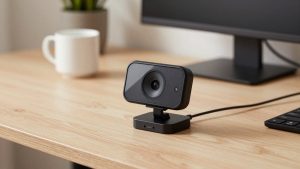
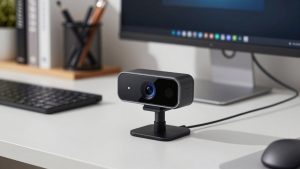
Mounting is straightforward but test it. Clip it centered on the monitor at eye level. If you use a curved ultrawide or a very thin monitor, some heavy cameras tilt forward. Tighten the rear foot and leave the cable with a little slack so it does not pull the camera down. Plug directly into the back of the tower or into a powered hub, not into an unpowered monitor hub plus extension if you can avoid it.
Once it is mounted, open your actual meeting app and lock settings. Set 1080p, 30 fps, turn off auto-framing if it wanders, and set field of view to narrow for solo calls. Auto-framing that follows you sounds smart but on desktops it often zooms at the wrong moment when someone walks behind you.
What to buy for a desktop
If you want cheap and done: get a 1080p fixed-focus camera with a privacy shutter and dual mics. It suits kids, a shared family PC, or a second computer you use twice a week. Do not expect miracles in a dark basement office, but in daylight it is perfectly professional.
If you work from home full-time: get a mid-range 1080p or 1440p autofocus camera with software controls for zoom, field of view, and exposure. This is the sweet spot for most people. A model with good low-light handling and a 1440p webcam with privacy shutter and dual mic will cover daily standups, interviews, and client calls without taxing an older PC.
If you present, manage, or record: consider a 4K camera with digital zoom, background blur support, and a tripod thread. It makes sense when you are on camera for hours, need to crop to hide a messy room, or record training videos from your desk. Pair it with a lamp and, for long talk days, a dedicated headset. Shoppers comparing premium detail should browse 4K webcams for desktop computers with autofocus and check cable length, Mac software support, and heat reviews before choosing.
Skip extras like 60 fps, beauty filters, and AI gestures unless you know you will use them. For work calls at 30 fps, stability and color beat spec-sheet features every time.
FAQ
Does a desktop computer have a built-in camera?
Usually no. Towers and Mac Mini / Mac Studio have none, and most standalone monitors have none. A few all-in-ones and smart monitors do, but quality is often basic. A USB webcam is the normal fix.
Will any USB webcam work with my desktop?
Almost always yes on Windows 10/11 and modern macOS, with no drivers needed for basic video and mic. Advanced controls like zoom presets or background effects may need the vendor app, which is sometimes Windows-only.
Where should I mount the camera on a desktop monitor?
Centered on top, lens at or slightly above eye level, about 2 to 3 feet from you. If your monitor is very tall or on an arm, you may need to tilt it down slightly and add front light so your face is not in shadow.
Is 4K worth it for Zoom and Teams?
For most people, no. Those apps compress heavily and show you in a small window, so a clean 1080p image with good light looks the same. Buy 4K only if you crop, present, or record locally and have a PC that can handle it.