Last Updated: October 18, 2026
Facebook Live is forgiving in one way and brutal in another. It compresses everything to 720p or 1080p, so an expensive camera won’t look magically sharper once you’re live. But it punishes bad exposure, bad audio, and dropped frames mercilessly. If you’re choosing a camera for regular Lives from a home office, desk, or small studio, prioritize stable autofocus, clean low-light image, and a mic you can bypass.
For most people, a good USB webcam plugged directly into a laptop or Mac is the right answer. You don’t need a mirrorless camera, Cam Link, and dummy battery unless you’re already doing multi-camera YouTube production. A webcam is faster to start, works natively with Facebook in a browser, OBS, Ecamm Live, and StreamYard, and won’t overheat after 40 minutes.
📄 In This Review
What Facebook Live actually needs
Facebook re-encodes your stream. Even if you send 1080p at 6 Mbps, viewers on phones will see a softer image. That means sensor size and processing matter more than raw resolution. A clean 1080p image with good white balance will beat a noisy 4K image every time.
Three things cause most failed Lives: autofocus hunting, exposure pulsing when you move or a window changes light, and USB/Wi-Fi dropouts. Look for a webcam with reliable autofocus (not fixed focus if you move around), auto-exposure you can lock in software, and a standard USB-A or USB-C wired connection. Avoid going live over a weak Wi-Fi connection with a wireless action camera or phone as your only source unless you’ve tested it for a full 30 minutes.
Audio is half the decision. Facebook viewers will tolerate 720p video, they won’t tolerate echoey room audio. Every webcam mic sounds distant beyond about 3 feet. If you do talking-head Lives, plan on a separate USB mic or lav. Use the webcam for video, not for sound.
Quick comparison: which type fits you
See also: Best Monitor for MacBook Air: Two USB-C 4K Screens and Six Adapter-Dependent Alternatives • Best Monitor for MacBook Pro: Eight Listings Sorted by Cable, Sharpness and Scaling
| Type | Best for | Strengths | Weaknesses |
|---|---|---|---|
| Mid-range 1080p webcam | Desk Lives, Q&As, coaching | Cheap, plug-and-play, works on Mac/PC | Soft in low light, narrow field of view on some models |
| 4K webcam with large sensor | Solo host who crops/zooms, product demos | Sharper crop, better low light, digital PTZ | Costs more, needs good USB port and light to show benefit |
| PTZ / tracking webcam | Fitness, workshops, moving around | Auto-follows you, hands-free framing | Tracking can lose you, fan noise on some units, pricier |
| Mirrorless / DSLR as webcam | Established streamer, branded show | Best blur and low light, interchangeable lenses | Complex, needs capture card, overheating and battery limits |
Best options for Facebook Live
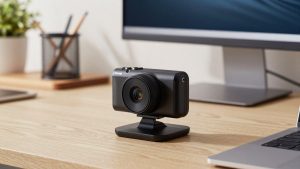
Best for most people: a proven 1080p autofocus webcam like the Logitech C920s. It’s not exciting, but it stays in focus, doesn’t pulse exposure wildly, and every live tool recognizes it. Field of view is about 78 degrees, which is tight enough to avoid showing your whole room but wide enough for two people squeezed at a desk. Low light is average, so add a $30 LED panel in front of you and it looks twice as expensive. If you only go live occasionally from a laptop in a home office, stop here. The cheaper option is genuinely fine.
Best upgrade for image quality: a 4K webcam with a larger sensor. Models in the Logitech Brio class and the Elgato Facecam class give you two real benefits for Live: cleaner 1080p after downscaling, and lossless-feeling digital zoom. You can shoot a little wide and crop to chest-up in OBS or Ecamm without the mush you get cropping 1080p. This helps if you demo products on a desk and want to punch in. Trade-off: you need to plug into a direct USB 3.0 port, not an unpowered hub, or you’ll get stuttering. And on Macs, check that the vendor’s tuning app supports macOS — some exposure and zoom controls are Windows-only or browser-based. Browse a current 4K webcam for streaming to compare sensor size and Mac software support before you buy.
Best if you move around: an auto-tracking webcam like the Insta360 Link or OBSBOT series. For fitness instructors, cooking demos, or workshop hosts who stand and walk to a whiteboard, tracking saves you from asking someone to operate the camera. The gimbal physically follows you, which looks smoother than digital auto-framing. Failure mode to know: backlight kills tracking. If you have a bright window behind you, it will hunt or lock onto the window. You also need to set tracking speed to slow — on fast settings it whips around and makes viewers dizzy. If you sit still 90% of the time, don’t buy tracking. You’re paying for motors you won’t use and adding a point of failure.
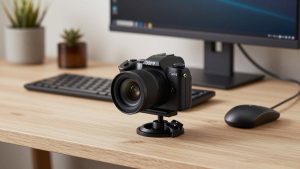
When a real camera makes sense: If you already own a Sony or Canon mirrorless camera and do a weekly branded show, using it as a USB webcam (many now have plug-and-play USB streaming mode) or via a capture card gives you real background blur and much better low light. But test run time. Many cameras overheat or shut off after 30-60 minutes in video mode, and autofocus set to wide-area will drift to the background mid-sentence. For Facebook Live specifically, the visible difference on a phone screen is smaller than you’d expect for the extra hassle.
Setup mistakes that ruin Lives
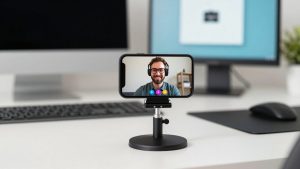
First is placement. Laptop webcams shoot up your nose and pick up keyboard noise. Put an external webcam at eye level, about arm’s length away, on a small tripod or monitor mount. If you use a autofocus webcam for Mac or PC, turn off auto white balance lock-in after you set lights. Many Lives start fine then go orange when a ceiling light warms up.
Second is light direction. Don’t rely on an overhead room light — it creates dark eye sockets. Face a window or put a soft LED panel 2-3 feet in front of you, slightly above eye level. You don’t need RGB studio gear. One key light and turning off a harsh backlight will do more than upgrading from 1080p to 4K.
Third is bandwidth and CPU. Close Dropbox sync, Zoom, and extra browser tabs. In OBS, stream 1080p at 30fps, not 60fps, for talking heads — Facebook will drop frames at 60fps on many accounts anyway. If your MacBook fans spin up and the image stutters, drop to 720p. Viewers prefer smooth 720p to choppy 1080p. For hosts who present standing, a PTZ webcam with auto tracking for streaming only works well if you also give it stable light and a direct USB connection.
FAQ
Do I need a 4K camera for Facebook Live?
No. Facebook typically delivers Live to viewers at 720p to 1080p. A good 1080p webcam with clean exposure looks as good as 4K to most viewers. Buy 4K only if you want to crop in for demos or want better low-light processing.
Why does my Facebook Live look blurry even with a good webcam?
Usually it’s low upload speed, poor lighting, or autofocus locked on the background. Test your upload — aim for at least 8-10 Mbps stable for 1080p. Add front light, set focus to single-person autofocus or manual at your seating distance, and stream wired ethernet if possible.
Can I use my MacBook built-in camera?
You can for occasional Lives, but external webcams are noticeably better in mixed office light and give you proper framing at eye level. Built-in mics also pick up fan noise. If you go live weekly, an external webcam and USB mic are worth it.
What’s the simplest reliable setup?
External 1080p or 4K USB webcam at eye level, one LED panel facing you, separate USB mic 6-12 inches from your mouth, laptop plugged in and on Do Not Disturb, streaming 1080p30 via OBS or directly in the browser over a wired connection. Test for 10 minutes privately before you go public.
Related Reviews & Guides
Best Ergonomic Office Chair for Writers
Best Virtual Camera for Zoom