Last Updated: October 18, 2026
If you need a camera that just works live — Zoom, Teams, Meet, Webex, or a class you teach from home — skip the public “live earthcam” sites. This is about the other kind of live webcam: the one on top of your monitor that has to look decent at 9am with bad light and no fiddling.
I’ve tested a lot of these in real home offices, on both Windows laptops and Macs. The pattern is consistent: a boring 1080p camera with good exposure beats a cheap 4K camera every time. What matters for live work is autofocus that doesn’t hunt, a mic that doesn’t pick up your keyboard, and a mount that doesn’t slide off a thin laptop lid.
📄 In This Review
Quick compare: what actually matters live
Don’t shop by megapixels. For live calls, sensor handling, focus type, and field of view matter more. Here’s how the common categories shake out:
| Type | Best for | Watch out for | When cheap is fine |
|---|---|---|---|
| Basic 1080p fixed-focus | Daily calls, laptop users | Soft image if you move; weak low light | Yes, if your room is bright and you sit still |
| 1080p autofocus with dual mics | Most home offices | Autofocus hunting on some units | Usually worth the step up |
| 4K autofocus | Presenting, teaching, recording while live | Needs good USB bandwidth and light; looks noisy in dark rooms | No, unless you will use the extra detail |
| Wide-angle 95-120 degree | Small rooms, two people in frame | Edge distortion, you look far away | Only if you need the width |
| Compact clip-on for MacBook / ultrabook | Travel, hot-desking | Flimsy mounts, tinny mics | Yes for backup use |
Everyday 1080p workhorses (1-4)
See also: Best Monitor for MacBook Air: Two USB-C 4K Screens and Six Adapter-Dependent Alternatives • Best Monitor for MacBook Pro: Eight Listings Sorted by Cable, Sharpness and Scaling
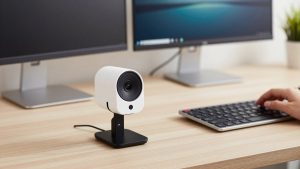
1. The basic fixed-focus 1080p stick. This is the one to buy if you just need to stop using a grainy 720p laptop camera. No autofocus to break, usually plug-and-play on Mac and Windows. Failure mode: if you lean in and out, you go soft. Who suits: desk workers who sit 2-3 feet from the screen in decent light.
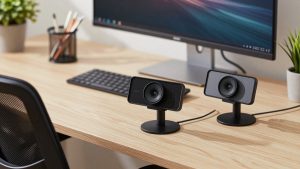
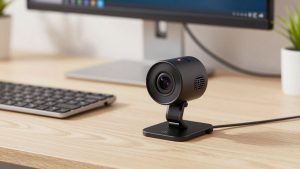
2. The 1080p autofocus upgrade. Same resolution, but it holds focus when you hold up a document or move around. Look for dual noise-reducing mics and a physical privacy shutter. If you can only spend a little more, spend it here instead of chasing 4K. Check current options for an 1080p autofocus webcam with dual mics — that category is the sweet spot for live work.
3. The Mac-friendly plug-and-play. Macs are picky about camera utilities. A lot of Windows-only tweaking apps don’t exist on macOS. For MacBook and Mac mini users, prioritize UVC-compliant cameras with no driver needed, USB-C or a solid USB-A to C adapter, and on-camera controls. Failure mode: you buy a camera that needs a Windows app to turn off auto-exposure, and you’re stuck with blown-out highlights on a Mac.
4. The laptop lid clip-on. Thin laptop lids and kickstands defeat big mounts. A light camera with a narrow foot and a short cable is better than a heavy 4K brick that tips backward. Sound will be thin — plan to use earbuds with a mic for important calls. This is also a good second camera to keep in a bag.
Sharper image for presenting live (5-7)
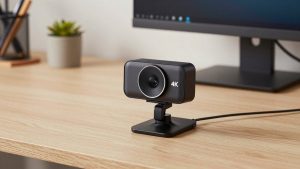
5. The 4K autofocus all-rounder. Useful if you present, teach, or record your calls. In good light you get crisper text and the ability to crop in slightly without falling apart. In bad light, many look worse than 1080p because the smaller pixels add noise. You also need a USB 3.0 port and decent CPU; on older laptops 4K can stutter. Be honest: if you only do internal standups, skip it.
6. The low-light winner. If your office is a dim corner or you take evening calls, prioritize a larger sensor and good auto-exposure over raw resolution. Look for models that advertise low-light correction and have a wide f/2.0-ish lens. Failure mode: aggressive noise reduction that makes your face look waxy. A cheap webcam with ring light for home office setup or a $25 desk lamp behind your monitor usually helps more than a sensor upgrade.
7. The whiteboard / demo camera. For live demos, you need fast autofocus and at least 75-degree field of view without fisheye. Fixed-focus cams frustrate here — every time you hold something up, it’s blurry. Mounting matters: a standard tripod thread lets you put it on a small tripod or arm and point it down at a desk. If this is you, avoid wide-angle-only models that make text unreadable at the edges.
Small rooms, teams, and hands-free (8-10)
8. The wide-angle two-person cam. If two people share a home office or you need to show more of the room, get 95-100 degrees, not 120+. Ultra-wide makes everyone look distant on a laptop screen and stretches faces at the edges. Test framing live before a real meeting — most people sit too far back with these.
9. The auto-framing camera. Some newer cameras follow you or keep you centered when you stand and pace. Handy for teaching and fitness coaching. Trade-off: the crop reduces quality, and panning can feel seasick to viewers. Turn sensitivity down. If you get motion sick watching them, your colleagues do too.
10. The mic-first pick. For live calls, audio decides whether you sound professional. A camera with dual mics, noise reduction, and a 3-6 foot pickup range is worth more than extra pixels. Failure mode: room echo and keyboard clatter. No built-in mic fixes a hollow room. If your space echoes, use a headset and buy the cheaper camera. Browse a basic 4K webcam for streaming and video calls only after you have audio sorted — video is secondary for comprehension.
What to check before you buy
Mount, cable, and shutter beat specs. Make sure the clip fits your monitor — curved ultrawides and thin MacBook lids reject a lot of mounts. You want at least a 5-foot cable for a desktop, a real shutter or lens cap, and a mute indicator you can see. For laptops and Macs, confirm USB-C compatibility in the box, not via a loose adapter.
Also set expectations: no webcam looks good backlit by a window. Face the window or put a lamp in front of you, keep the lens at eye level, and set Teams/Zoom to 1080p if your connection allows. A $40 camera in good light outperforms a $150 camera in a dark corner.
FAQ
Is 4K worth it for Zoom and Teams?
Usually no. Most calls are still delivered at 720p or 1080p, and 4K needs more light and CPU. Buy 4K only if you present, crop, or record locally while live.
Why do I look grainy even with a new webcam?
Almost always low light. Add frontal light, turn off a bright window behind you, and wipe the lens. If that doesn’t fix it, your USB port or meeting app may be downscaling the feed.
Do these work with Macs?
Most UVC webcams do — just plug in and select it in FaceTime, Zoom, or Teams. Avoid models that require a Windows-only app for basic settings like focus or exposure.
Should I use the webcam mic or a headset?
For live work, a headset or earbuds win in noisy or echoey rooms. Use the webcam mics only when you’re alone in a quiet, furnished room and sit close.