Last Updated: October 18, 2026
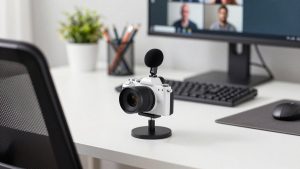
If you do a lot of video calls, the best computer camera with microphone is simply the one that makes you look clear and sound clear without fiddling with settings every morning. You do not need studio gear. You need decent 1080p video, a microphone that does not pick up your keyboard like a drum set, and reliable auto-exposure for a home office that is never lit perfectly.
I have tested cheap laptop cameras, budget plug-in webcams, and higher-end 4K models in real work calls on Zoom, Teams, and Google Meet. The pattern is consistent: audio matters more than resolution, and ease of use matters more than specs on paper.
📄 In This Review
What actually matters for work calls
Resolution is the least important upgrade past 1080p. A sharp 1080p sensor with good exposure will look better than a cheap 4K sensor in a dim room. What you notice on a call is lighting handling, focus stability, and framing.
Microphones are where most webcams disappoint. Almost all built-in mics are small, omnidirectional, and sit right next to your monitor speakers. That means echo, room reverb, and typing noise. Dual noise-reducing mics help, but they do not replace a headset or desk mic if your room is noisy. Buy a webcam mic for convenience, not for broadcast quality.
Compatibility matters for Mac and laptop users. Most modern webcams are UVC-compliant, meaning they work plug-and-play on Windows and macOS without drivers. Where people get stuck is with vendor software for zoom, background blur, and firmware updates — often Windows-only. If you are on a Mac, assume you will use the webcam at default settings unless the maker specifically supports macOS.
Quick comparison: the three types worth buying
See also: Best Monitor for MacBook Air: Two USB-C 4K Screens and Six Adapter-Dependent Alternatives • Best Monitor for MacBook Pro: Eight Listings Sorted by Cable, Sharpness and Scaling
Forget the 20-model roundup. For work, there are really three useful categories:
| Type | Video | Microphone | Best for | Watch out for |
|---|---|---|---|---|
| Budget 1080p fixed-focus | 1080p/30, fixed focus | Single or dual mic, basic noise reduction | Daily standups, laptop upgrade, kids / school | Washed out in backlight, picks up typing |
| Midrange 1080p/2K autofocus | 1080p/60 or 1440p, autofocus | Dual stereo mics, better echo control | Home office, managers, teachers, frequent presenters | Autofocus hunting in low light |
| Premium 4K with larger sensor | 4K/30, digital zoom and framing | Dual mics + AI noise removal | Content + work combo, large monitor setups | Costs 3x, needs good light to show benefit |
Best cheap fix: a basic 1080p webcam with dual mics
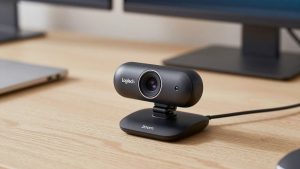
For most office workers, the cheaper option is fine. If your complaint is “I look dark and blurry on my laptop,” a basic budget 1080p webcam with dual microphones solves 80% of it for very little money.
What you get: fixed focus (you stay sharp from about 40cm to a few meters), 78-90 degree field of view, and a clip that actually fits a laptop lid or external monitor. Plug it in, select it in Zoom, and you are done.
Trade-offs: fixed focus means no close-up document showing. Colors can look flat, and low-light performance is average. The mic will be fine in a quiet room but harsh if you type while talking or sit under an air vent. Failure mode I see most: people mount it too low on a laptop and get an up-the-nose angle plus fan noise. Put it at eye level on a stand or on top of your external monitor.
Who suits: hybrid workers who take 2-5 calls a day, students, and anyone who wants a second webcam to leave plugged into a dock.
Best for home office: 1080p/2K autofocus with better audio
If you lead meetings, teach, or present all day, step up to an autofocus webcam with noise-cancelling microphone. This is the sweet spot for work.
Autofocus keeps you sharp if you lean in and back, which you do on long calls. 60fps at 1080p looks smoother when you gesture or write on a whiteboard. The dual mics in this tier usually have real noise reduction — they cut steady fan hum and soften keyboard clicks, though they will not eliminate a loud mechanical keyboard or a dog barking next to you.
Trade-offs: autofocus can hunt in dim rooms, briefly pulsing in and out. Fix it with a $20 desk lamp in front of you, not behind you. Field of view is often wider (90 degrees), which is great for small rooms but shows messy background — you will want to use Teams/Zoom blur. Some models default to heavy sharpening and overexposure on Macs because you cannot install the tuning app.
Who suits: full-time remote workers, recruiters, coaches, therapists doing telehealth admin, and anyone on camera 3+ hours a day.
When 4K is worth it — and when it is not
A 4K webcam for Mac with built-in microphone makes sense in only two cases: you sit far from a large 27-32 inch monitor and want to crop in without looking mushy, or you also record training videos and want one camera for both.
For live calls, no one sees your 4K. Zoom and Teams compress you to 720p or 1080p anyway. What you are paying for is a bigger sensor, better auto-framing, and digital zoom that stays usable at 2x. The mics are usually the best of the bunch, but still room-dependent.
Failure modes: higher heat, higher CPU use, and finicky USB requirements. Many 4K cams need a direct USB 3.0 port, not an old hub, or they drop to 1080p. On older laptops they can stutter. Do not buy this to “future-proof” a noisy, dark office — put that money toward lighting and a headset first.
Who suits: creators, founders recording demos, and people with a permanent desk setup and good lighting.
How to get good sound from a webcam mic
Even the best computer camera with microphone will sound bad if your setup fights it. Do three things and you will sound better than 90% of callers.
First, get close. Webcam mics are designed for 2-3 feet (60-90cm). If you lean back 5 feet away, you will sound hollow no matter what you bought. Second, kill the noise at the source: close the door, move the keyboard back, turn off the desk fan pointed at the mic. Noise reduction helps, but distance helps more.
Third, check your app settings. In Zoom and Teams, turn on “original sound” off, leave noise suppression on Auto or Low. If you leave aggressive AI suppression on and use a webcam mic, your voice can clip at the start of sentences. Test with a recording before an important interview.
If your office is loud, shared, or echoey, do not keep upgrading webcams for audio. Use the webcam for video and a wired headset or USB desk mic for audio. That combo beats any all-in-one.
FAQ
Do I need 4K for work calls?
No, for most people. Apps compress video heavily, so a good 1080p camera with solid lighting looks essentially the same to others. Buy 4K only if you want to zoom/crop or also record videos.
Is a webcam microphone good enough for meetings?
Yes in a quiet, small room when you sit close. No if you type a lot, share a room, or present to large groups. In that case use a headset or dedicated USB mic and keep the webcam for video only.
Will these webcams work with MacBook and laptop docks?
Usually yes over USB-A or USB-C with an adapter. Plug directly into the laptop or powered dock for 4K models. Skip the cheap unpowered hub if you get freezes or the camera drops to low resolution.
Why do I look dark even with a new webcam?
Because of backlight. If a window is behind you, the camera exposes for the window, not you. Face the window or put a lamp in front of you at eye level. No webcam can fix strong backlight alone.
Related Reviews & Guides
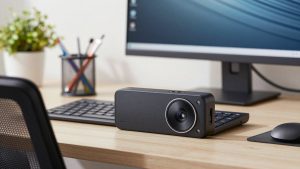
Best External Camera for Desktop Computer
Netgear Mesh Wifi System (2026 Guide)