Last Updated: October 18, 2026
- What Mac users should actually look for
- Quick comparison
- Best overall for most Mac desks: premium 4K with real Mac support
- Best for recording and low light: larger-sensor creator camera
- Best value and lowest hassle: midrange 4K with fixed focus
- Try before you buy: Continuity Camera
- Mac setup tips that prevent most returns
- FAQ
If you use a Mac for work, a 4K webcam sounds like an easy upgrade. In practice, most of the benefit is not the 4K label. It is the larger sensor, better lens, and better auto-exposure that keep your face sharp on Zoom, Teams, Meet, and FaceTime without blowing out the window behind you.
Mac adds its own wrinkles: USB-C ports and hubs, Apple Silicon software support, and the fact that macOS handles camera controls differently than Windows. The best 4K webcam for Mac is the one that works plug-and-play, stays cool during long calls, and does not need a Windows-only app to turn off autofocus hunting or auto-framing.
📄 In This Review
- What Mac users should actually look for
- Quick comparison
- Best overall for most Mac desks: premium 4K with real Mac support
- Best for recording and low light: larger-sensor creator camera
- Best value and lowest hassle: midrange 4K with fixed focus
- Try before you buy: Continuity Camera
- Mac setup tips that prevent most returns
- FAQ
What Mac users should actually look for
Start with connection. Most modern MacBooks only have USB-C / Thunderbolt ports. Almost all 4K webcams still ship with a detachable USB-A to USB-C cable or USB-C to USB-C cable. That is fine, but cheap USB hubs are a common failure point. 4K at 30fps needs consistent USB 3.0 bandwidth and power. If you run the webcam through a monitor hub or an old dongle with an external SSD and Ethernet, expect freezes, dropped frames, or the camera reverting to 1080p.
Second, check Mac software support before you buy. Basic UVC webcams will work in FaceTime, Zoom, Photo Booth, and QuickTime with no driver. That covers exposure and focus for a lot of people. But features like field-of-view adjustment, manual focus, HDR on/off, background blur, firmware updates, and noise reduction usually require the vendor app. Some of those apps are Intel-only, require Rosetta, lag behind macOS updates, or lose half their features on Mac. If you want set-and-forget, choose a camera that looks good with defaults.
Third, be realistic about 4K on calls. Zoom, Teams, and Meet almost never send true 4K. They compress to 720p or 1080p for most meetings. Where 4K still helps is digital zoom and cropping: you can use a 2x crop for a head-and-shoulders frame and still look sharp, and auto-framing has more pixels to work with. If you record tutorials, Loom videos, or YouTube from your desk, 4K matters more because you keep the full file.
Quick comparison
See also: Best Monitor for MacBook Air: Two USB-C 4K Screens and Six Adapter-Dependent Alternatives • Best Monitor for MacBook Pro: Eight Listings Sorted by Cable, Sharpness and Scaling
This is a category-level comparison because specific model revisions change often. Use it to narrow down what suits your desk, then check current Mac compatibility notes in recent reviews.
| Category | Typical resolution / fps | Focus | Mac software | Best for |
|---|---|---|---|---|
| Premium 4K with Mac app | 4K30 / 1080p60 | Autofocus | Yes, Apple Silicon supported | Daily work calls, mixed lighting |
| Creator-oriented 4K | 4K30 / 4K60* | Autofocus or manual | Sometimes limited on Mac | Recording, streaming, low light |
| Midrange 4K fixed-focus | 4K30 / 1080p30 | Fixed focus | Basic or none needed | Set-and-forget home office |
| iPhone as webcam | Up to 4K depending on app | Autofocus | Built into macOS | Travel, temporary upgrade, zero new hardware |
* True 4K60 over USB on a webcam is rare and often requires specific cables, ports, and recording apps. For meetings it rarely matters.
Best overall for most Mac desks: premium 4K with real Mac support
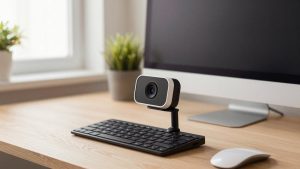
For a MacBook Pro, MacBook Air, Mac mini, or iMac used 4-6 hours a day for calls, get a well-supported premium 4K webcam with autofocus, dual noise-reducing mics, a physical privacy shutter, and a Mac app that actually gets updated. When you browse 4K webcams made to work with Mac, filter for Apple Silicon support and USB-C in the box.
What you gain: more reliable auto-exposure for backlit home offices, less grain at 9am and 5pm, wider dynamic range, and usable digital zoom. What you trade: price, more heat, and a larger body that can wobble on a thin MacBook Air lid unless you use the included mount properly.
Failure modes I see repeatedly: autofocus hunts when you gesture with your hands or lean back, auto white balance shifts orange under warm LEDs, and the vendor app resets your zoom after a macOS update. Fix it by turning off auto-framing for normal meetings, locking exposure if the app allows it, and sitting 2-3 feet from the camera. If you wear glasses, move your key light higher to avoid a white reflection square.
Who should skip this tier: if your calls are mostly internal standups on a laptop and your lighting is decent, a good 1080p camera or even the newer built-in MacBook cameras are fine. Do not pay for 4K just for 4K.
Best for recording and low light: larger-sensor creator camera
If you record courses, do client-facing webinars, or work in a dim room, a larger-sensor 4K camera with a brighter lens makes a bigger difference than extra pixels. These models often promise DSLR-like bokeh, HDR, and AI framing. Image quality can be excellent, but Mac support is where you need to be picky.
Concrete trade-offs: better low-light and depth of field, but bigger file sizes, more fan or heat throttling, and companion software that may be Windows-first. Some features like virtual backgrounds, gesture control, or auto-tracking only work in the vendor app, not natively in FaceTime or Teams. On a MacBook Air without a fan, long 4K recordings can also trigger thermal throttling in the laptop itself, not just the camera.
This suits a home studio desk with a USB-C dock that has its own power supply, a key light, and a wired mic or headset. It does not suit someone who wants to plug into random conference room Macs or switch between work and personal Macs all day. If you go this route, look at the Logitech Brio 4K webcam lineup first because its Mac utility history is longer than most newcomers, then compare against newer creator-oriented options only if you need their specific low-light or tracking feature.
Best value and lowest hassle: midrange 4K with fixed focus
Fixed-focus 4K webcams are underrated for work. There is no autofocus motor to hunt during calls. If you sit at a consistent distance, you are always sharp. They are usually smaller, cooler, cheaper, and less dependent on software.
The downside is honesty about range: fixed focus is typically tuned for about 1.5 to 6 feet. Too close and text you hold up will be soft. Too far and you lose the benefit of 4K. Mics in this tier are also more variable. Plan on AirPods, a USB headset, or the MacBook mic for important calls, and test before a client meeting.
This is the right pick for kids doing school calls on a family iMac, a second desk, or anyone who hates tweaking settings. It is also a good gift because it does not require installing anything. When the cheaper option is fine, this is it: if your office has good daylight and you frame head-and-shoulders, viewers cannot reliably tell midrange 4K from premium 4K after Zoom compression.
Try before you buy: Continuity Camera
If you own a recent iPhone and a Mac running recent macOS, try Continuity Camera before spending money. Mount your iPhone on top of the display, select it as the camera in FaceTime or Zoom, and you get excellent 4K-capable video, Center Stage auto-framing, Desk View for overhead demos, and Studio Light portrait effects with no new webcam.
Trade-offs are practical, not image quality. Your iPhone is tied up during calls, battery drains unless plugged in, it can run warm on hour-long meetings, and notifications can interrupt if you have not set Focus modes. A cheap MagSafe or continuity mount helps, but check hinge strength on thin laptop lids. For travel or a temporary home office, though, it often beats a budget webcam and helps you decide whether you actually need 4K at your desk.
Mac setup tips that prevent most returns
Plug the webcam directly into the Mac or into a powered Thunderbolt dock for the first test. Avoid stacking adapters. Use the cable that came in the box; many random USB-C cables are charge-only or USB 2.0 and will cap you at lower resolution or cause stutter.
In macOS, open Photo Booth or FaceTime to confirm 4K modes, then test in the app you actually use for work. Zoom and Teams have their own HD toggles buried in video settings, plus background blur and touch-up filters that soften detail. Turn on Original Ratio or HD if available, and turn off auto-adjust for low light if it makes you look waxy.
Light yourself, not the room. Face a window or put a soft white LED panel behind the Mac at eye level. Keep bright windows and lamps out of the frame behind you. Set the camera at eye level, about arm’s length away, and crop with the vendor app rather than sitting too far back. If you browse mounts and lighting together, a simple search for webcam mounts and desk lights for Mac setups is more useful than buying a more expensive sensor for a dark corner.
Finally, update firmware from the Mac app once, set your preferred field of view to 65-78 degrees for a home office, then quit background camera utilities you do not need. They can fight with Zoom for control and cause the camera to stay warm with the LED off.
FAQ
Do I need a 4K webcam for Zoom and Teams on Mac?
Usually no. Most meetings stream at 720p to 1080p. Get 4K if you crop in a lot, record video to keep, present detail like documents or products, or sit in tricky light where a better sensor helps. Otherwise a good 1080p camera plus better lighting looks better than 4K in a dark room.
Will any USB webcam work with Mac?
Almost any modern UVC webcam works for basic video in FaceTime, Zoom, Teams, Meet, Photo Booth, and QuickTime. Advanced controls are the catch. Check that the vendor offers an Apple Silicon Mac app for field of view, focus, exposure, and firmware updates if you care about those settings.
Why does my 4K webcam look bad or lag on my MacBook?
Common causes are a slow hub or cable forcing a lower USB mode, another app using the camera, Zoom beauty filters softening the image, backlighting from a window, or the camera overheating at 4K. Plug in directly, use the included USB 3-capable cable, close other video apps, face your light source, and try 1080p60 for smoother motion.
Is autofocus or fixed focus better for home office calls?
Autofocus is better if you move, stand at a whiteboard, or show products up close. Fixed focus is better if you sit still and want zero hunting or pulsing during long calls. If you choose autofocus, sit 2-3 feet away and turn off aggressive tracking for normal meetings.
Related Reviews & Guides
Best Monitor for Security Cameras: Eight CCTV Screens Compared by Inputs, Size and Tile Detail
Best Webcam Light Wirecutter