Last Updated: October 18, 2026
- Why most HP laptop cameras need help
- What to check on your HP laptop first
- Quick comparison
- Best for most HP users: mid-range 1080p with autofocus
- When the cheap option is fine: basic 1080p fixed-focus
- Best for dim rooms: larger-sensor 1080p
- Best upgrade for presenting: 4K
- Setup that matters more than the model
- FAQ
📄 In This Review
- Why most HP laptop cameras need help
- What to check on your HP laptop first
- Quick comparison
- Best for most HP users: mid-range 1080p with autofocus
- When the cheap option is fine: basic 1080p fixed-focus
- Best for dim rooms: larger-sensor 1080p
- Best upgrade for presenting: 4K
- Setup that matters more than the model
- FAQ
Why most HP laptop cameras need help
Most HP Pavilion, Envy, Spectre, EliteBook, and ProBook models ship with a 720p webcam. On paper that sounds fine. In practice, it looks soft on a 1080p Teams or Zoom call, blows out if you sit near a window, and falls apart in warm office lighting. Microphones are similarly thin and pick up fan noise when the laptop gets hot.
It is usable for a quick internal check-in. It is not great if you interview candidates, meet clients, teach, or present all day. The other issue is angle: a laptop camera shoots up your chin, and you cannot move it without moving your whole keyboard. An external webcam lets you frame eye-level, crop out clutter, and sound clearer without buying a separate mic.
You do not need to spend a lot to beat the built-in camera. A basic 1080p external webcam is already a large step up in sharpness, exposure control, and noise handling. Pay more only if you need better low-light performance, a wider field of view for whiteboard work, or 4K for cropping and recording.
What to check on your HP laptop first
See also: Best Monitor for MacBook Air: Two USB-C 4K Screens and Six Adapter-Dependent Alternatives • Best Monitor for MacBook Pro: Eight Listings Sorted by Cable, Sharpness and Scaling
Compatibility is simple on Windows 10 and Windows 11. Almost every USB webcam is plug-and-play, no driver install needed for Zoom, Teams, Google Meet, and Webex. HP business laptops locked down by IT may block new devices or camera access in device settings, so test with the Windows Camera app first before you assume the webcam is broken.
Check your ports. Older Pavilion and ProBook models have USB-A ports that fit any webcam. Newer Spectre, Envy, and EliteBook models are often USB-C only, which means you will need a simple USB-C hub or an adapter for a standard USB-A webcam plug. Power is not an issue, but use a direct port or a powered hub. Cheap unpowered hubs cause freezes and stuttering at 1080p60.
Do not buy a webcam for Windows Hello face login unless that is listed explicitly. Most standard webcams do not support IR face unlock, and your built-in HP camera will still handle login. Buy the external camera for call quality, keep the internal one for login.
Mounting matters more than specs. HP laptop lids are thin, especially on Spectre and Envy. Look for a webcam with a wide, rubberized clip that folds flat. Narrow spring clips slide around or pinch the lid. If you use a monitor, the same clip should sit stable on a 24 to 27-inch display without tipping forward.
Quick comparison
The market breaks into four honest categories. Pick based on your room and how often you are on camera, not just resolution numbers on the box.
| Category | Typical resolution | Best for | Main trade-off |
|---|---|---|---|
| Basic 1080p fixed-focus | 1080p30 | Students, casual calls, second laptop | Softer image, weak in low light, basic mic |
| Mid-range 1080p with autofocus | 1080p30 / 1080p60 | Daily remote workers, Teams and Zoom all day | Costs more, needs good USB port for 60 fps |
| Low-light 1080p with large sensor | 1080p30 | Dim home offices, evening calls, no ring light | Larger body, may over-smooth skin |
| 4K for presenting and recording | 4K30 / 1080p60 | Managers, creators, training videos | Needs strong light and CPU, larger files |
Best for most HP users: mid-range 1080p with autofocus
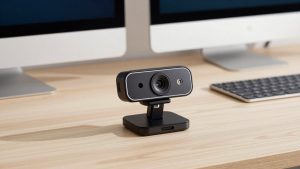
If you take calls daily from a home office, get a mid-range autofocus 1080p webcam with dual microphones and a physical privacy shutter. This is the sweet spot for HP Envy, Pavilion, and EliteBook owners. Autofocus keeps you sharp if you lean in to share a document and lean back to talk, while auto-exposure handles overhead lights better than a cheap fixed-focus camera.
In real use, the difference is stability. A good 1080p sensor holds 30 fps without pulsing brighter and darker every time you move. A cheap camera will hunt for focus, blow out your forehead under a ceiling light, and make text on a shared notebook unreadable. If you shop, look at a current 1080p autofocus webcam with dual mic and check that it lists a 78 to 90-degree field of view and a tripod thread.
Failure mode to know: 1080p60 sounds better than 1080p30, but on older HP laptops with 8GB RAM, running 60 fps plus background blur in Teams can spike the CPU and cause fan noise. If that happens, drop the camera to 1080p30 in the app settings. You will look the same to everyone else and your laptop will run quieter.
This suits remote employees, managers, therapists, tutors, and anyone on camera 3 to 6 hours a day. The cheaper fixed-focus option is fine if you are on camera twice a week and sit still in good light.
When the cheap option is fine: basic 1080p fixed-focus
For a kid’s school laptop, a second HP laptop for travel, or a shared family Pavilion, a basic fixed-focus 1080p webcam is enough. It will still beat the built-in 720p camera, especially for sharpness at arm’s length. Set it on top of an external monitor, plug into USB-A, select it in Zoom settings once, and you are done.
Trade-offs are real. Fixed focus is usually set from about 2 to 6 feet. Sit too close and you look soft. Sit in a dim room and the image gets grainy and laggy because the camera drops shutter speed to gather light. Mics on these models pick up keyboard clicks loudly. Keep typing to a minimum or use push-to-talk.
Buy this category if budget is under pressure and calls are short. Do not buy it if you present to clients in a dark room and expect to look professional. In that case step up to the next category rather than buying a ring light to fix a weak sensor.
Best for dim rooms: larger-sensor 1080p
Many home offices have one overhead light and a window behind the person. That is the worst case for small webcam sensors. A low-light-oriented 1080p webcam with a larger pixel size and better noise reduction will hold skin tone and keep the background from pulsing.
This is a common win for night-shift workers, evening teachers, and anyone in a basement office. You will look brighter without cranking exposure to the point your face turns white. If you compare options, browse a low light 1080p webcam for home office and read reviews specifically about grain, not just sharpness in daylight.
Watch for two failure modes. First, heavy noise reduction can make you look waxy, like a beauty filter you cannot turn off. Second, auto white balance under warm LED bulbs can turn you orange. Fix this by setting white balance to 4000K to 4500K in the camera software if available, or switch your desk bulb to neutral white. This category suits people who cannot or do not want to add video lights.
Best upgrade for presenting: 4K
4K only makes sense for a specific HP user: someone who records training, teaches, or presents and wants to crop in without losing sharpness. On a live Zoom call, most platforms compress you to 720p or 1080p anyway, so coworkers will not see full 4K. The benefit is cleaner 1080p after downscaling, plus digital zoom that does not fall apart.
The cost is system load. 4K30 needs good light and a relatively modern HP processor, ideally a recent Core i5/i7 or Ryzen 5/7 with 16GB RAM. On a 4-year-old Pavilion, 4K can stutter, overheat the laptop, and cause audio drift. Most people in this group end up running the camera at 1080p for live calls and switching to 4K only for recording.
If that matches your workflow, look at a 4K webcam for video calls with autofocus with a wide 90-degree mode for whiteboards and a 78-degree mode for head-and-shoulders. Make sure it has a lens cap or shutter. Bright 4K lenses pointed at your desk all day are a privacy risk on shared machines. This suits creators and team leads, not casual users.
Setup that matters more than the model
Put the camera at eye level. Stack your HP laptop on books or use a monitor arm so the lens is level with your eyes, about an arm’s length away. Face a window or a cheap 5000K desk lamp, never sit with a bright window behind you. In Teams, turn off “mirror my video” confusion by testing once, then leave it alone.
In Windows 11, go to Settings, Privacy and security, Camera, and confirm desktop apps have access. Set the external webcam as default in each meeting app, because Zoom and Teams will revert to the HP built-in camera after updates. If audio echoes, set speakers to your laptop or headset and mic to the webcam, not both to the webcam. If the image freezes, move the plug from a hub to a direct USB port before blaming the camera.
FAQ
Will any USB webcam work with my HP laptop?
Yes, in almost all cases. Any UVC-compliant USB webcam works with Windows 10 and 11 on Pavilion, Envy, Spectre, ProBook, and EliteBook without extra drivers. If your HP is USB-C only, you need an adapter or hub for USB-A plugs.
Do I need 4K for Teams and Zoom?
No, for most people. Teams and Zoom compress video heavily, so a good 1080p camera looks the same as 4K to other callers. Buy 4K only if you record video or need clean digital zoom.
Why does my new webcam look dark on my HP?
It is usually lighting and exposure, not a defect. Face a light source, turn off backlights behind you, and lower exposure compensation in the camera app. Low-light sensors help, but no webcam fixes a dark room with a bright window behind you.
Can I still use Windows Hello after adding an external webcam?
Yes. Keep using your built-in HP IR camera for face login. Most external webcams do not support Windows Hello, so leave the internal camera enabled for sign-in and select the external camera only inside your meeting apps.
Related Reviews & Guides

6 Best Laptop Docking Stations With Stand 2026
5 Best Laptop Docking Station Dual Screens 2026