Last Updated: October 18, 2026
📄 In This Review
What “HD” actually gets you on a desktop
For desktop use, HD still means 1080p in practice. Almost every meeting app — Zoom, Teams, Meet, Webex — will deliver you at 720p or 1080p even if your camera can do more. That sounds disappointing, but it matters for buying: a good 1080p webcam with clean lenses, decent autofocus, and sensible exposure will look better on a call than a cheap 4K sensor that is noisy and over-sharpened.
Desktop is also different from laptop use. You sit farther from the screen, you often have a larger monitor, and you have room for a proper mount, external light, and a USB headset or mic. That means field of view, mounting stability, cable length, and Windows/macOS compatibility matter more than thinness or gimmicks. If your desktop is in a spare bedroom or basement office with one overhead light, low-light handling will decide whether you look washed out or normal.
The honest baseline: if you do 3-5 calls a week in a reasonably lit room, a basic 1080p camera is fine. Pay more only if you present often, record video, sit in bad light, or need wider framing for whiteboard or multi-person shots.
What to check before you buy
See also: Best Monitor for MacBook Air: Two USB-C 4K Screens and Six Adapter-Dependent Alternatives • Best Monitor for MacBook Pro: Eight Listings Sorted by Cable, Sharpness and Scaling
Resolution is the least useful spec on the box. Check these instead. First, focus type. Fixed-focus is fine if you sit still 2-3 feet away, but it goes soft if you lean in to show documents. Autofocus is better for most desktop users, though cheap autofocus can hunt and pulse during calls.
Second, field of view. For one person at a desk, 75-80 degrees looks natural. Wider than 90 degrees makes a home office look cavernous and shrinks your face unless you crop in software. Third, light handling. Look for real low-light samples, not studio demos. Small sensors fall apart fast in warm lamplight, with grain, smeary skin tones, and flicker.
Fourth, mounting and connection. Most desktop monitors are thicker than laptops. A weak clip will tilt down over a week. You want a heavy hinge clip plus a standard tripod thread underneath. USB-A versus USB-C matters too — many desktops still need USB-A, and short 3-foot cables are annoying if your tower sits on the floor. A 5-6 foot cable saves you a dongle mess.
Finally, software. Windows users usually get full settings: exposure, zoom, background blur, firmware updates. On Mac, some brands offer only a viewer or browser controls. If you use a Mac mini or Mac Studio, confirm the settings app is Apple Silicon compatible before you buy.
The three HD tiers that make sense
1. Basic 1080p fixed-focus: This is the cheapest way to replace a grainy old camera or a monitor with no camera at all. Image is acceptable in daylight, mics are thin, and low light is rough. Failure mode is soft focus and noisy shadows. It suits kids’ school calls, second PCs, and anyone who mostly listens with camera on.
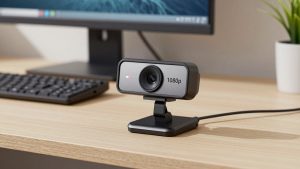
2. Mainstream 1080p autofocus: This is the sweet spot for work. You get autofocus, better auto-exposure, dual noise-reducing mics, and a usable 78-degree frame. A mainstream 1080p webcam with dual mics will hold focus when you lean in, handle mixed window light better, and usually includes a privacy shutter. Failure mode is still small-sensor grain at night and aggressive sharpening if you leave everything on auto. Suits daily standups, client calls, interviews, and teaching.
3. 1440p QHD or 4K with a larger sensor: Worth it if you record Loom videos, stream, or want to crop/zoom without turning to mush. The extra pixels help less on live Zoom than in recordings, but the larger sensor and better lens often improve color and low light. Trade-offs are price, more CPU load, and heat on long calls. Some 4K models drop to 30fps at full resolution and need good USB bandwidth. A 4K webcam for desktop with autofocus suits creators, managers who present weekly, and anyone with a dark office who wants cleaner shadows.
Do not buy 4K expecting others to see 4K. Buy it for better local recording, digital zoom headroom, and more headroom in bad light.
Quick comparison
Use this to match your actual call load, not the spec sheet.
| Type | Best for | Strengths | Weaknesses |
|---|---|---|---|
| Basic 1080p fixed-focus | Light use, second PC | Cheap, simple, low CPU use | Soft up close, poor low light, thin audio |
| Mainstream 1080p autofocus | Daily work calls | Reliable focus, better exposure, privacy shutter | Grainy at night, mics still beat by headset |
| 1440p QHD | Presenting + recording | Sharper crop/zoom, cleaner image than 1080p | Often capped at 30fps, needs good light to shine |
| 4K with large sensor | Creator / dark office | Best detail, best low light, pro framing modes | Expensive, heavier USB/CPU load, can overheat |
Mounting, audio, and light matter more than pixels
Most “my webcam looks bad” problems are placement, not resolution. Put the camera at eye level, about arm’s length away. On a 27- to 32-inch monitor, that usually means clipped center-top, tilted very slightly down. If the clip slips, use the tripod thread on a small desktop tripod behind the monitor — it is more stable and stops the slow tilt that makes you look like you are sinking.
Audio is the other weak point. Even good webcam mics pick up keyboard clatter, room echo, and PC fans because the mic sits 2-3 feet away. If you talk more than 10 minutes a day, use a USB headset or a cheap desktop USB mic. Keep the webcam mic as backup.
For light, you do not need a studio. A $25-40 LED panel or even a desk lamp bounced off a wall beats a sensor upgrade. Face a window if you can, and avoid a bright window directly behind you. If you cannot fix backlight, turn on backlight compensation in the camera app, but expect a grainier image — the camera is boosting shadows.
If you use dual monitors, decide which monitor holds the camera and stick with it. Looking at the other screen while talking reads as looking away. Many desktop users also benefit from a 1080p webcam with tripod mount and privacy shutter because it is easy to move between monitors and put away when work is done.
Who should buy what
If you work from a bright home office and join a few meetings a week, stay cheap. A basic 1080p camera plus a lamp you already own is enough, and the money is better spent on internet stability or a headset.
If you are on calls 3-6 hours a day, get the mainstream autofocus tier. The difference is not sharpness on paper, it is consistency: fewer focus hunts, fewer blown-out windows, fewer “sorry, can you repeat that” moments because the dual mics handle fan noise better.
Get 1440p or 4K only with a reason: you record training videos, you sit 4-5 feet back and need to crop in, or your office is dark and you have already tried adding light. In that case, also check that your desktop can handle it — older office PCs can stutter with 4K + background blur + screen share at once. Dropping the camera to 1080p in its settings often fixes stutter with almost no visible loss to others.
Mac desktop users: prioritize plug-and-play UVC cameras that need no driver, confirm mic compatibility with macOS, and expect to adjust zoom and exposure in the vendor’s Mac app or in Zoom/Teams itself. Windows desktop users have more choice, but disable “auto everything” after install. Lock exposure and white balance once your light is set, or your face will pump brighter every time you share a white slide.
FAQ
Is 1080p enough for a desktop work webcam?
Yes for most people. Meeting apps compress heavily, so a clean 1080p feed with good light looks the same as 4K to attendees. Upgrade for recording, cropping, or very poor light, not for sharper Zoom tiles.
Why does my HD webcam look grainy at night?
Small sensors need gain in dim light, which creates noise. Add a lamp in front of you, turn off overhead-only lighting, and lower the camera’s exposure compensation. If it still looks muddy, that is the limit of the hardware.
Do I need a 4K webcam for a large 27-inch monitor?
No. Monitor size does not require a higher-resolution camera. Viewing distance and lighting matter more. 4K helps if you want to digitally zoom or record crisp local video.
Will any USB webcam work with Mac mini or Mac Studio?
Most modern UVC webcams work for video and mic without drivers, but advanced features may need the vendor’s Mac app. Check for Apple Silicon support and USB-C cable length if your Mac sits under the desk.
Related Reviews & Guides
Best Cheap 1080p Webcam

Best standing desk for small business owners