Last Updated: October 18, 2026
If you use a Chromebook for work or school, you do not need a fancy webcam. You need one that works the second you plug it in, without drivers, installers, or settings apps. ChromeOS is good at that, but also limited. If a camera needs Windows or Mac software to unlock its best resolution, autofocus, or noise reduction, you will not get those features on a Chromebook.
For most Chromebook users, a simple 1080p UVC-compliant USB webcam is the right buy. The built-in cameras on most Chromebooks are still 720p with small sensors and harsh auto-exposure. A decent external camera fixes low-light grain, washed-out faces, and that laggy look in Google Meet and Zoom. You do not need 4K unless you are recording and cropping later.
📄 In This Review
What Chromebooks actually support
ChromeOS supports USB Video Class (UVC) and USB Audio Class (UAC) devices natively. In practice that means almost any USB webcam made in the last 8 years will show up in Meet, Zoom, Teams web app, and the Camera app with no setup. Plug it into USB-A directly, or into USB-C with a simple hub or adapter, select it in the video app’s settings, and it works.
What does not work is everything around that. Logitech Tune, Opal Composer, Elgato Camera Hub, and similar tuning utilities do not run on ChromeOS. If the camera relies on software for autofocus tuning, background blur, auto-framing, or firmware updates, you are stuck with the defaults. Buy a camera that looks good with defaults, not one that looks good after tweaking in an app you cannot install.
Also check the port. Many older Chromebooks have one USB-A and one or two USB-C ports. Most budget webcams still ship with USB-A only. That is fine if you have a dock, but if you live on USB-C, get a camera with a native USB-C plug or budget for a short, reliable adapter. Long passive USB extension cables are a common failure mode – they cause flicker, disconnects, and dark frames in Meet.
Which type to buy for your situation
See also: Best Monitor for MacBook Air: Two USB-C 4K Screens and Six Adapter-Dependent Alternatives • Best Monitor for MacBook Pro: Eight Listings Sorted by Cable, Sharpness and Scaling
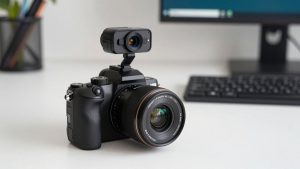
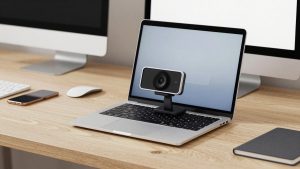
1. For students and everyday video calls: Get a fixed-focus 1080p/30fps camera with a privacy shutter and a single or dual mic. Fixed focus sounds basic, but it is an advantage on ChromeOS. There is no hunting in and out when you lean forward, no software needed, and latency is lower. A basic 1080p USB webcam on a laptop lid or cheap tripod is enough for Meet, Classroom, and Zoom. The cheaper option is genuinely fine here if your room has decent light.
Trade-off: fixed-focus lenses are usually sharp from about 40cm to 2m and soft outside that. If you pace around a whiteboard, you will go soft. Microphones in this tier pick up keyboard and fan noise. Sit close, face a window or lamp, and use Meet’s noise cancellation. Do not expect miracles in a dark dorm room.
2. For home office and daily work meetings: Step up to a 1080p autofocus camera with larger sensor, dual stereo mics, and good auto-exposure. This is the sweet spot for Chromebook work. An autofocus webcam with dual microphones handles backlit home offices better, keeps your face bright without blowing out a window behind you, and sounds less hollow than budget mics.
Who it suits: anyone on Meet or Zoom 3+ hours a day, job interviews, teaching, client calls. Failure mode to watch: aggressive autofocus that pulses during calls. Since you cannot fine-tune it on ChromeOS, look for models with a physical focus switch or that reviewers specifically call stable. A 78- to 90-degree field of view is ideal. Wider than that makes you tiny at a desk.
3. For USB-C-only Chromebooks and hot-desking: Get a USB-C native camera or a short detachable cable with both USB-A and USB-C ends in the box. A USB-C webcam for Chromebook saves you from dongle roulette in classrooms and shared desks. This matters more than resolution. I have seen more Chromebook camera failures caused by loose adapters than by bad sensors.
Trade-off: USB-C models often cost $15 to $30 more for identical image quality. Do not pay extra for 4K or 60fps here. Chromebooks and browser-based Meet often cap at 1080p/30 anyway, and 4K cameras run hotter and need more USB bandwidth, which can stutter on low-end education Chromebooks.
Quick comparison
| Type | Best for | What you gain | What to watch out for |
|---|---|---|---|
| Fixed-focus 1080p/30 USB-A | Students, casual calls | Cheapest, no focus hunting, true plug-and-play | Soft if you move, weak mics, poor low light |
| Autofocus 1080p/30 with dual mic | Home office, teachers, interviews | Better exposure, clearer voice, more natural background blur tolerance | Focus pulsing if poorly tuned, needs good light to shine |
| USB-C 1080p with detachable cable | New Chromebooks, shared desks | No adapter needed, easier setup, portable | Price premium, same image as USB-A versions |
| Wide-angle 110-degree+ conference cam | Small rooms, group work | Fits 2-4 people without crowding | Distorts faces at desk distance, overkill for solo calls |
What to avoid on ChromeOS
Avoid cameras that advertise features as app-only: AI framing, virtual backgrounds, 4K upscaling via utility, or mic modes that must be switched in software. On a Chromebook those features are either missing or locked on. The product page may show crisp 4K samples that were tuned on Windows. What you get on ChromeOS is the out-of-box auto mode.
Also avoid no-name 4K/8MP cameras that promise DSLR quality for $25. On ChromeOS they often enumerate as 1080p anyway, run at 15-20fps in low light, and overexpose faces. Another failure mode: cameras with capacitive touch controls for mute. They are easy to bump and there is no on-screen indicator in ChromeOS to tell you why no one can hear you. A physical shutter and, if possible, a physical mic mute are worth more than extra pixels.
If you do Teams on a Chromebook, remember most people use the web app or Android app, not the full desktop client. Background blur and effects are more limited and more CPU-heavy. A camera with clean, natural background rendering at f/2.0 to f/2.4 will look better than relying on software blur that stutters on a Celeron or MediaTek Chromebook.
How to get a better picture without spending more
Light matters more than the camera. Face a window or put a $15 desk lamp behind your Chromebook aimed at your face, slightly above eye level. Do not sit with a bright window directly behind you – no Chromebook-compatible webcam can fix that without turning your face dark. In Meet, go to Settings > Video and set Send resolution to HD if your connection allows it.
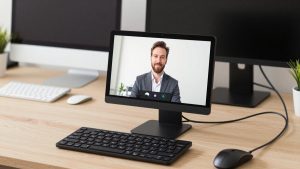
Mounting matters too. Clip the camera to the center of the lid, not off to a monitor arm three feet away. At arm’s length a 78-degree lens looks natural; from far away you will look distant and the mic will sound echoey. If you use an external monitor with your Chromebook closed or to the side, put the webcam on that monitor and plug it directly into the Chromebook, not into the monitor’s unpowered USB passthrough.
Test before an important call. Open the ChromeOS Camera app, switch to the USB camera, record 10 seconds talking normally and typing. If the mic picks up fan noise, move the Chromebook power brick off the desk and turn on noise cancellation in Meet or Zoom. If video flickers under LED lights, change the room light or move lamps – you cannot install flicker-reduction utilities on ChromeOS.
FAQ
Do I need to install drivers on a Chromebook?
No. Use a UVC standard webcam and it should appear automatically in Meet, Zoom, and the Camera app. If a listing says driver download required for 1080p or autofocus, skip it for Chromebook use.
Is 4K worth it for a Chromebook?
Usually not. Most Chromebook video calls run at 720p to 1080p, and browser apps often downscale. A good 1080p sensor with decent low-light performance looks better and runs cooler than a cheap 4K sensor capped to 1080p.
Will my webcam mic be good enough?
For class and internal meetings, yes if you sit within 60-80cm and the room is quiet. For interviews, teaching all day, or noisy homes, a USB headset or even wired earbuds will sound clearer than any webcam mic.
USB-A or USB-C?
Image quality is the same. Pick based on your ports. If your Chromebook only has USB-C, get a native USB-C camera or a quality USB-C adapter and keep the cable run short to avoid disconnects.