Last Updated: October 18, 2026
If you are running live shows from a home office — a weekly webinar, live class, demo, coaching session, or live selling slot — you do not need a cinema camera. You need a camera that stays in focus for 60 minutes, handles bad office light without going grainy, and does not drop frames when your laptop gets hot. That is a different job than a 30-second video call.
Most people shopping for “best camera for live shows” get pushed toward mirrorless cameras or camcorders. For full-time creators that can make sense, but for work presentations it usually adds failure points: extra power supplies, capture cards, HDMI sleep issues, overheating, and audio sync drift. A good USB webcam on a laptop or Mac is simpler, and for talking-head and desk-demo formats, it is often the more reliable pick.
📄 In This Review
What live shows demand that calls do not
A normal call forgives a lot. A live show does not. On a call, if your autofocus hunts for two seconds, no one cares. On a live show, 200 people notice. If your exposure pulses when you share a white slide, or your camera overheats at minute 45, you feel it in the chat.
The three failure modes I see most are focus hunting, noisy low light, and narrow framing. Cheap fixed-focus webcams are fine for head-and-shoulders calls, but they fall apart when you lean back to show a product or stand at a whiteboard. Small sensors fall apart in a dim spare bedroom at 7 p.m. And a tight 65-degree field of view forces you to sit too close for an hour, which looks tense on a replay.
This is why you should shop by job, not by megapixels. A 4K label alone tells you almost nothing about live performance. Lens quality, autofocus speed, auto-exposure stability, and onboard processing matter more than the top resolution number.
What to look for for live work
See also: Best Monitor for MacBook Air: Two USB-C 4K Screens and Six Adapter-Dependent Alternatives • Best Monitor for MacBook Pro: Eight Listings Sorted by Cable, Sharpness and Scaling
Start with autofocus and exposure stability. For seated teaching or webinars, look for fast phase-detection or hybrid autofocus, not slow contrast-only focus. You want it to lock once and hold, not breathe in and out while you gesture. Good auto white balance also matters if you mix daylight from a window with a warm desk lamp.
Second, look at low-light behavior. Vendors advertise “low light correction,” but what you actually want is a larger pixel size and sensible noise reduction. Over-aggressive noise reduction makes you look waxy and smears text on a demo product. If your room is dark, a $40 light upgrade usually beats a $150 camera upgrade.
Third, check field of view and mounting. For solo hosts, 78 to 90 degrees is the sweet spot. Wider than that and your face gets small and your office clutter becomes the show. You also want standard tripod threads and a solid clip that fits both a laptop lid and an external monitor. For overhead desk demos, a camera you can tilt down 90 degrees without slipping is essential.
Fourth, check Mac and laptop compatibility in practical terms. UVC plug-and-play over USB-A or USB-C is what you want for Zoom, Teams, Meet, Riverside, StreamYard, and OBS. Avoid cameras that require a Windows-only app to unlock 4K, background blur, or manual focus. On Apple Silicon Macs, some older 4K webcams cap at 1080p or run hot through a dock — direct port connection is more stable for hour-long lives.
Quick comparison by use case
There is no single best camera. A webinar host, a fitness coach, and someone doing live product close-ups need different tools. Here is how the main categories break down for live work from a desk:
| Setup type | Best for | Strengths live | Weaknesses |
|---|---|---|---|
| 1080p business webcam with autofocus | Webinars, coaching, office hours | Reliable, cool-running, easy on CPU, works with any laptop | Softer if you crop in, weaker in dim rooms |
| 4K USB webcam with large sensor | Solo shows, live courses, demos that get clipped for replay | Sharper crop, better detail on products and text, more framing flexibility | Needs good USB bandwidth and light, can run warm, costs more |
| Wide-angle webcam with tracking | Movement: workshops, fitness, standing demos | Keeps you framed if you move, good for small studio corner | Tracking can be jumpy, wide shot looks distant, needs even lighting |
| Laptop built-in camera + good light and mic | Getting started, travel, backup angle | Zero setup, always with you | Narrow dynamic range, noisy image, unflattering low angle |
The honest take: if you host one live per week seated at a desk in decent light, the cheaper option is fine. A solid 1080p autofocus webcam with a $30 soft light will look more professional than a 4K sensor in a dark room. Pay for 4K when you crop, zoom digitally during the show, or repurpose clips for YouTube and course replays.
Picks for desk hosts and teachers
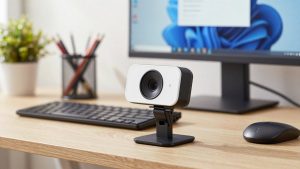
For most webinar hosts and teachers, a mid-range 1080p webcam with fast autofocus is the workhorse. It stays sharp from about 30 cm to 2 meters, which covers leaning in to read chat and leaning back to show a notebook. It also puts less load on older laptops and is less likely to stutter when you screen-share slides and run a browser-based streaming tool at the same time. Look in the 1080p autofocus webcam for streaming category and prioritize models that specifically list MacOS UVC support and a 78- to 90-degree view.
If your replays matter as much as the live — for example, you sell the recording as a course — step up to a 4K USB webcam with a larger sensor and better lens. You do not need to stream full 4K to benefit. Streaming at 1080p from a 4K sensor gives you cleaner downscaling and room to punch in 1.5x without going soft. The trade-off is heat and bandwidth. Use a direct USB 3.0 port, not a cheap hub, close other camera apps, and test a full 60-minute run before show day. A good starting search is 4K USB webcam for live streaming, but ignore digital “8x zoom” claims and check real user notes about focus noise and Mac frame rates.
For standing or moving shows in a small room, auto-tracking can help, but test it like a skeptic. Some tracking is smooth and keeps your head in the top third; some pans late, then overshoots when you reach for a prop. If you do crafts, repair demos, or fitness, you are usually better off with a wide, stable shot and tape marks on the floor than aggressive follow-me mode. If you do want it, search auto tracking webcam for teaching and only keep it if you can turn tracking off with a button for seated segments.
Setup matters more than the sensor
I have seen $150 webcams look worse than laptop cameras because of setup. For live shows, do this before you buy anything new: put a soft, diffuse light at roughly 45 degrees in front of you, raise the camera to eye level with a stand or stack of books, and kill the bright window behind you. Set manual exposure if your software allows it, so a white slide does not make your face go dark mid-sentence.
Audio is the other hidden decider. Viewers will tolerate 1080p instead of 4K, but they will leave if audio echoes or clips for an hour. A webcam mic is fine for a backup, but for any paid show use a USB condenser or lavalier close to your mouth and monitor levels in OBS, Riverside, or your webinar tool. Run one full rehearsal recording, watch it on a phone, and check lip sync, fan noise from your laptop, and whether autofocus hunts when you hold up a product.
Finally, plan for failure. Keep your built-in laptop camera selectable as Scene 2 in OBS or StreamYard. Bring a second USB cable. If you are on Wi-Fi, plug in Ethernet or move closer to the router for showtime. Most live disasters are not about sharpness — they are about a dock that disconnects, a camera that sleeps after 30 minutes, or a Mac permission prompt you have never seen before.
FAQ
Do I need 4K for live shows?
No, not for most desk-based webinars and classes. 1080p with good focus and good light looks clean on Zoom, Teams, YouTube Live, and LinkedIn Live. Choose 4K if you crop in during editing, show fine text or product detail, or want sharper course replays.
Will a webcam work with OBS, StreamYard, and Teams on Mac?
Yes, if it is standard UVC USB with no driver required. Plug directly into your Mac, grant camera permission in System Settings, then select it in each app. Avoid models that lock key features behind Windows-only software.
Why does my camera look fine on calls but bad when live?
Live tools add encoding load and often use different exposure defaults. Screen sharing, virtual backgrounds, and browser streaming raise CPU use, which can drop frames. Test with your actual live setup for a full hour, use a direct USB port, add front light, and turn off auto-framing if it pulses.
What is the cheapest upgrade that actually helps?
Light and placement. A simple diffuse desk light in front of you and the camera at eye level will improve a basic 1080p webcam more than swapping cameras. If you already have that, a mid-range autofocus webcam plus a close USB mic is the next best spend.
Related Reviews & Guides
Best Webcam Under 5000
6 Best Docking Stations For Microsoft Surface Laptop 2026