Last Updated: October 18, 2026
If you are on Zoom, Teams, or Meet for hours a day, your built-in laptop camera is probably the weakest link. It is grainy in low light, it points up your nose, and the microphone picks up keyboard clatter. You do not need a studio setup to fix that, but the right external camera does make you easier to see and hear, which matters when you are presenting or client-facing.
For most conference calls, a basic 1080p webcam with good autofocus and dual microphones is enough. Spend more only if you need a wider field of view for a small group, better low-light handling for a dark home office, or Mac-friendly software that does not fight with your IT policy.
📄 In This Review
What actually matters for conference calls
Resolution is not the top priority. Frame rate, focus stability, microphone pickup, and how the camera handles bad office lighting matter more. A sharp 1080p image at 30fps with clean audio will beat a soft 4K image with echo every time. Look for autofocus that does not hunt every time you lean forward, auto light correction that does not blow out your face when you sit near a window, and at least two microphones with noise reduction.
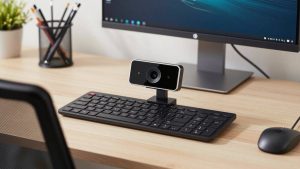
Mounting and field of view are the other practical details. A clip that actually grips a monitor or laptop lid without sliding is essential. A field of view around 78 to 90 degrees is ideal for one person at a desk. Go wider than 100 degrees and you will look small and distant unless you are sharing the frame with two or three people. A physical privacy shutter also saves you from fumbling with software settings before every call.
When your built-in camera is holding you back
See also: Best Monitor for MacBook Air: Two USB-C 4K Screens and Six Adapter-Dependent Alternatives • Best Monitor for MacBook Pro: Eight Listings Sorted by Cable, Sharpness and Scaling
Most built-in laptop cameras are still 720p with a tiny sensor. In a bright room they are passable. In a typical home office at 4pm in winter, they turn grainy and smear motion when you gesture. The microphone is often worse, placed next to the fan and keyboard.
You can stay with the built-in camera if you take one or two calls a week, you have good daylight, and you use a separate headset. If you lead meetings, interview candidates, or talk to clients, an external camera pays off quickly. It lets you place the lens at eye level on an external monitor, which looks far more natural than staring down at a laptop on your desk.
Best options by use case
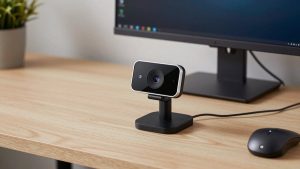
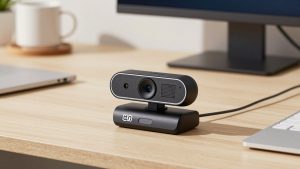
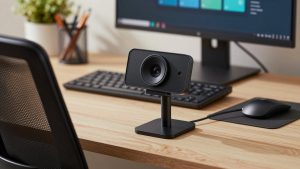
For solo desk work, the sweet spot is a plug-and-play 1080p webcam with autofocus and a dual microphone array. It works over USB-A or USB-C without drivers, which is critical for locked-down work laptops. In practice, this category nails exposure on faces, keeps focus when you move papers or lean in, and filters out steady background hum like HVAC. A 1080p webcam with dual microphone is the safe default for Zoom and Teams all day.
The failure mode here is backlighting. If you sit with a bright window behind you, most budget models will turn you into a silhouette. Fix it by moving the light source in front of you or closing blinds, not by buying a more expensive camera. Cheap models also tend to over-smooth skin and struggle with fluorescent flicker, which shows up as pulsing bands.
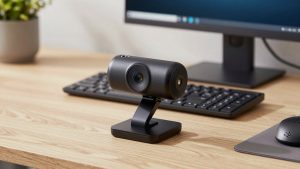
If you present a lot, share a whiteboard, or want to crop in without losing sharpness, step up to 4K. A true 4K sensor gives you more detail and better digital zoom, useful if your desk is deep and you sit 3-4 feet back. It also handles mixed lighting better on average. Look for a 4K webcam with autofocus and noise canceling that can drop to 1080p at 60fps, because full 4K at 30fps can look choppy when you move. The trade-off is price, heat, and USB bandwidth. Some 4K cameras run hot after an hour and need a direct USB port, not a cheap hub.
For two to four people around a table, neither of those is ideal. You need a wider lens, around 100 to 120 degrees, and microphones that pick up voices 8-10 feet away. A small conference camera with a built-in speakerphone base works better than a desk webcam balanced on a stack of books. The common failure is echo: if everyone in the room stays unmuted on laptops plus the conference camera, Teams will howl. Mute all the laptops and use only the conference unit for audio. For this setup, search for a all-in-one conference camera with speakerphone and check that it lists Teams and Zoom certification, not just generic compatibility.
| Setup | Best field of view | What to prioritize | Who it suits |
|---|---|---|---|
| Solo desk, well-lit room | 78-90 degrees | Autofocus, dual mics, privacy shutter | Most remote workers, 1080p is fine |
| Solo desk, dark room / night calls | 78-90 degrees | Large sensor, low-light correction, 1080p60 option | Late-shift support, EU-US overlap calls |
| Presenting / deep desk | 80-90 degrees with zoom | 4K sensor, 3x digital zoom, tripod thread | Managers, sales, trainers |
| 2-4 people, huddle room | 100-120 degrees | Far-field mics, speakerphone, echo cancellation | Small offices, hybrid teams |
Mac and locked-down work laptop notes
On Macs, especially newer MacBooks with only USB-C, check cable and hub compatibility before you buy. Many webcams ship with a short USB-A cable and a cheap adapter that causes dropouts at 4K. Use the Apple Camera settings in macOS Sonoma and later to adjust framing, and avoid cameras that require a Windows-only app for basic focus or zoom. UVC-compliant cameras that work without drivers are the least hassle for both Mac and corporate Windows laptops.
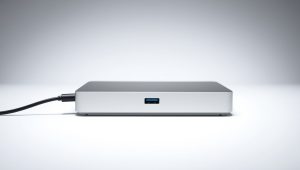
On a corporate laptop, you often cannot install the vendor software. That is fine. Set the default camera and mic in Teams or Zoom itself, test at the actual meeting resolution, and turn off extra beauty filters and auto-framing if they make the image pulse. If IT blocks USB devices, ask whether your dock passes through 1080p60. Some older docks cap you at 720p without telling you.
Audio and lighting beat a new camera
Before you upgrade, fix the two things that ruin conference calls most: audio echo and bad light. Use one audio device for both mic and speaker to prevent feedback. If you use the webcam mic, output sound through the webcam speaker or headphones, not laptop speakers. Add a $20 desk lamp in front of you at 45 degrees rather than relying on overhead ceiling light, which creates eye shadows. Place the camera at eye level, about arm’s length away, and look into it when making a key point.
Common failure modes to watch for: autofocus hunting when you have a bookshelf behind you, auto-exposure flickering under cheap LED panels, and plastic monitor clips that slowly tilt down during a call. A tiny tripod or monitor shelf solves the tilt, and locking exposure in the app, when available, stops the pulsing. If your camera supports lens covers, use the physical shutter instead of unplugging the camera between calls, which can confuse Teams.
What to buy
Buy the cheaper 1080p option if you work alone, have decent light, and use headphones. It is lighter on your CPU, easier on VPN bandwidth, and less likely to glitch on an older laptop. Move to 4K if you need to crop, present detail, or sit far back. Buy a huddle-room unit only if you regularly have multiple people on one camera, one person per camera is always clearer.
Skip gimmicks like gesture controls, background blur baked into the camera, and 60fps at full 4K over a basic hub. Let Zoom or Teams handle backgrounds, and run 1080p for stability. The best camera for conference calls is the one that connects in two seconds, stays in focus, and makes your voice clear without a manual.
FAQ
Is 4K worth it for Zoom and Teams?
Usually not. Most platforms compress you to 720p or 1080p anyway. 4K helps if you want to zoom or crop, or you sit far from the camera, but a good 1080p camera with better low light often looks cleaner and drops fewer frames.
Why do I look washed out or dark on calls?
It is almost always lighting position. Do not sit with a window behind you. Put a lamp or window in front of you, keep overhead light dim, and turn off auto HDR if your face keeps shifting bright to dark.
Can I use a webcam with a MacBook dock?
Yes, if the dock and cable can handle the bandwidth. Plug 4K cameras directly into the Mac or a powered Thunderbolt dock, avoid daisy-chained USB hubs, and choose a driverless UVC camera so you do not need extra software.
Do I still need a headset if my webcam has microphones?
For solo calls in a quiet room, no. Webcam mics are fine within 3 feet. Get a headset if you are in a noisy house, share an office, or get complaints about echo, because headphones eliminate most feedback instantly.