Last Updated: October 18, 2026
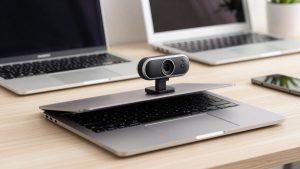
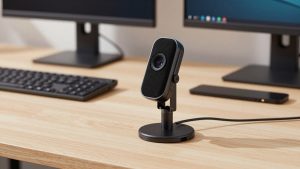
If you are shopping for a video camera for a PC, you almost certainly mean a webcam for Zoom, Teams, Meet, and general office work. You do not need a camcorder, mirrorless camera, or action cam for this. A USB webcam is simpler, stays in sync with your microphone, and will not overheat or shut off after 30 minutes.
For most PC users in 2026, a good 1080p webcam with decent autofocus and a real privacy shutter is still the sweet spot. Pay more only if you have a specific reason: bad lighting, need to look sharp on large screens, or you move around during calls.
📄 In This Review
What actually matters on a PC
Resolution gets all the marketing, but sensor size, lens, autofocus, and software matter more for how you look. Most video apps compress you to 720p or 1080p anyway. A clean 1080p image with good exposure beats a noisy 4K image every time.
Focus on these four things: autofocus that does not hunt, auto-exposure that does not blow out your face when a window is behind you, dual microphones that do not sound hollow, and a mount that fits your monitor without drooping. USB-A vs USB-C matters too. Many desktops still have USB-A, while newer laptops are USB-C only, so check what cable is in the box and whether you will need an adapter.
The most common failure mode I see is bad low-light handling. A cheap sensor will smear your face, lag, and turn background lamps into glare. Second most common: fixed focus that leaves you soft if you lean back. Third: a too-wide field of view that shows your whole messy room and makes you look small.
Quick comparison
See also: Best Monitor for MacBook Air: Two USB-C 4K Screens and Six Adapter-Dependent Alternatives • Best Monitor for MacBook Pro: Eight Listings Sorted by Cable, Sharpness and Scaling
| Type | Typical resolution | Best for | Watch out for |
|---|---|---|---|
| Basic 1080p webcam | 1080p / 30fps | Daily calls, students, office work | Weak low light, narrow dynamic range, basic mic |
| Mid-range 1440p webcam | 1440p / 30fps | Home office, poor lighting, glasses wearers | Needs good USB port, slightly higher CPU use |
| Premium 4K webcam | 4K / 30fps, sometimes 60fps at 1080p | Presenting, recording, large monitors | Price, heat, marginal gain on Zoom/Teams |
| Auto-framing webcam | 1080p or 4K cropped | Standing, whiteboard, moving while talking | Crop reduces sharpness, tracking can feel jumpy |
Best for most people: basic 1080p webcam
A basic fixed or simple autofocus 1080p webcam for PC is fine for 80 percent of workers. Plug it in, select it in Teams or Zoom, and you are done. No drivers, no power supply, no HDMI capture card.
Who it suits: anyone on a desktop with a decent monitor, laptop users whose built-in camera is grainy or points up their nose, and anyone who takes 2-5 calls per day. If your room has even modest daylight or a desk lamp in front of you, you will look clear and normal.
Trade-offs: colors can look flat, low light gets noisy, and microphones pick up keyboard clatter. Do not buy the absolute cheapest no-name option if you take client calls. The lens coating, focus consistency, and hinge quality are where those cut corners. You will notice it when the mount slowly tilts down during a meeting.
Cheaper is fine when: you are mostly listening, not presenting, your office light is good, and you already use a headset or earbuds for audio. Spend the savings on a $15-20 desk light placed behind your monitor. That improves image quality more than jumping to 4K.
Best for home office: 1440p with better low light
If you work from a spare bedroom, basement, or evening hours, step up to a mid-range 1440p webcam with a larger sensor. These handle mixed lighting better and keep your face brighter without turning the background pure white.
The practical advantage is not the extra pixels. It is better exposure control, less autofocus hunting, and usually a 65-78 degree field of view option that crops out clutter. Many also let you adjust zoom, brightness, and flicker in software instead of being stuck on auto.
Failure mode: some models default to 1440p and will stutter on older PCs or crowded USB hubs. If that happens, set the app to 1080p. You keep the better sensor but drop the bandwidth load. Also check privacy shutter design. A clip-on cap gets lost. A built-in slider is better if you work in a shared space.
When 4K is worth it
A premium 4K webcam for work from home makes sense if you present full-screen, record training videos, or sit back from a 27-32 inch monitor and need to stay sharp when cropped. The 4K sensor lets the camera crop and digitally zoom without falling apart.
Who it suits: managers, teachers, coaches, and creators who also record in OBS or Teams. If you sit still and well-lit, the difference over 1080p is modest on live calls but obvious in recordings.
When to skip it: if your PC is more than 6-7 years old, if you use a VPN that throttles video, or if your company locks Teams to 720p. In those cases you are paying for detail that never reaches the other person. Heat is another issue. Long 4K calls in a warm room can make some units run hot and throttle to a softer image.
If you move around: auto-framing cameras
If you stand, pace, or show a whiteboard, look at an auto-framing auto framing webcam for PC. These use a wide lens plus software crop to follow you. Useful for teaching, demos, and standing desks.
Trade-off is sharpness. Once it zooms to follow you, you are often looking at a cropped 1080p image from a 4K sensor, not true optical zoom. Movement can also feel robotic if the tracking is aggressive. Look for models with adjustable tracking speed and a way to turn tracking off quickly for normal sit-down calls.
Setup that matters more than the camera
Mount the camera at or slightly above eye level. Stack your monitor on books if needed. Put your main light source in front of you, not behind you. A window behind you will silhouette you on every webcam, no matter the price.
On Windows 11, go to Settings – Bluetooth and devices – Cameras to set default exposure and brightness. In Zoom and Teams, turn on HD if available, turn off background blur unless you need it, and use a wired headset mic if your room echoes. Background blur and virtual backgrounds soften your edges and increase CPU load, which is a common cause of stutter people blame on the camera.
FAQ
Do I need 4K for Zoom or Teams?
No, for most people. Both apps usually show you at 720p to 1080p. 4K helps for recording and digital zoom, but a good 1080p camera with good light looks better than a cheap 4K camera in a dark room.
Will a webcam work with both desktop PC and laptop?
Yes, if it is USB UVC compliant, which almost all are. It will work on Windows 10/11 without drivers. Just check USB-A vs USB-C and make sure you have a free port directly on the PC, not an unpowered hub.
Why do I look blurry even with a new camera?
Usually it is low light, a dirty lens, fixed focus set too close, or the app running in low-bandwidth mode. Add front light, wipe the lens, sit 2-3 feet away, and check your app video settings before returning the camera.
Should I use a DSLR or mirrorless as a PC video camera?
Only if you already own one and record a lot. You will need continuous power, a capture card, and heat management. For daily work calls, a dedicated USB webcam is more reliable and much simpler.
Related Reviews & Guides

Best Webcam with Noise Cancelling Microphone

Best Laptop Light for Zoom