Last Updated: October 18, 2026
If you stream for hours, a webcam is not just about resolution. It is about how it handles bad light, how it keeps focus when you move, how hot it gets after three hours, and whether your Mac or laptop can actually run it without dropping frames.
For cam work, you need reliability more than spec-sheet 4K. Most viewers still watch in 1080p. What they notice is clean skin tones, no grain, no hunting autofocus, and audio that does not cut out. Here is how to pick based on real use.
📄 In This Review
What actually matters for long streams
Sensor size and lens matter more than 4K labeling. A good 1080p webcam with a larger sensor will look better in a dim bedroom than a cheap 4K webcam with a tiny sensor. Look for 60 fps at 1080p if you move around a lot — 30 fps looks choppy when you dance, change outfits, or use props.
Autofocus is the biggest failure point. Cheap webcams constantly pulse in and out when you lean forward and back. That is distracting and cheap-looking. Models with fast phase-detect autofocus or a good fixed-focus wide lens are better if you move within 2-4 feet of the camera.
Heat and USB load are the other killers. Some 4K webcams get hot and throttle to 15 fps after 90 minutes. And on MacBooks, especially M1/M2 Airs with limited USB bandwidth, running 4K + external mic + lights off one hub causes freezes. If you are on a laptop, 1080p60 is far easier to run stable than 4K30.
Quick comparison
See also: Best Monitor for MacBook Air: Two USB-C 4K Screens and Six Adapter-Dependent Alternatives • Best Monitor for MacBook Pro: Eight Listings Sorted by Cable, Sharpness and Scaling
This covers the three tiers most streamers actually buy. All work with OBS, Streamlabs, and browser-based cam sites on both Windows and Mac, but check the notes on software.
| Type | Best for | Typical look | Watch out for |
|---|---|---|---|
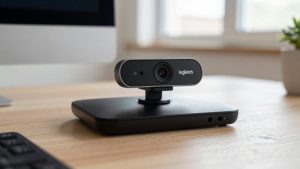
| Proven 1080p workhorse (e.g. Logitech C922 / C920 class) | Starting out, laptop streamers, long shows | Clean 1080p30, decent color, soft in low light | Narrow dynamic range; needs good lighting; autofocus hunts in low light |
| 1080p60 streaming cam (e.g. Logitech StreamCam / Elgato Facecam class) | Movement, dancing, higher frame-rate sites | Sharper motion, better skin tones, USB-C | Needs strong CPU/USB; some features Windows-only; no 4K crop room |
| 4K flagship (e.g. Logitech Brio / Elgato Facecam Pro class) | Close-ups, 4K recording, digital zoom without mush | Detailed 4K30 or excellent downscaled 1080p60 | Runs hot; heavy CPU load; overkill if your site caps at 1080p |
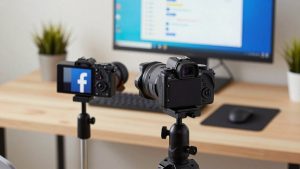
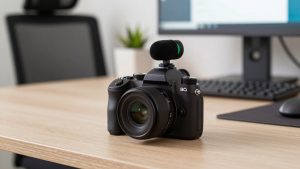
| Mirrorless / DSLR as webcam | Top-tier image, blur background | Far better low light and depth of field | Expensive, needs capture card, can overheat, more to go wrong live |
Best starter pick: a proven 1080p webcam
If you are new or streaming from a laptop, do not start with 4K. Get a reliable 1080p camera and spend the difference on light. A 1080p webcam for streaming in the C920/C922 class is boring but proven: it stays connected for 4-6 hour sessions, works plug-and-play on Mac without drivers, and looks fine once you add a key light.
Trade-off is honest: in a dark room with just a monitor and an overhead bulb, you will look grainy and orange. That is not fixed by a more expensive webcam. It is fixed by light. Put a soft daylight LED at 45 degrees in front of you at face height, turn off warm ceiling lights, and this tier suddenly looks twice as expensive.
Who it suits: laptop and MacBook Air users, anyone whose site maxes at 720p/1080p, and anyone who wants one cable and no troubleshooting live.
Best for movement: 1080p60 streaming webcam
If you move a lot, 60 fps is a bigger upgrade than 4K. Standard 30 fps smears hands and makes quick movement look laggy. A camera that does true 1080p60 with good autofocus keeps you sharp when you lean in to read chat and lean back again.
The two failure modes here are USB and software. These cameras want direct USB 3.0 and a modern CPU. Plug them into a cheap USB 2.0 hub with your lights and mic and you will get stutter. Plug direct into the laptop/Mac, use a powered hub for everything else. Also note: Elgato and Logitech lock some tuning (like manual white balance, shutter speed) to their desktop apps, and on Mac you get fewer controls than Windows.
Who it suits: dance, fitness, talk-and-move shows, and anyone recording clips for later where smooth motion matters.
When 4K is worth it — and when it is not
4K helps in two specific cases: you want to crop/zoom digitally without going soft, or you record in 4K to edit later while streaming in 1080p. For a static wide shot of a bed or room, a 4K webcam with autofocus for streaming lets you punch in to a head-and-shoulders crop and still deliver clean 1080p to the site.
When it is not worth it: if your upload is under 10 Mbps, if you are on an older MacBook Air, or if your room lighting is poor. 4K magnifies noise. I have seen cheap 4K cams look worse than a good 1080p cam in the same dim room, plus drop frames after an hour from heat. If you go 4K, run it in 1080p60 mode for the live show and save 4K for recordings.
Who it suits: established streamers with good lighting, a desktop or MacBook Pro, and wired internet who want framing flexibility.
The real upgrade: mirrorless as webcam
No webcam beats a real camera for low light and background blur. A used Sony ZV-series or Canon M-series with clean HDMI into a capture card looks professional even with modest room light. But be honest about complexity: you need dummy battery power, HDMI cable management, and to watch for overheating shutdowns mid-show.
For most people this is step three, not step one. A better sequence is: 1) good 1080p webcam + key light + separate USB mic, 2) 1080p60 or 4K webcam once income is steady, 3) mirrorless only when you have backup gear. If your webcam dies live, you lose the show. Always have a cheap backup cam plugged in and selectable in OBS.
Setup that matters more than the camera
Light first. One large soft source in front beats three small RGB bars behind you. Keep the brightest light off your background wall to avoid a blown-out halo. Set white balance manually — auto white balance will shift your skin tone every time you hold up something colorful.
Audio second. Built-in webcam mics pick up fans and echo and compress badly. Even a basic USB condenser or lav on a separate input will keep viewers longer than a resolution bump. Test for fan noise: laptops ramp fans during 4K encoding, which your mic will hear.
Mounting third. A wobbly monitor clip ruins any camera. Use a small tripod or clamp arm at eye level, about arm’s length away. If you need overhead or bed-wide angles, a webcam tripod mount and streaming light combo is cheaper than buying a second expensive camera and solves shake.
FAQ
Is 4K required for cam sites?
No. Most live traffic is still 720p to 1080p. A clean, well-lit 1080p60 feed with stable focus and good audio will outperform a noisy 4K feed. Buy 4K only if you need crop flexibility or 4K recordings.
Why does my webcam look grainy at night?
That is low light plus auto-exposure pushing gain up. Add a daylight-balanced key light in front of you, lower background brightness, and lock exposure if your software allows. Do not rely on the webcam to fix a dark room.
Will these webcams work on Mac?
Yes for basic plug-and-play UVC video in Chrome, Safari, OBS for Mac, and Zoom/FaceTime. Advanced tuning apps are more limited on macOS than Windows, so set manual focus and white balance on a Windows PC first if you need to, or choose a model known for good Mac defaults.
Do I need a separate microphone?
For short calls, no. For paid shows, yes. Webcam mics sound distant after 3 feet and pick up keyboard, fans, and room echo. A close USB mic is the cheapest way to sound professional.