Last Updated: October 18, 2026
If you spend all day on Zoom, Teams, or Google Meet, a 4K webcam with a built-in microphone sounds like the simplest upgrade: one USB cable and you are done. In practice, 4K resolution is only part of the story. Sensor size, autofocus, auto-framing, and especially microphone pickup pattern matter more for whether you actually look and sound better.
We compared the category with work in mind, not streaming. That means bad overhead lighting, cluttered home offices, MacBook Pros and Windows laptops, and calls where you sit 2 to 3 feet from the camera. Here is what is worth paying for, and when a cheaper 1080p camera is honestly fine.
📄 In This Review
What 4K actually gets you on work calls
Most video call apps still transmit you at 720p or 1080p. Your 4K sensor rarely reaches the other person as full 4K. The real benefit is oversampling and cropping: the camera starts with a sharp 8-megapixel image, then crops in for digital zoom, auto-framing, or background blur without turning you into mush.
That matters if you move around, share a whiteboard, or use presenter framing that follows you. It matters less if you sit still in front of your laptop. If your main complaint is “I look dark and grainy,” a larger 1080p sensor with a wide aperture will often beat a tiny-sensor 4K camera that needs a lot of light to look clean.
The other gotcha is your computer. Full 4K at 30fps needs USB 3.0, a free port with enough bandwidth, and a reasonably modern CPU. On older MacBook Airs and office thin clients, we have seen 4K cameras default back to 1080p anyway or stutter when background blur is on. Check your IT setup before you pay extra for 4K.
What to look for: sensor, focus, mics, and Mac support
See also: Best Monitor for MacBook Air: Two USB-C 4K Screens and Six Adapter-Dependent Alternatives • Best Monitor for MacBook Pro: Eight Listings Sorted by Cable, Sharpness and Scaling
Prioritize these four specs over marketing terms like “AI-powered” or “studio quality”:
1. Sensor size and low-light performance. Look for 1/2-inch type sensors or larger, f/2.0 or wider lens, and real sample footage in a dim room, not a studio. Small 1/3-inch or 1/4-inch 4K sensors look sharp in daylight but get noisy under a single ceiling light, which is how most home offices look at 4pm in winter.
2. Focus type. Fixed-focus 4K cameras are sharp from about 16 inches to 6 feet and never hunt. Autofocus models keep your face sharp if you lean in to show documents, but cheap autofocus will pulse and breathe during calls. If you mostly sit still, fixed focus is more reliable and cheaper.
3. Microphones. Almost all 4K webcams now have dual stereo mics with noise reduction. Good ones cut keyboard clatter and pick you up clearly to about 4 feet. None of them beat a $30 USB headset in a noisy house. Pay attention to failure modes: aggressive noise suppression can clip the ends of words, and omnidirectional mics will pick up your kids, dishwasher, and street noise. If you take calls in a shared space, plan on a headset and treat the built-in mics as backup.
4. Mac and laptop compatibility. UVC-compliant cameras work plug-and-play on Mac and Windows without drivers, which is what you want. Advanced features like auto-framing, gesture zoom, or firmware updates often require Windows-only software. Mac users should assume they will get the default field of view and exposure unless the camera has on-device controls or a Mac app.
Our picks by use case
Instead of naming a single winner — firmware updates change these cameras fast — here is how to choose the right type. You can browse current 4K webcams with dual microphones to compare prices, then match to your setup below.
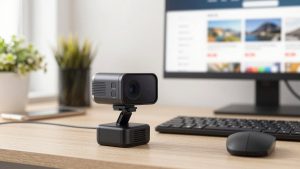
Best for dedicated home office: large-sensor 4K with autofocus. This is the type to get if this camera will live on top of a 27- to 34-inch monitor and you want the best image for client calls. Expect a bigger housing, glass lens, phase-detection or fast contrast autofocus, and decent auto white balance. Trade-off: they run warm, cost $150 to $250, and need good USB bandwidth. Best for consultants, managers, and anyone presenting daily.
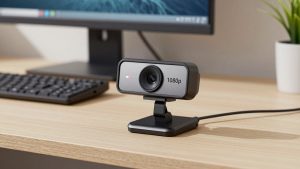
Best for MacBook and laptop users: compact 4K with fixed focus and wide compatibility. These clip on without drooping the lid, work without drivers on macOS, and usually offer 65- to 78-degree field of view so a messy room stays out of frame. Fixed focus means no hunting when you type. Trade-off: less background blur separation and softer close-ups if you hold products up to the lens. Ideal if you work from cafes, hot-desk, or travel.
Best budget 4K: simple plug-and-play model without auto-framing. Around $60 to $90, you get real 4K for recording and sharp 1080p for calls, plus usable dual mics for quiet rooms. The savings come from plastic lenses, slower exposure adjustment when light changes, and basic noise reduction. Failure mode to expect: windows behind you will blow out, and low light gets grainy. If your room has a window in front of you or a decent desk lamp, this type is honestly fine for internal meetings.
Avoid auto-framing cameras with tiny sensors if your office is dark. The camera will constantly zoom in and out trying to find you, and every digital zoom makes noise worse. Turn framing off until you add light.
| Type | Best for | Image in low light | Microphone | Watch out for |
|---|---|---|---|---|
| Large-sensor 4K, autofocus | Daily client calls, home office | Good, cleaner at ISO 800+ | Dual mics, best noise cut to ~5 ft | Needs USB 3.0, runs warm, Mac app often limited |
| Compact 4K, fixed focus | MacBook, hybrid work, travel | Average, needs face light | Dual mics, fine to ~3 ft in quiet room | Narrow focus range, weak background blur |
| Budget 4K, no tracking | Internal Teams/Meet calls | Weak, grainy without lamp | Basic stereo, picks up room echo | Blown highlights, slow exposure shifts |
| Quality 1080p alternative | Older laptops, bad lighting | Often better than cheap 4K | Similar dual mics | No cropping headroom for zoom/framing |
Setup mistakes that ruin 4K
We see the same three problems in home offices. First, backlight: sitting with a bright window behind you forces any webcam to darken your face. Turn 90 degrees or put a $20 LED panel behind your monitor. Second, distance: at 5 to 6 feet away, even 4K cannot save you, and the mics will sound hollow. Stay within 2 to 3 feet. Third, mounting on a thick curved monitor with a weak clip. The camera slowly tilts down during the day and you end up framing your forehead. If your monitor is over 1.5 inches thick, use a mini tripod behind the desk.
For software, start at 1080p/30 in Zoom or Teams, then try 4K only if your fan stays quiet. On Macs, use Photo Booth or QuickTime to confirm the camera outputs 4K before blaming Zoom. If you shop specifically for 4K webcams tested for MacBook and Mac, filter for UVC plug-and-play and recent reviews mentioning Sonoma or Sequoia, since older drivers break on updates.
When the cheaper option is fine
Buy 4K if you record training videos, need digital zoom without a camera operator, or want auto-framing that stays sharp. Stick with a good 1080p camera if your calls are 30-minute internal check-ins, your office is dim, or your laptop is more than five years old. A $70 1080p camera with a large pixel size and honest mics will look and sound better on a real call than a $120 4K camera starved for light.
And be realistic about audio. Built-in mics are for convenience, not podcasts. If coworkers ask you to repeat yourself, a wired headset or a small USB desk mic will fix more than any camera upgrade. Many remote workers keep a compact 1080p webcam with dual microphone for laptops as a travel backup and use the 4K camera only at their desk.
FAQ
Do I need 4K for Zoom or Teams?
No. Both cap most calls at 720p to 1080p. 4K helps with sharper downscaled video, better digital zoom, and cleaner recordings, but lighting and lens quality matter more for how you look live.
Are built-in 4K webcam microphones good enough for work?
Yes in a quiet, small room within 3 feet. No in open offices, kitchens, or echoey rooms. If you have background noise or sit farther away, use a headset. Use the webcam mics as a backup, not your primary mic for all-day calls.
Will a 4K webcam work with Mac?
Most do for basic video and mic via USB without drivers. Advanced features like auto-framing controls, background effects, and firmware updates are often Windows-only. Check for Mac app support and UVC compliance before you buy.
Why does my 4K webcam look worse than my laptop camera?
Usually low light, wrong USB port, or the app defaulting to 360p to save bandwidth. Plug into USB 3.0 directly, add light in front of your face, and in Zoom go to Settings – Video – HD and check your network stats. Also remove the protective film — it happens more than you think.