Last Updated: October 18, 2026
📄 In This Review
Why a Dell laptop often needs an external webcam
Most Dell Inspiron, Latitude, XPS, and Precision laptops ship with a 720p or 1080p built-in camera. On paper that sounds fine. In practice, it struggles in exactly the conditions home offices have: mixed window light, overhead LEDs, and a face 2-3 feet from the screen.
The common failure modes are familiar to anyone on Teams or Zoom all day: soft, washed-out image, heavy grain when the room gets dim at 4pm, fixed focus that leaves you slightly blurry if you lean back, and a wide-angle lens that shows a lot of bedroom and not much of you. Audio is usually worse than video. Dell’s built-in mics pick up fan noise, keyboard clicks, and room echo.
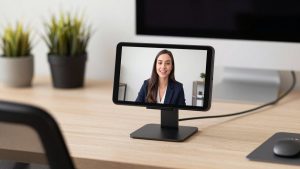
You don’t need to replace it for every job. If you take two calls a week and sit in good daylight, the built-in camera is fine. If you present, teach, interview, do telehealth admin, or run a small business from home, an external $40-$120 USB webcam is one of the cheapest visible upgrades you can make. It also lets you place the camera at eye level on a monitor instead of looking up from a laptop on a desk.
What to check on your Dell before you buy
See also: Best Monitor for MacBook Air: Two USB-C 4K Screens and Six Adapter-Dependent Alternatives • Best Monitor for MacBook Pro: Eight Listings Sorted by Cable, Sharpness and Scaling
Dell compatibility is rarely about brand. Almost any UVC-compliant USB webcam works plug-and-play on Windows 10 and 11, including on Dells. What matters is ports, software, and mounting.
First, check USB ports. Older Inspirons and Latitudes have USB-A. Newer XPS 13, XPS 15, and Latitude 7000-series are USB-C / Thunderbolt only. Most webcams still ship with USB-A in the box. If you have only USB-C, budget for a simple USB-C to USB-A adapter or a dock. Don’t run the camera through a cheap unpowered hub with a hard drive and headset on the same port – that is a classic cause of freezing and dropped frames.
Second, think about software. If you live in Microsoft Teams, Zoom, or Google Meet, you don’t need fancy 4K. Those apps compress to 1080p or 720p anyway. What helps is good auto-exposure, autofocus, and a decent mic with noise reduction. 4K only pays off if you record locally with OBS, Camtasia, or Windows Camera, or you want to crop in for a tighter headshot without losing sharpness.
Third, check mount and shutter. Dell monitors tend to be thin with small bezels. A webcam with a wide, rubberized clip will sit more securely than a narrow tripod-only model. If you work in healthcare, finance, education, or share a home office, get a physical privacy shutter. Software off buttons fail, shutters don’t.
Finally, decide if you want Windows Hello. Some built-in Dell IR cameras already support face login. Most standard external webcams do not. If you want to log in with your face on a Dell desktop or a docked setup without opening the laptop, you need a specific IR-capable webcam that lists Windows Hello support. It costs more and is only worth it if you actually hate typing a PIN.
Quick comparison for Dell setups
This is not about brand loyalty. These are the four categories that cover 95% of Dell work-from-home users:
| Use case | What to get | Pros | Cons |
|---|---|---|---|
| Daily Teams / Zoom on Inspiron, Latitude | Basic 1080p fixed-focus webcam | Cheap, reliable, plug-and-play | Struggles in low light, basic mic |
| Client calls, teaching, managing | 1080p autofocus with dual mic | Sharper face, better voice pickup | Needs good USB bandwidth, $70-100 |
| Presenting, recording, streaming | 4K autofocus webcam | Crop without blur, better lens | Overkill for Teams, needs good light and PC power |
| Docked Dell desktop, shared PC | 1080p IR webcam with Windows Hello | Face login + video in one | Higher price, verify Hello support |
What to buy for a Dell computer
1. Best cheap upgrade: basic 1080p USB webcam. For most Dell laptop users, this is the sweet spot. Look for 1080p30, fixed focus, 78-90 degree field of view, built-in mic, and a privacy shutter. It will look noticeably cleaner than an older 720p Dell camera, especially in daylight. The trade-off is low-light performance and flat audio. Voices sound thin and it will still grain up in a dark room. That is normal at this price, not a defect. Who suits: students, admin staff, anyone doing internal calls 2-4 hours a day. A simple 1080p USB webcam for laptop is enough here – don’t pay for 4K you won’t use.
2. Best for work calls: 1080p autofocus with noise-reducing mics. This is what I recommend to most home office workers on Dell Latitude and XPS machines. Autofocus keeps you sharp when you lean in to share a document and lean back to talk. Dual mics with noise reduction cut keyboard and fan hum much better than single-mic budget models. Look for auto white balance and backlight correction if you sit with a window behind you. Failure modes to watch: autofocus can hunt in very low light, causing pulsing blur, and some models default to an overly wide 90-degree view that makes you look far away. Set it to 78-80 degrees in its app if available. Who suits: managers, teachers, consultants, therapists doing admin calls, customer support working from home.
3. Best for presenters: 4K autofocus webcam. Only buy this if you record or present a lot. On live Teams or Zoom, your colleagues will see little difference between good 1080p and 4K because of compression. Where 4K helps is local recording, digital zoom, and detail on whiteboards or product demos. You also get better lenses and low-light handling on average. The downsides are real: higher CPU use on older Inspirons, more heat, larger files, and you need good frontal light to actually see the benefit. Pair it with a $20 LED panel or sit facing a window. If you stream or make courses from a Dell XPS or Precision, a well-reviewed 4K autofocus webcam with noise cancelling makes sense. Otherwise, save the money.
4. Best for docked setups: Windows Hello IR webcam. If your Dell OptiPlex, Precision tower, or closed-lid laptop setup lacks face login, an IR webcam solves two problems: video calls and password-free login. Check the listing carefully – it must explicitly say Windows Hello compatible, not just face focus or face tracking. Those are different. Expect to pay more and install Dell / Windows drivers for Hello enrollment under Settings – Accounts – Sign-in options. Image quality is often just average 1080p, so don’t buy it for cinematic video. Buy it for convenience and security in a home office where you lock and unlock 20 times a day. Search for a Windows Hello IR webcam 1080p and verify returns in case Hello enrollment fails on your specific Dell build.
Setting it up right on Dell matters more than specs
I see more bad webcam images caused by setup than by hardware. Do this once and even a cheap camera looks twice as good.
Mount at eye level on your external monitor, not below on the laptop keyboard. Looking down at a laptop camera is unflattering and distracting. In Windows 11, go to Settings – Bluetooth and devices – Cameras and select the external camera as default. Then in Teams or Zoom, select it again under video settings – Windows doesn’t always force the app to switch.
Light your face, not your background. Face a window or put a cheap daylight lamp behind your monitor. If a bright window is behind you, close blinds or enable backlight compensation. Keep field of view at 78 degrees for a home office. 90+ degrees is for conference rooms and makes you tiny.
For audio, sit 2-3 feet away and test in Teams Device Settings with a test call. If colleagues hear echo, turn down speakers and move the mic off the monitor edge. A $25 wired headset will still beat any webcam mic for noisy houses, kids, or open-plan rooms. Don’t assume a webcam upgrade fixes bad audio – it helps, but placement and room noise matter more.
If video freezes on a Dell Thunderbolt dock, plug the camera directly into the laptop to test. Docks, especially with dual 4K monitors, can starve USB bandwidth. Lower to 1080p30 instead of 4K or 60fps and the freezing usually stops.
FAQ
Will any webcam work with a Dell computer?
Yes. Virtually all modern USB webcams are plug-and-play on Dell Windows 10 and 11 PCs. You don’t need a Dell-branded camera. Just match USB-A vs USB-C and use a direct port or quality dock if you have issues.
Is 4K worth it for Zoom and Teams on a Dell?
Usually no. Both apps compress video heavily, so a good 1080p camera with autofocus and good exposure looks the same to others. Buy 4K only if you record locally, stream, or want to crop in.
Why does my external webcam look blurry on my Dell?
Most common causes are autofocus hunting in low light, a protective film left on the lens, too-wide field of view, or running through a low-bandwidth hub. Add frontal light, remove the film, set to 1080p30, and plug directly into the laptop.
Do I need Windows Hello on an external webcam?
Only if you want face login on a desktop or closed-lid setup. Standard webcams don’t support it, even if they have face tracking. You need a model that specifically lists Windows Hello IR support.