Last Updated: October 18, 2026
A 3 in 1 webcam with microphone and speaker sounds ideal for work: one USB cable, one device on your monitor, no extra clutter. In practice, the category is messy. Some products really do combine all three well. Others have a usable camera and mic but a speaker so weak you will mute yourself just to hear.
After testing this type of setup for Zoom, Teams, and Google Meet calls from a home office and on Mac and Windows laptops, here is the honest breakdown: who should buy one, what to check before you pay, and which type makes sense for your room.
📄 In This Review
What “3 in 1” actually means
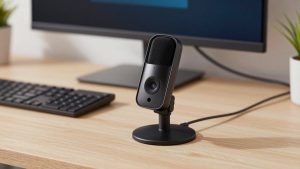
Most listings use “3 in 1” to mean a webcam with a built-in microphone array and a built-in speaker. You plug in one USB cable and it shows up as both your camera and your audio device.
There are three distinct versions of this on the market. First, the personal video bar: about 8 to 12 inches wide, sits on top of a monitor or under it, meant for one person at a desk. Second, the small conference camera: wider lens, louder speaker, meant for 2 to 6 people around a table. Third, a bundle that sellers call 3 in 1 but is really a webcam plus a separate USB speakerphone in one box.
That third type is often the best sounding option, because the speaker has its own enclosure and volume. It just takes up more desk space and uses two USB ports or a hub.
Who it suits, and who should skip it
See also: Best Monitor for MacBook Air: Two USB-C 4K Screens and Six Adapter-Dependent Alternatives • Best Monitor for MacBook Pro: Eight Listings Sorted by Cable, Sharpness and Scaling
A true all-in-one makes sense if you want minimal setup. One device to plug into a laptop, one device to select in Teams or Zoom, nothing to charge. It is good for hot-desking, small home offices, and for people who move between work and a personal MacBook.
It does not suit everyone. If you already wear a headset all day, you will not use the built-in speaker. You are paying for hardware you will mute. If you take calls in a noisy living room or open office, a single desktop speaker will get drowned out and leak sound to others. A headset or a dedicated speakerphone placed closer to you will work better.
For Mac users in particular: most of these devices are plug-and-play over USB with no drivers, which works fine on macOS Sonoma and later. What you usually lose on Mac is the Windows-only settings app for background blur, auto-framing, and EQ. Check if settings are saved on the device or if they require the app running. If they require the app, assume you will get basic functionality only on Mac.
What to check before you buy
Speaker power is the first failure point. Product pages rarely give honest wattage. Look for user reviews that specifically mention “loud enough at 50% volume” and “no distortion on Teams.” A small monitor-top bar often tops out at 3-5W. That is fine in a quiet 10×10 office at arm’s length. It is not fine 8 feet away in a conference room or with a fan running behind you.
Microphone pickup is the second. Two-mic noise-canceling arrays are good for one person within 3 feet. Beyond that, voices get thin and keyboard clicks come through. Four to eight mic arrays with echo cancellation handle small groups better, but they also pick up HVAC hum and hard-surface echo. If your room echoes, no mic array will fix it. A rug, curtains, or sitting closer helps more than spending extra.
Camera specs are often overstated. Ignore “4K” alone and look for sensor size, autofocus, and low-light performance. For work, a sharp 1080p with good auto-exposure beats a soft, noisy 4K. A 65 to 90-degree field of view suits solo desk use without showing your whole room. Over 110 degrees is for groups and will make you look distant and warped at a desk.
Also check cable length, mount type, and microphone mute behavior. Many compact bars ship with a 5-foot cable that barely reaches a dock under a desk. Conference units need 8 to 10 feet. A physical mute button with a clear red light prevents hot-mic moments. Touch-only buttons are easy to miss.
| Type | Best for | Camera | Speaker and mic reality | Main trade-off |
|---|---|---|---|---|
| Personal all-in-one video bar | Solo desk, laptop + monitor setup | 1080p to 4K, autofocus, 65-90 degree view | Fine for quiet rooms at 2-3 feet; speaker lacks bass and max volume | Simple, but you may still want headphones for long listening sessions |
| Wide-angle conference cam with speaker | Small huddle room, 2-5 people | Wider 110-120 degree lens, auto-framing common | Louder speaker, better far-field mics, but echoes in bare rooms | Bulky on a small desk; overkill and unflattering for solo calls |
| Webcam + separate USB speakerphone kit | Home office that doubles as meeting space | Usually a standard webcam, your choice of resolution | Best audio clarity and volume; mic sits closer to talkers | Two devices, more cables, higher total cost |
Which type to pick for work calls
For solo daily calls at a desk: get the personal video bar type. Choose one with dual noise-canceling mics, a physical privacy shutter, and tripod threading so you can raise it to eye level. When you browse for a all-in-one webcam with speaker and microphone, filter for recent reviews that mention Teams or Zoom by name, not just “great picture.” Video-only reviews miss audio dropouts.
For small team rooms or family calls from a table: get the conference type with a louder speaker and 360-degree mic pickup. Expect to spend more and to place it in the center of the table, not on top of a TV 10 feet away. That distance kills intelligibility. If you shop for a conference webcam with speakerphone for small rooms, prioritize echo cancellation and full-duplex talk over 4K resolution. Being able to interrupt without clipping matters more than pixel count.
The cheaper option is often fine if you already own a decent webcam from the last three years. Instead of replacing it, add a compact USB speakerphone puck and set that as your mic and speaker in your meeting app while keeping your existing camera. A USB speakerphone for Zoom and Teams calls paired with a basic 1080p webcam will usually beat a similarly priced all-in-one for audio, and you can position the mic where you actually sit.
Common failure modes to avoid
Feedback and echo are the top complaint. This happens when the speaker and mic are in the same small housing at high volume. If callers hear themselves, turn the device speaker down to 60% and move the device 2 feet from walls. If it persists, switch to push-to-talk style discipline: mute when not speaking.
The second is USB power and hub issues. All-in-one bars with speakers draw more power than a basic webcam. Plugged into an unpowered hub with a hard drive and light, they crackle or drop. Plug directly into the laptop or dock first when troubleshooting. Use USB-A to USB-C adapters that actually pass data, not charge-only cables.
The third is default device switching. Windows and macOS love to revert to “laptop microphone” after sleep. After setup, go into Teams, Zoom, and Meet and lock the audio and video to the external device. Disable “automatically adjust microphone volume” if your voice pumps up and down. Test with a 30-second recording before an important call.
Setup that makes a cheap unit sound expensive
Place the unit at eye level, 24 to 36 inches from you. Too low and callers stare up your nose; too far and the mic has to add gain and hiss. If your monitor is high, put the bar on a small tripod or stack of books in front of you rather than on top of the monitor six inches above your head.
Keep the speaker facing you, not facing a window or hard wall. Turn system volume to 70 to 80% and control fine volume in the meeting app. That avoids distortion at 100% system gain. Use the privacy shutter when off calls, but remember a shutter does not mute the mic. Use the mute button.
FAQ
Can I use a 3 in 1 webcam with a MacBook without installing software?
Yes, in most cases. Audio and video work over standard USB UVC and UAC drivers on macOS. You just may not get auto-framing controls, beauty filters, or firmware updates without a Windows PC or the vendor’s Mac app, if one exists.
Will the built-in speaker be loud enough for a group?
For one person at a desk in a quiet room, yes. For three or more people or any background noise, usually no. That is when a separate speakerphone or conference-type unit with a larger speaker chamber is worth it.
Is it better to buy an all-in-one or a webcam plus speakerphone?
If simplicity matters most, buy the all-in-one. If audio clarity matters most, keep or buy a basic webcam and add a USB speakerphone. The two-piece kit almost always wins for mic pickup and volume, at the cost of extra desk space.
Do I still need headphones?
Not for short check-ins, but keep a wired earbud handy. For all-day training, sensitive HR calls, or noisy homes, headphones prevent echo and keep your audio private. No desktop speaker beats that.
Related Reviews & Guides


5 Best Desk Organizers with Drawers (2026)
Best Webcam for Conference Calls