Last Updated: October 18, 2026
📄 In This Review
When a mirrorless makes sense as a webcam
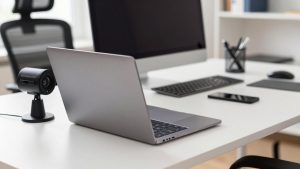
A mirrorless camera as a webcam is overkill for most work calls, and that is worth saying up front. If you just need to look clear on Zoom and Teams, a $80 to $150 dedicated webcam is smaller, simpler, and stays on without babysitting. Where mirrorless earns its place is if you are on camera for hours a day, record training videos or YouTube on the side, or you are tired of looking washed out and noisy in a dim home office. The larger sensor gives you cleaner low-light image, natural background blur, and much better color than any small-sensor webcam.
The trade-off is complexity. You need a lens, a way to power the camera for hours, a capture method that your laptop or Mac will accept, and a setup that does not overheat or fall asleep mid-meeting. Expect to spend $600 to $1,200 all-in for a workable new kit, more if you want full-frame. If that sounds like a lot for slightly better Zoom calls, it is. Buy a good webcam instead and put the money toward light and a microphone.
What actually matters for video calls
See also: Best Monitor for MacBook Air: Two USB-C 4K Screens and Six Adapter-Dependent Alternatives • Best Monitor for MacBook Pro: Eight Listings Sorted by Cable, Sharpness and Scaling
Forget megapixels and burst shooting. For webcam use, four things decide whether a camera is good or miserable. First is clean HDMI or plug-and-play USB streaming. Clean means no focus boxes, battery icons, or menus burned into the image. Most cameras made in the last four to five years have it, but check the manual before you buy. Second is unlimited video time and heat management. Some older mirrorless bodies still have a 29:59 recording limit or overheat after 40 to 60 minutes at 4K. For calls you are not recording internally, but the sensor still gets hot.
Third is autofocus that stays calm. You want reliable face and eye detection that does not hunt or pulse when you lean forward. Contrast-only autofocus systems and very cheap kit lenses hunt more in office light. Fourth is continuous power. Internal batteries last 60 to 120 minutes and shut down without warning. You will need a dummy battery AC adapter or USB-C Power Delivery that actually powers the camera during streaming, not just charges it slowly. Not all USB-C ports do both, so verify that detail.
Three practical paths to choose from
For office work, it helps to think in categories rather than chasing one perfect model. Most buyers land in one of these three groups, and each has a clear failure mode.
| Setup type | Typical total cost | Strength on calls | Main headache | Best for |
|---|---|---|---|---|
| Compact APS-C mirrorless with kit zoom | $650 – $950 | Sharp 1080p, good autofocus, small on desk | Kit lens is slow in dim rooms, needs light | Daily Zoom and Teams users who also record |
| Full-frame hybrid mirrorless with 24-50mm zoom | $1,400 – $2,400 | Best low light, shallow depth of field, pro color | Price, heat, larger file sizes if recording | Presenters, coaches, course creators |
| Micro Four Thirds or used previous-gen body | $450 – $750 used | Great value, usually no record limit, compact lenses | More noise in dark rooms, older USB streaming | Budget upgrade over a webcam |
If you sit in a bright room or can add a $40 key light, the compact APS-C route is the sweet spot. You get 90 percent of the mirrorless look for the least money and desk clutter. Full-frame only makes sense if you shoot a lot of video outside meetings and want that very soft background. A used body can be smart, but only if it has clean HDMI, external power support, and webcam utility support for Windows and Mac. Older bargain bodies that lack those three will cost you more in adapters and frustration than you save.
Lens, light, and audio matter more than the body
Beginners overspend on the body and cheap out on the lens. For a desk 2 to 4 feet away, a standard 18-50mm equivalent zoom at f/2.8 to f/4 is ideal. It keeps your face sharp and the background softly blurred without you going out of focus every time you move. A very fast f/1.4 prime looks beautiful but is unforgiving on a wobbly desk mount – lean back six inches and you are soft. If your office is dark, prioritize a brighter lens and a simple softbox or panel light over jumping to full-frame.
Plan audio separately. Mirrorless preamps are not made for long meetings, and in-camera mics pick up fans, keyboards, and room echo. Use a USB mic or headset and select it separately in Zoom or Teams. Same for connection: the most reliable chain is still camera HDMI out to a USB capture stick to your laptop, set to 1080p30. Direct USB webcam modes are convenient, especially on Macs, but some cap resolution, crop the image, or disable eye-AF. If you buy mirrorless cameras with clean HDMI for streaming, you keep both options open.
Mac and laptop setup failure modes
Most problems I see are not image quality, they are dropout problems. On Macs, especially Apple Silicon MacBooks with docks, cheap capture devices can show as unsupported, deliver no audio, or drop to 720p through a hub. Plug the capture device directly into the Mac when testing, then add the dock back. On Windows laptops, the camera maker’s webcam utility can fight with the capture stick – pick one path, HDMI capture or USB UVC, not both at once.
Other common failures: camera auto power-off set to 5 minutes, sensor overheating because 4K output was left on for a 1080p call, and HDMI cables that work loose. Set the camera to Movie mode, 1080p30 output, face/eye AF on, auto power-off to Off or Max, and disable in-body sleep. Power with a wall adapter like a camera dummy battery AC adapter kit for all-day use, and mount the camera on a small tripod behind your monitor at eye level. Test a full 90-minute call before an important presentation.
What to buy if you want simple
If you want the least fuss, look for a recent APS-C vlogging-style body bundled with a kit zoom, from the major makers’ creator lines. Those are designed to run as USB webcams without capture hardware, stay in focus on faces, and flip screens for framing. Add a capture card only if you need longer cables or use multiple computers. Shoppers comparing APS-C mirrorless camera kits for video will find this is where price, heat control, and autofocus are best balanced for home offices.
If your room is very dim or you want shallow depth of field for client-facing webinars, step up to full-frame, but budget for a brighter zoom and real power solution at the same time. Do not buy the body alone and hope your old tripod, short HDMI cable, and spare battery will hold up. The accessories that actually keep you live – stable mount, 10-foot quality HDMI cable or optical HDMI for longer runs, and supported capture device – matter more than paying for 6K or 120p you will never use on a call.
FAQ
Do I need a capture card to use a mirrorless as a webcam?
Not always. Many recent bodies offer USB UVC streaming that shows up like a webcam on Windows and Mac. A capture card via HDMI is still more compatible and usually gives lower latency and more consistent 1080p, so get one if you present often or switch computers.
Will a mirrorless camera overheat on long Zoom calls?
It can, especially outputting 4K in a warm room. Run 1080p output, keep the LCD pulled away from the body for airflow, avoid direct sun, and use external power. Creator-focused models handle heat better than older photo-first bodies.
Can I use the camera mic for meetings?
You can, but you should not for daily work. You will sound distant and roomy, and fan noise gets amplified. A $50 to $100 USB mic or good headset will improve how clients hear you more than any camera upgrade.
Is full-frame worth it just for video calls?
For most people, no. A well-lit APS-C setup looks nearly identical at Zoom compression. Choose full-frame only if you also record courses, interviews, or low-light video where the larger sensor and lens selection pay off.
Related Reviews & Guides


5 Best Standing Desks for Beginners (2026)
Best Webcam with Mic and Speaker for PC