Last Updated: October 18, 2026
📄 In This Review
What a PC webcam needs to do
Most PC users are not trying to stream on Twitch. They need to look clear on Zoom, Teams, Meet, and Webex, be heard without repeating themselves, and not fiddle with settings before every call. That is a lower bar than camera marketing suggests, but it is also more specific. Good office lighting is uneven, rooms echo, and Windows handles cameras inconsistently across apps. A good webcam for PC work handles those realities without requiring you to become a video hobbyist.
In practice, that means three things matter more than resolution: autofocus that does not hunt, exposure that keeps your face bright without blowing out a window behind you, and a USB connection that just works when you plug it into a desktop or dock. 1080p is still enough for 95% of work calls. 4K helps only if you crop, present, or want sharper text on a whiteboard. Microphone quality matters, but no webcam mic beats a $30 headset in a noisy house.
The three real categories
See also: Best Monitor for MacBook Air: Two USB-C 4K Screens and Six Adapter-Dependent Alternatives • Best Monitor for MacBook Pro: Eight Listings Sorted by Cable, Sharpness and Scaling
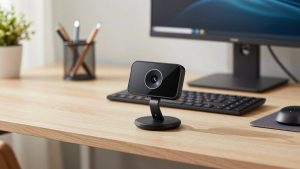
Forget the spec sheets for a minute. For PC work, webcams fall into three useful buckets. First is the basic fixed-focus 1080p webcam. No autofocus motor to fail, no software to install, usually plug-and-play over USB-A. Image is a little soft up close, but it is stable. This is fine for daily standups, customer support, and students.
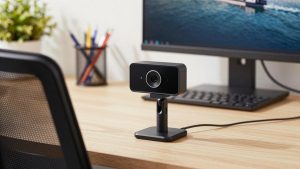
Second is the business-grade 1080p webcam with autofocus, dual mics with noise reduction, and a physical privacy shutter. These typically add better low-light correction and a wider but not distorted field of view around 78-90 degrees. If you are on calls four hours a day, this is the sweet spot. You get fewer “you’re frozen” or “you’re dark” comments, and you do not pay for 4K you will never use.
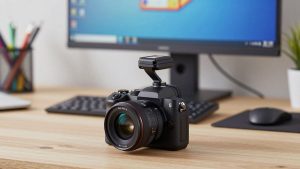
Third is the 4K webcam for presenters, coaches, and creators who record. The benefit is not that your coworkers see you in 4K — Teams and Zoom usually compress you to 720p or 1080p anyway. The benefit is you can crop in, use digital zoom without falling apart, and record locally in higher quality for YouTube, training videos, or demos. The trade-off is price, more CPU load, and sometimes worse low-light performance because smaller pixels gather less light.
Quick comparison
| Type | Typical resolution | Best for | Watch out for |
|---|---|---|---|
| Basic 1080p fixed-focus | 1080p/30 | Daily calls, second PC, kids’ homework desk | Soft image under 2 feet; weak mics in echoey rooms |
| Business 1080p with autofocus | 1080p/30 or 1080p/60 | Home office, managers, client-facing work | Autofocus hunting on cheap models; needs good USB port power |
| 4K with auto-framing | 2160p/30 | Presenting, teaching, recording | Higher CPU use; auto-framing can be jumpy; costs more for little live-call gain |
| Wide-angle conference cam | 1080p to 4K | Small huddle room, two people at one PC | Edge distortion; people look far away in a small window |
What to buy for work
If your PC already has a decent built-in camera, be honest about whether you need an upgrade. Many late-model laptops have acceptable 1080p cameras for one-on-one calls. An external camera makes sense when your laptop sits to the side on a dock, your desktop has no camera, your image is always grainy after 4 p.m., or people complain about your audio.
For most desk workers, a straightforward 1080p webcam for PC with autofocus is the right buy. Look for 1080p/30 minimum, dual microphones, a clip that actually grips a thick monitor, and a USB-A plug or included USB-C adapter if you use a modern dock. Autofocus should lock in under two seconds and stay locked when you lean back. If it pulses in and out during a call, return it — that is a common failure mode in budget autofocus models and it is distracting.
If lighting is your problem, do not solve it with a more expensive camera first. A $20 LED panel or even moving your desk to face a window does more than jumping from 1080p to 4K. Backlight is the killer: if a bright window is behind you, even a good webcam will turn you into a silhouette. The cheaper option is fine here — a basic 1080p camera plus a small light will look better than a 4K camera in a dark room.
Buy 4K only with a specific reason. A 4K webcam for PC with auto-framing makes sense if you stand and move during demos, you record training sessions locally while also doing live calls, or you want to zoom and still show slides clearly. Expect to plug it directly into your PC, not into an unpowered hub. Many 4K models want USB 3.0 bandwidth and full power. Run through a cheap hub or a long extension and you will get dropped frames, disconnects, or the camera reverting to 720p without telling you.
For shared PCs or a family computer in a living room, field of view matters more than pixels. A 90- to 100-degree lens fits two people without squeezing together. Just know that wide-angle also captures mess and makes you look smaller in gallery view. If you mostly do solo calls, stay at 78-82 degrees. You will fill the frame better and the lens will usually have less distortion.
Failure modes to check in the first week
Test in the apps you actually use. Windows Camera app can look great while Teams looks washed out, because each app applies its own exposure and noise reduction. Do a 10-minute test call and watch for three issues. First, focus hunting: lean forward, lean back, hold up a document. If the image breathes in and out, turn off continuous autofocus in the vendor app if available, or switch to a fixed-focus model.
Second, audio clipping and room echo. Webcam mics placed on top of a monitor in a hard-floor room sound hollow. If people say you fade when you turn your head, use a headset or a cheap USB mic and disable the webcam mic in Windows Sound settings. Third, USB and sleep problems. Some PCs cut power to USB ports on sleep, and the camera does not re-enumerate cleanly. If your camera disappears after sleep, try a rear motherboard port instead of a front case port, update chipset drivers, and avoid chaining adapters.
Also check the mount. This sounds trivial until your camera slowly tilts down all meeting. Thin laptop lids and curved gaming monitors defeat weak clips. If you use a monitor arm or ultrawide, consider a small mini tripod on the desk behind the monitor. A search for a webcam with privacy shutter and tripod mount will show models with a standard thread underneath, which gives you far more placement options.
Setup tips that matter more than specs
Place the lens at or slightly above eye level, about arm’s length away. Too low and you get the up-the-nose angle; too far and facial expressions disappear. Set Windows to 1080p in your meeting app if it lets you — some apps default to 720p to save bandwidth. Turn off “touch up” and heavy background blur for testing, then add them back if needed. Blur and virtual backgrounds increase CPU load and can create flicker around hair and glasses on lower-end PCs.
If your image is noisy in the evening, add light in front of you, not overhead. A single soft light at 4000-5000K behind your monitor is enough. Keep the wall behind you darker than your face if possible. And if you wear glasses, tilt the light slightly or bounce it off a wall to avoid a bright reflection that autofocus systems sometimes chase.
FAQ
Is 4K worth it for Zoom and Teams?
Usually not for live calls alone. Both platforms compress video heavily, so others rarely see full 4K. Buy 4K if you record locally, crop often, or present standing up. Otherwise put the money toward lighting or a better mic.
Why does my new webcam look worse than my laptop camera?
It is often lighting, placement, or app settings. External cameras on top of large monitors sit farther away and capture more backlight. Move to face a window, add a front light, and check resolution and exposure settings inside Teams or Zoom, not just Windows Camera.
Do I need to install the manufacturer’s software?
No, for basic calls. Windows 10 and 11 handle most webcams as UVC devices with no drivers. Install the vendor app only if you want to update firmware, turn off autofocus, adjust field of view, or save settings. Uninstall it if it causes the camera to stay busy in other apps.
Will any webcam work with both PC and Mac?
Almost all USB webcams do, since they use the standard UVC protocol. The difference is the tuning app — some features like auto-framing controls or background effects are Windows-only. If you switch between systems, choose a camera that stores settings on-device so you do not need the app on both machines.