Last Updated: October 18, 2026
Most Dell laptops ship with a usable but flat-looking 720p or 1080p built-in camera. It’s fine for a quick Teams check-in, but it struggles in home offices with backlight from a window, overhead lights, or when you want to look sharp in front of clients. The nose-up angle from the laptop lid doesn’t help either.
If you do video calls daily on a Dell XPS, Inspiron, Latitude, or Precision, an external USB webcam is one of the cheapest upgrades you can make. You don’t need to overthink it, but Dell users do run into a few specific quirks around USB ports, mounting, and Windows Hello.
📄 In This Review
What to check first on your Dell
Before you buy, check which ports you actually have free. Newer XPS 13 and XPS 15 models are USB-C only, so a webcam with a standard USB-A plug will need a simple USB-C adapter or a dock. Latitudes and Precisions usually still have at least one USB-A port, which makes setup plug-and-play. All of these webcams are UVC compliant, so Windows 10 and 11 will pick them up in Zoom, Teams, Meet, and Webex without drivers.
Second, think about where it will sit. A Dell laptop screen is thin, and the lid flexes if you clamp a heavy webcam on top. Lightweight 1080p webcams sit fine. Larger 4K models with glass lenses and metal bodies can tip an XPS 13 backward if the lid is tilted far back, especially if you also have the laptop on a stand. On a closed-lid setup with an external monitor, mount the camera on the monitor instead.
Third, don’t buy a webcam for Windows Hello face login unless it specifically lists infrared. Most regular webcams, even good ones, will not unlock your Dell. If facial sign-in matters to you, keep using the built-in IR camera for login and use the external camera only for calls.
Quick comparison: what actually matters
See also: Best Monitor for MacBook Air: Two USB-C 4K Screens and Six Adapter-Dependent Alternatives • Best Monitor for MacBook Pro: Eight Listings Sorted by Cable, Sharpness and Scaling
| Type | Typical resolution | Best for | Trade-off |
|---|---|---|---|
| Basic 1080p fixed-focus | 1080p / 30fps | Students, occasional calls, tight budget | Soft in low light, no real background blur |
| Mid-range 1080p autofocus | 1080p / 60fps | Daily work calls, teaching, freelancers | Needs decent lighting to look its best |
| Premium 4K with larger sensor | 4K / 30fps, auto-framing | Client-facing work, streaming, large monitors | Heavier, pricier, more CPU load |
| Wide-angle conference cam | 1080p-4K, 90-120 degree FOV | Small huddle room, family calls | Faces look small and distorted up close |
For most Dell owners, the middle row is the sweet spot. 4K sounds better on paper, but on a typical office connection Zoom and Teams will compress you down to 720p or 1080p anyway. What you see as better quality from expensive cameras is usually better lenses, better auto-exposure, and better microphones, not just pixel count.
Best all-around: 1080p autofocus webcam
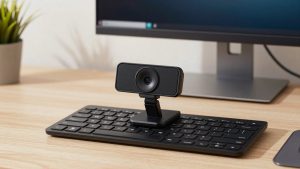
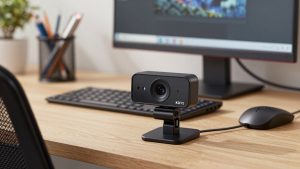
If you make 3-5 calls a day from a home office, get a solid 1080p autofocus webcam with dual microphones and a physical privacy shutter. Autofocus matters more than people expect because you lean in and out, hold up documents, or share a whiteboard. Fixed-focus cameras go soft the moment you move.
Look for 78 to 90-degree field of view. That’s wide enough to show your shoulders without showing your whole messy room. 60fps is nice for smoother motion if you gesture a lot, but 30fps is perfectly fine for talking-head calls and uses less CPU, which helps on an older Inspiron with a spinning fan.
Failure mode to know: these cameras love to overexpose if you have a bright window behind you. Close blinds or put a lamp in front of you, not behind. Software like Dell Peripheral Manager or the camera maker’s app can lock exposure, but most people never install it. Out of the box, facing a window is the single easiest way to look washed out.
Who should skip it: if you only take one call a week and your Latitude already has a 1080p IR camera, save your money. Better lighting will do more for you than a new camera.
Upgrade pick: 4K webcam for client-facing work
If clients, students, or donors see you all day, a higher-end 4K webcam for home office is worth it. The benefit isn’t really 4K streaming – it’s digital zoom without falling apart, better dynamic range, and features like auto-framing that keeps you centered if you shift in your chair.
On a Dell desktop setup with a 27-inch monitor, this difference is obvious. Text on a shared document you hold up stays readable. Skin tones look less waxy. Low-light noise in an evening call is much lower.
Trade-offs are real. These cameras run warmer, draw more power, and can stutter on older dual-core Inspirons or when plugged into an unpowered USB hub with a hard drive and headset also attached. Plug directly into the laptop or a powered dock. Also turn off auto-framing if you share your screen with movement behind you – it will hunt and zoom at the worst moment.
This is also where weight matters. If you carry your XPS back and forth to the office, a big 4K puck in your bag is annoying and the mount can scratch the lid. Many people in that situation leave the good camera on the home monitor and just use built-in on the road.
Budget and small-space options
For a dorm desk, kitchen table, or hot-desking Latitude, a basic fixed-focus 1080p camera is fine. You give up autofocus and low-light performance, but you get a massive step up from an old grainy 720p Dell camera for very little money. Just stay within 2-4 feet of the camera. Beyond that, fixed focus gets soft fast.
Don’t rely on the built-in mic if you are more than arm’s length away. Even the best webcam mics in this price range sound hollow and pick up keyboard clatter. A $20 USB headset will beat any webcam mic for call clarity.
For huddle spaces where two or three people share one Dell laptop in a small room, consider a wide angle conference webcam with microphone. A 100-plus-degree lens gets everyone in frame without crowding around a 13-inch screen. The failure mode here is the opposite: one person alone looks tiny and stretched at the edges. Buy wide only if you actually do group calls weekly.
Setup tips that matter more than specs
Mount the camera at eye level. Stack your XPS or Inspiron on books or a stand until the camera is level with your eyes. Looking down at a laptop camera is unflattering and shows ceiling and nostrils. Looking slightly up is worse.
Lighting beats resolution. A cheap daylight LED desk lamp bounced off a wall in front of you will make a $50 camera look better than a $150 camera in a dark room. Avoid overhead-only office lighting, which creates harsh eye shadows.
In Teams and Zoom on Dell laptops, go to video settings and uncheck mirror effect if you show text, turn on noise suppression, and set the external camera as default. Windows often reverts to the internal camera after an update. If colleagues say they can’t see you after you plugged in the new camera, that’s almost always the cause.
FAQ
Will any USB webcam work with my Dell laptop?
Yes. Virtually all modern webcams are plug-and-play on Windows 10 and 11. Plug into USB-A directly or use a USB-C adapter for XPS models, then select the camera in Zoom or Teams settings. No extra drivers are needed for basic video and mic.
Can an external webcam replace Windows Hello face login?
Usually no. Windows Hello needs an infrared camera. Most add-on webcams don’t have IR, so you will still use your Dell’s built-in camera to log in, then switch to the external camera for calls.
Is 4K worth it for Zoom and Teams?
For most people, no. Calls are compressed to 1080p or lower anyway. Buy 4K if you want better zoom, better low light, and auto-framing for presentations, not because colleagues will see true 4K.
Why does my new webcam look worse than my phone?
Usually lighting and exposure. Phones do heavy processing. Webcams need front light and stable exposure. Add a lamp in front of you, avoid a bright window behind you, and sit 2-3 feet away for the sharpest image.