Last Updated: October 18, 2026
- Do you actually need 4K for work calls?
- What actually matters more than 4K
- The three types of 4K work webcams compared
- Best for daily video work: large-sensor 4K with good autofocus
- Best value for most home offices: mid-range autofocus 4K
- Budget and laptop-friendly: when fixed-focus 4K makes sense
- Setup matters more than the model
- FAQ
If you spend all day on Zoom, Teams, or Meet, a 4K web camera sounds like an obvious upgrade. In practice, most of the benefit is not the 4K label itself. It is the larger sensor, better lens, and better processing that usually come with it. Those give you a sharper, cleaner image when you crop to 1080p, which is what most calls actually transmit.
That also means not every 4K webcam is worth it. Some cheap 4K models look worse in a dim home office than a good 1080p camera. They crank up sharpening, hunt for focus, and fall apart in low light. Buy for sensor size, autofocus behavior, and Mac/PC software support — not just the resolution number on the box.
📄 In This Review
- Do you actually need 4K for work calls?
- What actually matters more than 4K
- The three types of 4K work webcams compared
- Best for daily video work: large-sensor 4K with good autofocus
- Best value for most home offices: mid-range autofocus 4K
- Budget and laptop-friendly: when fixed-focus 4K makes sense
- Setup matters more than the model
- FAQ
Do you actually need 4K for work calls?
For most people, no. Zoom and Teams still compress you to 720p or 1080p most of the time, especially in gallery view or on a weak connection. You will not look four times sharper because the box says 4K.
Where 4K does help is everyday work reality: you can sit a bit farther back, use a wider field of view for a whiteboard, or enable auto-framing and digital zoom without turning into mush. A good 4K sensor downscaled to 1080p also looks cleaner, with less noise in mixed office lighting. If you record tutorials, coach clients, or present to leadership, that difference shows.
When the cheaper option is fine: if you take two or three calls a day from a well-lit desk and just need to look clear and professional, a quality 1080p camera is enough. Upgrade to 4K if you crop/zoom a lot, want to future-proof recordings, or your current camera looks grainy at 4pm when the light drops.
What actually matters more than 4K
See also: Best Monitor for MacBook Air: Two USB-C 4K Screens and Six Adapter-Dependent Alternatives • Best Monitor for MacBook Pro: Eight Listings Sorted by Cable, Sharpness and Scaling
Sensor size and low-light performance come first. Home offices are rarely bright. Small-sensor 4K cameras compensate with aggressive noise reduction that makes skin look waxy, then sharpening that makes it look crunchy. Look for a larger sensor and realistic low-light samples, not just lux claims.
Focus type is second. Fixed-focus 4K cameras are sharp at one distance and soft everywhere else. They are fine if you sit still at a desk. If you lean in to read, hold up a document, or pace during calls, you want fast, quiet autofocus that does not pulse. Bad autofocus is more distracting than slightly lower resolution.
Third is exposure and color handling. Backlit window behind you, overhead warm lights, a bright monitor in a dark room — that is a normal home office. A good work webcam holds your face exposure without blowing out the window to pure white. Cheap 4K models often fail here. A simple shade or repositioning your desk helps more than any spec.
The three types of 4K work webcams compared
Almost every 4K work webcam falls into one of three buckets. Figure out which bucket you are in before you compare specs:
| Type | Typical strengths | Common failure modes | Best for |
|---|---|---|---|
| Premium large-sensor 4K with autofocus | Clean 1080p output, good low light, reliable auto-framing, better mics | Expensive; software can be buggy on Mac; runs warm on long calls | Daily presenters, managers, creators recording calls |
| Mid-range autofocus 4K | Good daylight detail, digital zoom usable, decent value | Noisy in dim rooms, focus hunting, narrow software controls | Most home offices with decent light |
| Budget fixed-focus 4K | Cheap, simple plug-and-play, fine in bright light | Soft if you sit too close/far, harsh colors, poor backlight handling | Occasional calls, second laptop, kids’ desk |
Best for daily video work: large-sensor 4K with good autofocus
If video is part of your job — sales calls, teaching, consulting, leading standups — this is the category to buy. You are paying for consistency, not peak sharpness. In a side-by-side test at 9am with window light and again at 5pm with only a ceiling light, the premium sensor still looks like you. The mid-range one does not.
What to look for: fast phase-detect or hybrid autofocus, auto exposure that prioritizes faces, a 65- to 80-degree field of view option for solo work, and a privacy shutter you will actually use. Onboard dual mics are useful as backup, but do not choose a camera for mics alone. A $30 USB headset will beat any webcam mic.
Trade-offs: these cameras cost roughly twice as much, need a free USB 3.0 port for full 4K, and their companion apps are often Windows-first. Mac users should confirm that zoom, framing, and firmware updates work on macOS without requiring Windows. Browse large-sensor 4K webcams with autofocus and filter reviews for “Mac,” “Teams,” and “low light” before you decide.
Best value for most home offices: mid-range autofocus 4K
This is the sweet spot if you have reasonable light and sit mostly still. In daylight or with a cheap LED panel, a good mid-range 4K camera looks 90 percent as good as the premium tier on a live call. The problems show up at the edges: dim evenings, fast movement, and backlight.
Failure modes to watch: focus breathing during screen shares, over-sharpened hair and glasses frames, and auto white balance that swings orange under warm bulbs. Most of this is fixable. Lock focus if your app allows it, set white balance manually, turn field of view to narrow, and add light in front of you rather than behind.
Who should skip it: if you use a MacBook in clamshell mode with a dock, check compatibility carefully. Some mid-range cameras drop to 1080p through USB-C hubs or lose settings after sleep. If you need reliable auto-framing for standing and moving, step up a tier. Otherwise, compare autofocus 4K webcams for Zoom and Teams and prioritize recent reviews that mention your exact laptop and dock.
Budget and laptop-friendly: when fixed-focus 4K makes sense
Fixed-focus 4K cameras get a bad reputation, but they have one advantage for work: predictability. No focus hunting mid-sentence. If your desk distance is consistent — about arm’s length from a laptop or monitor — and your room is bright, they are perfectly usable for check-ins and classes.
The catch is placement. Sit six inches too close and your face softens. Sit back in a dim room and noise takes over. They also tend to default to a very wide angle that shows your whole room. Use the software to crop to 70-75 degrees and mount the camera at eye level. A stack of books beats a low-angle laptop shot more than any upgrade.
For MacBook and thin laptop users, also consider USB load and heat. Some budget 4K cameras run hot and throttle to 1080p30 after 20 minutes. That is fine for calls — 4K30 to 1080p is still sharp — but do not buy budget 4K expecting to record true 4K for an hour. If you only need simple and cheap, look at budget fixed-focus 4K webcams for laptops and spend what you save on lighting.
Setup matters more than the model
Whichever tier you buy, do three things first. One, face a window or put a soft light behind your monitor, at face height. Overhead light alone creates harsh shadows. Two, set the camera at eye level and about 2 to 3 feet away. Too close exaggerates noise and focus errors. Three, in your meeting app, turn off “touch up appearance” plus auto-adjust overprocessing while testing, then add back only what helps.
For Mac users: use Photo Booth or QuickTime to check the raw image before blaming Zoom. For Windows users: check the camera maker’s app for firmware updates, then disable Windows auto-exposure compensation if your face keeps pulsing bright and dark. And if audio is echoey, switch to headphones — viewers forgive 1080p, they do not forgive bad audio.
FAQ
Will a 4K webcam make my Zoom calls 4K?
Usually no. Most meetings transmit at 720p to 1080p to save bandwidth. A 4K camera still helps because the downscaled image looks cleaner and you can digitally zoom without losing as much detail.
Do I need USB 3.0 for 4K?
For full 4K30, yes in most cases. On USB 2.0 ports or through some hubs and docks, many cameras fall back to 1080p. That fallback still looks good for calls, but check your dock specs if 4K recording matters to you.
Is 4K worse in low light?
It can be. Small 4K sensors pack in more pixels that each gather less light. In a dim home office, a larger-sensor camera — even at 1080p output — will often look better than a cheap small-sensor 4K model.
What should Mac users check before buying?
Confirm the companion app supports macOS for focus, zoom, and firmware updates, and that auto-framing works in Meet, Teams, and Zoom on Mac. Also check behavior through USB-C hubs, since some cameras lose 4K or reset settings after sleep.
Related Reviews & Guides

5 Best Desk Mats for Keyboard and Mouse (2026)
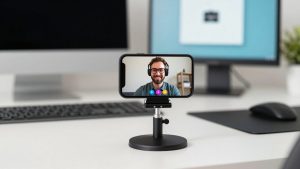
Best 4K Camera for Video Conferencing