Last Updated: October 18, 2026
If you only need a webcam for Zoom, you do not need to spend much. Zoom compresses video heavily, and most meetings are viewed in a small window. What matters is stable 1080p, decent auto-exposure, and a microphone that does not cut out.
I have tested cheap webcams in real home offices: backlit spare bedrooms, dark corners, old laptops, and Macs that refuse to play nice with camera software. The pattern is consistent. A $30-$45 camera with good light looks better on Zoom than a $120 camera in bad light.
📄 In This Review
What Zoom actually needs
Zoom caps most group calls at 720p, sometimes 1080p for one-on-ones if both sides have it enabled. That means a 4K sensor gives you almost no advantage in a normal Zoom call. Your upload bandwidth, lighting, and lens focus matter far more than resolution on the box.
For reliable Zoom work, look for three things: true 1080p at 30fps, automatic light correction, and plug-and-play UVC support with no driver required. UVC is what lets you plug into Windows, Mac, or Chromebook and have it work in Zoom in seconds. If a listing requires you to install a special app just to get 1080p, skip it.
Microphone quality is the second trap. Budget webcam mics all sound thin and pick up keyboard noise. They are fine for a quiet room. They fail in echoey rooms, near a loud laptop fan, or if you sit more than 3-4 feet away. If that is your setup, plan to use earbuds or a cheap USB headset for audio and let the webcam handle video only.
When the cheapest option is fine
See also: Best Monitor for MacBook Air: Two USB-C 4K Screens and Six Adapter-Dependent Alternatives • Best Monitor for MacBook Pro: Eight Listings Sorted by Cable, Sharpness and Scaling
If you do 2-5 Zoom calls a week from a desk, sit facing a window or lamp, and use a laptop from the last five years, a basic fixed-focus 1080p webcam is fine. You will look sharper than any built-in laptop camera from before 2022, especially older 720p MacBook and budget Windows cameras.
The cheaper option is not fine when you move around, whiteboard behind you, sit in low light at night, or need to look professional for client calls all day. Fixed-focus lenses are usually set for 2-6 feet. If you lean in close, you get soft. If you sit far back, you get small and noisy. Autofocus costs a little more but holds up much better if you shift in your chair.
The three budget types worth buying
There are dozens of listings, but almost all budget Zoom cameras fall into three groups.
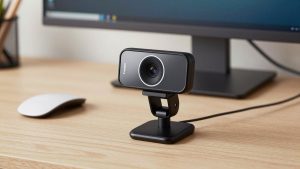
1. Basic 1080p fixed-focus. Usually $25-$35. Small lens, single or dual mic, 65-75 degree field of view, clip mount. Best for: students, occasional Zoom users, second computer. Trade-off: soft image in low light, no real background blur, plastic clip that slips on thin laptop lids. Failure mode I see most: focus looks good at noon but turns grainy at 5pm when the room darkens, because the tiny sensor boosts gain.
A standard budget 1080p webcam for Zoom in this range is the sensible default if you just want to stop looking blurry. Do not pay extra for digital zoom, beauty filters, or ring lights built into the camera. They rarely help.
2. 1080p autofocus with dual mics. Usually $40-$60. This is the sweet spot for home office workers. Autofocus keeps your face sharp if you lean forward to type, and the wider pickup mics handle small rooms better. Look for 75-90 degree field of view, tripod thread, and a physical privacy shutter. Best for: daily standups, teaching, job interviews. Trade-off: autofocus can hunt in very low light, pulsing in and out. Failure mode: cheap autofocus models will refocus every time you lift your hands, which is distracting on Zoom.
If you are on calls 3+ hours a day, step up to an autofocus webcam with dual microphone rather than the absolute cheapest listing. The difference on Zoom is not resolution, it is stability. Your face stays sharp and your voice stays level when you move.
3. Budget 2K / QHD upgrade. Usually $55-$75. Same idea as above but with a larger sensor and better low-light processing. Zoom will still downscale it, but you get cleaner edges and less noise because it starts with more data. Best for: poorly lit apartments, evening calls, people who cannot add a lamp. Trade-off: needs more USB bandwidth and a slightly newer computer. On a 7-year-old laptop, 2K mode can stutter. Most people should run it in 1080p mode anyway. Failure mode: buyers turn on 2K and then blame Zoom lag, when the real problem is an old CPU trying to process background blur at the same time.
Quick comparison
Use this to match the camera to how you actually call, not to specs on the box.
| Type | Typical price | Best for | Weak point on Zoom |
|---|---|---|---|
| 1080p fixed-focus | $25-$35 | Occasional calls, good daylight | Grainy in evening, soft up close |
| 1080p autofocus, dual mic | $40-$60 | Daily home office use | Focus hunting in very dark rooms |
| Budget 2K / QHD | $55-$75 | Low light, client-facing calls | Can stutter on old laptops if you add effects |
| Built-in laptop 720p | $0 | Backup only | Waxy, noisy image, bad angles |
If you want a little more headroom for dark rooms without going to $100+ models, a 2K webcam for home office run at 1080p is often the best value. You get the better sensor without the CPU hit of full 2K streaming.
Setup matters more than the camera
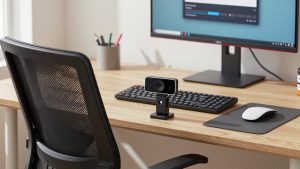
Before you return a budget webcam as bad, fix light and position. Put the camera at eye level, about arm’s length away. Get a lamp or window in front of you, not behind you. Backlight is the number one reason budget webcams look terrible. The camera exposes for the bright window and turns your face into a silhouette.
In Zoom, turn off HD if your video stutters, turn off Touch Up My Appearance if your image looks waxy, and turn off background blur if your edges flicker. Those features hit budget sensors and older laptops hard. A clean, unfiltered 720p feed looks more professional than a glitchy virtual background.
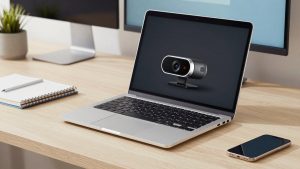
Also check the mount. Most budget clips assume a thick external monitor. On a thin MacBook Air or XPS lid, they tilt down over time. Tighten the hinge, push the camera base flat, and keep the cable slack. A slow droop mid-call is a common failure that has nothing to do with image quality.
Laptop and Mac notes
For Windows laptops, any UVC camera will work in Zoom, Teams, and Meet without software. Plug it in, select it under Zoom Settings then Video, and set microphone to either the webcam or your earbuds. If Zoom shows a black screen, close the camera privacy app from your laptop maker, then re-select the USB camera.
For Macs, avoid cameras that require Windows-only software for basic focus or exposure. On macOS Sonoma and later, check System Settings then Privacy and Security then Camera to allow Zoom access, then restart Zoom. If you use a MacBook in clamshell mode with an external monitor, put the webcam on the external monitor at eye level, not on the closed laptop off to the side.
FAQ
Is 1080p enough for Zoom job interviews?
Yes. Zoom rarely shows more than 720p to the other person. Clean light, eye-level framing, and clear audio will matter far more than paying for 2K or 4K.
Why do I look worse on Zoom than in the camera preview?
Zoom adds compression and noise reduction. Low light gets grainy, then Zoom smooths it and you look waxy. Add a front light and turn off Zoom background effects to get back most of the detail.
Should I use the webcam mic or earbuds?
Use earbuds or a headset if your room echoes, you type loudly, or you sit far from the desk. Budget webcam mics are usable in a quiet, small room, but they pick up everything around you.
My budget webcam stutters. Is it broken?
Probably not. Try a rear USB port directly on the computer instead of a hub, set Zoom video to 720p, and turn off background blur. If it still stutters in 2K mode, run the camera in 1080p mode.