Last Updated: October 18, 2026
A meeting room camera has a different job than a desk webcam. At a desk, you sit 2 feet away and fill the frame. In a meeting room, 3 to 6 people sit 6 to 12 feet away, often off to the sides, with bad overhead lighting and echo. Most home office webcams fail here because the field of view is too narrow and the microphones cannot reach the far end of the table.
For work purposes, think in room sizes, not megapixels. A 4-person huddle room needs something completely different than a 10-person boardroom. Buy for the room you actually have, and spend as much attention on audio pickup as on video.
📄 In This Review
What makes meeting rooms different
Three specs matter more than 4K on the box. First is field of view. A normal laptop webcam is 75 to 80 degrees. That cuts off anyone not centered. For a small table you want 105 to 120 degrees. Second is microphone range. A desk mic is tuned for 3 feet. A room needs 10 to 15 feet without sounding like a tunnel. Third is auto-framing and focus behavior at distance. Cheap cameras hunt for focus or blow out faces when there is a window behind the table.
The other practical issue is connection. Most rooms run one shared laptop plugged in for Zoom, Teams, or Meet. That means you want plug-and-play USB, not a network AV install. Check cable length before you buy. A lot of wide-angle cameras ship with a 5-foot USB cable that will not reach from the display to the table in a real room.
Quick comparison
See also: Best Monitor for MacBook Air: Two USB-C 4K Screens and Six Adapter-Dependent Alternatives • Best Monitor for MacBook Pro: Eight Listings Sorted by Cable, Sharpness and Scaling
There are really three categories that work for small work meetings. Skip action cameras, security cameras, and old camcorders — the software hassle is not worth it.
| Category | Best for | Typical field of view | Audio reality | Main trade-off |
|---|---|---|---|---|
| Wide-angle USB conference webcam | 2-4 person huddle rooms | 105-120 degrees | Good to ~10 ft in quiet room, weak with HVAC noise | Edges look stretched, no zoom |
| All-in-one video bar with mics + speaker | 4-7 person rooms where you want one plug | 90-120 degrees with auto-framing | Much better echo control, usable to ~15 ft | Costs more, speaker may be too small for large rooms |
| PTZ camera with separate audio | Medium rooms, training, town halls | Zoom lens + pan/tilt presets | Requires separate mics, camera audio alone is not enough | Complex, needs remote or presets, overkill for huddles |
Best for small huddle rooms: wide-angle USB webcam
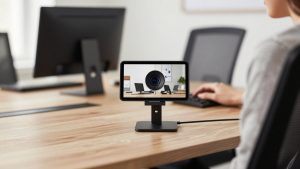
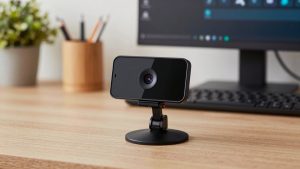
If you have a 2 to 4 person room with one display, start here. A fixed wide-angle conference webcam mounted on top of the TV or on a small tripod in the middle of the table will cover everyone without panning. Look for 1080p or 2K, 110-degree or wider lens, dual mics, and explicit Mac and Chromebook support if you are not a Windows-only office.
Who it suits: startups, clinics, law offices, and remote teams that turned a spare office into a Zoom room. It is cheap, portable, and anyone can plug it in.
Failure modes to know: wide lenses bend faces at the edges, autofocus can pulse if someone leans forward and back, and built-in mics pick up table thumps and laptop fans. Mount it at eye height, not high on the wall looking down. If the room has a glass wall facing a hallway, expect background noise complaints — no webcam mic fixes that.
A basic option like a wide-angle conference webcam is fine for most huddle rooms under 120 square feet. Do not pay extra for 4K here. At 8 feet away, Zoom and Teams compress the image so much that lighting and lens width matter far more than sensor resolution.
Best for 4 to 7 people: all-in-one video bar
Once you have 5 people around a table, separate pieces start to fail. The camera is too far from the far voices, the laptop speaker is not loud enough, and you get echo because the mic and speaker are not synced. This is where an all-in-one bar earns its price — camera, mic array, and speaker in one unit with built-in echo cancellation.
These usually sit under the TV and connect with one USB cable. Many include auto-framing that zooms slightly to keep speakers centered, and noise reduction that actually helps with keyboard and HVAC hum. For hybrid work where remote people need to hear equally, this is the most reliable upgrade.
Trade-offs: they cost 2 to 3 times a basic webcam, they still top out around 15 feet for clear voice pickup, and auto-framing can be jumpy if people walk in and out. If you have a long narrow boardroom, one bar at the front will not cover the back row. You would need extension mics or a second unit, and at that point you are out of plug-and-play territory.
For most teams, a single all-in-one conference video bar is the sweet spot between a desk webcam and a full installed system. It suits offices that host client calls daily and cannot afford “can you hear me now?” for the first five minutes.
When you actually need PTZ
PTZ means pan-tilt-zoom. You get a remote or presets: wide shot of the whole room, tight shot on the presenter, shot of the whiteboard. It suits training rooms, classrooms, and all-hands spaces where someone is standing and moving.
For normal seated meetings, PTZ is usually worse, not better. Someone has to drive it, presets get misaligned after cleaning crews bump the camera, and most PTZ models assume you already have ceiling mics or a table speakerphone. Audio built into a PTZ camera alone will sound distant and hollow.
Only go this route if you have a dedicated large room and someone owns the setup. A PTZ conference room camera makes sense paired with a separate USB speakerphone in the middle of the table. Otherwise you will spend more and hear less.
Audio and lighting matter more than the camera
In testing rooms, the number one complaint from remote participants is never sharpness. It is “we can’t hear the person at the end” and “your faces are dark.” Fix these first.
Put the mic closer than the camera if you can. A $80 USB speakerphone in the center of the table will beat a $300 camera’s built-in mics at 12 feet. Turn off aggressive room noise suppression in Zoom if voices sound clipped — double suppression from both the bar and Zoom causes that underwater effect. For lighting, avoid sitting with a bright window directly behind the table unless your camera has good backlight compensation. Close blinds or move the camera to face away from windows. Overhead fluorescents create harsh shadows; a simple floor lamp bounced off a wall helps more than upgrading from 1080p to 4K.
Mac users: verify the camera is UVC-compliant with no driver required. Some conference bars lock advanced features like auto-framing settings behind Windows-only apps. The camera will still work on Mac for video and audio, but you may need a Windows laptop once to set defaults.
FAQ
Can I just use a laptop webcam in a small meeting room?
For two people crowded around one laptop, yes. For three or more, no. The view is too narrow, the mic is pointed the wrong way, and the laptop fan gets loud. A wide-angle USB camera is a clear upgrade for under the cost of one missed client call.
Is 4K worth it for a meeting room?
Usually not. Video conferencing apps downscale to 720p or 1080p, and at room distance compression erases fine detail. Prioritize 110-degree or wider field of view, good low-light performance, and microphone range over 4K on the box.
Do I need a separate microphone?
If the farthest person is more than 10 feet from the camera, yes. Camera mics sound thin at that distance. A tabletop USB speakerphone in the middle picks up far voices and reduces echo because the speaker and mic are tuned together.
What cable length do I need?
Measure from the display to the room laptop. Many rooms need 10 to 15 feet. Passive USB extensions over 10 feet can cause dropouts. Look for cameras that support a powered USB extension or place the room laptop close to the camera and run long HDMI to the display instead.