Last Updated: October 18, 2026
If you work from home and spend most of your day in Zoom, Teams, or Google Meet, you don’t need a $200 webcam. A good budget webcam gives you sharp-enough 1080p, reliable exposure, and a microphone that doesn’t make you sound like you’re in a tunnel. What you give up at this price is low-light performance, fancy background blur, and perfect color. For most home offices with decent daylight or a desk lamp, that’s a fine trade.
I’ve tested a lot of cheap webcams on both Windows laptops and Macs, and the pattern is consistent: the cheapest usable option is often enough for calls, while spending just a little more gets you autofocus and better mics. Spending more than that only makes sense if you’re presenting, teaching, or recording.
📄 In This Review
What a budget webcam actually buys you
Most budget webcams top out at 1080p at 30fps. Ignore boxes that claim 4K or 5K at this price – it’s almost always upscaled 1080p or 720p, with worse low-light noise and choppier frame rates. A clean, well-exposed 1080p image beats a soft, noisy fake 4K every time for work calls.
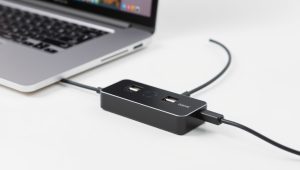
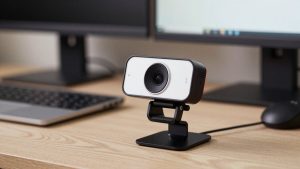
Expect plastic housings, a clip that fits a laptop lid or thin monitor, a 4-6 foot USB-A cable, and a plug-and-play setup with no drivers. On Mac, that matters. Many budget models work fine as standard UVC devices in FaceTime, Zoom, and Teams, but their companion Windows apps for zoom, focus, or effects often don’t exist on macOS. If you use a newer MacBook with only USB-C, budget for a simple USB-C adapter or dock – most cheap webcams still ship with USB-A only.
The real differences at this price are focus type, microphone quality, and low-light handling. Fixed-focus models are sharp from about 2 feet to 10 feet and never hunt for focus. Autofocus models are better if you move around, hold things up to the camera, or use a whiteboard, but cheap autofocus can pulse and blur at the worst moment.
What to check before you buy
See also: Best Monitor for MacBook Air: Two USB-C 4K Screens and Six Adapter-Dependent Alternatives • Best Monitor for MacBook Pro: Eight Listings Sorted by Cable, Sharpness and Scaling
Resolution is less important than exposure and frame rate stability. Look for 1080p30 with automatic light correction, not just a high megapixel count. If a listing doesn’t show real low-light samples, assume it needs decent room light. In a dark home office, even a good budget webcam will look grainy and drop frames. A $15 desk lamp behind your monitor will improve your image more than spending $40 extra on a webcam.
Field of view matters in small spaces. Around 78 to 90 degrees is ideal for home office work – wide enough to show you comfortably at arm’s length, but not so wide that your messy room dominates the frame. Wider than 95 degrees is useful only if you need to fit two people or show a desk area, and it makes you look smaller and farther away.
Check the mount, privacy shutter, and cable. Cheap clips slip on curved monitors, shutters fall off, and short cables force awkward laptop placement. If you use an external monitor, make sure the clip opens wide enough and has a tripod thread underneath. That 1/4-inch thread is genuinely useful – it lets you put the camera on a small tripod at eye level instead of craning up at a monitor-mounted angle.
Quick comparison for home office use
| Type | Best for | Strengths | Weaknesses |
|---|---|---|---|
| Basic 1080p fixed-focus | Daily Zoom/Teams on a laptop | Cheap, reliable, no focus hunting, easy on Mac | Soft in low light, basic mics, narrow exposure range |
| 1080p autofocus with dual mics | Small meetings, teaching, moving around | Sharper up close, better voice pickup, better exposure | Focus can pulse, picks up more room noise |
| 2K/QHD budget upgrade | Presenting, large monitor, cropping | More detail in good light, more flexible framing | Noisier in dim rooms, costs more, still needs light |
Best for most people: basic 1080p fixed-focus webcam
If you sit 2 to 3 feet from your laptop in a reasonably lit room and just need to look clear and sound okay, stop here. A basic fixed-focus model is the cheapest way to beat a bad built-in laptop camera, especially on older Windows laptops where the built-in camera is still 720p and muddy.
Who it suits: full-time remote workers doing 1-on-1s and team standups, students, and anyone on a MacBook who wants plug-and-play without software. Setup is usually 30 seconds – clip it on, select it in Zoom, and you’re done.
Trade-offs and failure modes: fixed focus means anything very close, like holding a document 12 inches away, will be soft. Single mics sound thin and pick up keyboard clatter if the camera is right above your keys. Backlight from a window behind you will blow out your face unless you close the blinds or add a lamp in front. None of that is a defect – it’s just the limit of a small sensor with no real HDR.
In practice, most people look better with a budget 1080p webcam for laptop plus decent front light than they do with a pricier camera in a dark room. If your office has overhead-only lighting that casts shadows under your eyes, fix the light first.
Best step up: 1080p autofocus with dual microphones
Spend $10 to $25 more and you usually get autofocus, dual stereo mics with light noise reduction, and slightly better auto-exposure. This is worth it if you gesture a lot, lean in and out, show products, or share handwritten notes. It’s also better if your built-in laptop mics are terrible and you don’t want to wear a headset all day.
Who it suits: managers running meetings, tutors, therapists doing telehealth from a home office, and anyone who presents. The better mics mean you can sit a little farther back and still sound present, which looks more natural than being hunched over a laptop.
Trade-offs and failure modes: cheap autofocus is the biggest complaint I hear. It can breathe in and out when you move your hands or when light changes, and some models refocus with an audible click picked up by the mics. Noise reduction can also clip the start of words or make you sound robotic on bad Wi-Fi. If you buy this type, test it by waving a hand in front of the lens and talking while typing – if the focus hunts constantly or the typing drowns you out, return it.
Look for a model with a physical privacy shutter and on-device controls that work without software, because you won’t get the tuning app on Mac. A solid choice in this range is any well-reviewed 1080p autofocus webcam with dual microphone that lists UVC compatibility and shows real user video samples, not just studio product shots.
When a 2K budget upgrade makes sense
QHD or 2K budget webcams use a higher-resolution sensor and downscale for calls. In good daylight, they look noticeably sharper, especially on a 27-inch monitor or when Zoom crops in. They also give you room to digitally zoom without turning to mush, which helps if your camera sits farther away on top of a large display.
Who it suits: people who present slides all day, creators doing lightweight talking-head video, and home offices with good window light. If you already have decent lighting and want the cleanest image under $80, this is the only budget upgrade that visibly helps.
Honest caveat: in a dim room, many 2K budget sensors look worse than good 1080p because the smaller pixels collect less light. You’ll see more grain, softer motion, and aggressive noise reduction that smears skin detail. They can also run warmer and need more USB bandwidth, which matters on older laptops and crowded hubs. Don’t buy 2K to fix a dark office – buy a lamp.
If you go this route, search for a 2K QHD webcam for home office with a tripod mount and manual exposure control if you use Windows, and test it at your actual call time – morning light and evening lamplight look very different on these sensors.
Laptop and Mac setup notes that prevent returns
On Windows, most budget webcams work immediately in Teams and Zoom, but set the camera to 1080p manually in the app settings. Auto mode sometimes drops to 720p to save bandwidth and you won’t notice until someone tells you.
On Mac, test in both FaceTime and your work app. FaceTime will often look better because it handles exposure differently than Zoom’s low-light optimization. If Zoom looks dark, turn off auto-adjust in Zoom’s video settings and add front light rather than cranking exposure in a third-party app you may not have.
Mount height matters more than specs. Laptop cameras shoot up your nose. If you take calls all day, put the laptop on a stand or use an external camera at eye level, about arm’s length away. Use earbuds or a headset for important calls – even the best budget webcam mics pick up room echo in bare home offices with hardwood floors.
FAQ
Is a $25 webcam enough for full-time remote work?
Yes, if your room has decent front light and you sit still. You’ll look clear on 1080p calls and sound fine for daily check-ins. Upgrade only if you need autofocus for showing things up close or better mics for leading meetings without a headset.
Why do I look grainy even with a 1080p webcam?
Almost always low light. Small budget sensors need a lot of light to hold 30fps. Add a lamp in front of you, turn off a bright window behind you, and keep the camera out of auto-night mode by giving it consistent light.
Will a budget webcam work with MacBook Air and MacBook Pro?
Most will as plug-and-play USB video devices in Zoom, Teams, Meet, and FaceTime. What often doesn’t work on Mac is the Windows-only tuning software, so choose a camera that looks good with default settings and has physical controls like a shutter or lens cover.
Should I get 4K on a budget?
For work calls, no. Cheap 4K models usually upscale lower-resolution video, look worse in low light, and get downscaled to 1080p or 720p by Zoom and Teams anyway. A clean 1080p or 2K image with good exposure will look better to everyone else.