Last Updated: October 18, 2026
If you use a desktop PC for work, you probably need a separate webcam. Most monitors don’t have one built in, and if they do, it’s usually terrible in low light. The good news is you don’t need to spend a lot to look sharp on Teams, Zoom, or Meet.
For PC use specifically, compatibility is rarely an issue. Almost everything is plug-and-play over USB on Windows 10 and 11. The bigger differences are autofocus, low-light handling, field of view, and whether the mic is actually usable or just a checkbox feature.
📄 In This Review
Quick picks for PC
Short on time? This is how most office workers should buy:
| Type | Resolution | Best for | Watch out for |
|---|---|---|---|
| Budget 1080p with fixed focus | 1080p / 30fps | Daily Teams / Zoom calls in good light | Soft image if you move; weak low-light |
| Mid-range 1080p with autofocus | 1080p / 60fps | Home office, teaching, frequent meetings | Costs more; software can be buggy |
| 2K / 4K premium | 1440p or 2160p | Presenting, streaming, large / dark rooms | Needs good CPU and light to matter; larger files |
| Windows Hello IR camera | 1080p + IR | Face login on a desktop without fingerprint reader | Fewer choices; pay extra for login feature |
If your room has a window in front of you and a reasonably modern PC, the middle row is the sweet spot for most people. The cheapest option is genuinely fine if you sit still and the lighting is decent.
Best cheap option: basic 1080p fixed-focus
See also: Best Monitor for MacBook Air: Two USB-C 4K Screens and Six Adapter-Dependent Alternatives • Best Monitor for MacBook Pro: Eight Listings Sorted by Cable, Sharpness and Scaling
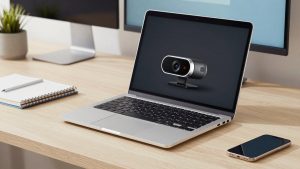
A basic 1080p work webcam is all many PC users need. You clamp it to your monitor, plug into USB-A, select it in Teams or Zoom, and you’re done. No drivers, no app required.
Who it suits: people who take 2-5 calls a day, sit about arm’s length away, and have overhead light or a window. Image will be clear enough that no one complains.
Trade-offs: fixed focus means the sweet spot is usually 2-4 feet. Lean way back or hold a document up close and it goes soft. Low light is the main failure mode. In a dim spare bedroom at night, expect grain, smeary motion, and a gray face. A $20 desk lamp in front of you does more than a $100 upgrade here.
Mics on cheap models are usable in a quiet room but pick up keyboard clatter and echo. If you type while on calls, use earbuds or a headset. Also check for a physical privacy shutter. Many cheap models include one, and it’s more reliable than remembering to click mute in software.
Best for most home offices: 1080p with autofocus and better low light
This is where you should spend if you work from home full-time. You still get 1080p, but with autofocus, a larger sensor, and better auto-exposure. On a PC this usually means 1080p60 over USB, which looks smoother when you gesture or shift in your chair.
Who it suits: managers, teachers, therapists, customer support, anyone on camera 3+ hours a day. Autofocus helps if you stand up, whiteboard behind you, or move around.
Concrete differences you’ll actually notice: less hunting for exposure when a cloud passes, less washed-out face when you have a bright window behind you, and a wider but not distorted field of view around 78-90 degrees. That is wide enough for one person plus a little desk, without making a small office look like a fisheye.
Failure modes: autofocus can pulse or hunt in low light, especially with busy backgrounds like bookshelves. If that happens, lock focus in the vendor app if available, or add light. Also, some companion apps for background blur and framing run constantly in the background on Windows and can conflict with Teams’ own blur. If calls stutter after installing the app, uninstall it and use the Teams effects instead. The camera still works as a standard UVC device.
Don’t pay extra for digital zoom presets or AI tracking unless you present standing up. For seated calls they add little and often crop the image, making low light worse.
When 2K or 4K makes sense – and when it doesn’t
A 4K webcam for video calls can look excellent, but mostly under specific conditions: strong front light, a PC that can handle 1440p/4K encoding, and a job where you need to look polished.
Who it suits: presenters, coaches, YouTube / course creators using the same PC for work and recording, and people in larger offices who sit farther back and need the extra detail to stay sharp after cropping.
When it’s wasted: if your company caps Teams or Zoom at 720p or 1080p, which most do by default, the other person won’t see full 4K anyway. You’ll see the benefit mainly in local recordings. 4K also needs more light. In a dark room a good 1080p camera often looks cleaner than a cheap 4K sensor.
Practical PC notes: use a direct USB 3.0 port on the back of a desktop if 4K stutters – front-panel hubs and long extensions are a common cause of dropouts. Check cable type too. Many premium models now ship USB-C to USB-C with an A adapter. Desktops with only USB-A up front are fine with the adapter, but avoid chaining it through a keyboard hub.
Windows Hello, mounts, and audio notes for PC setups
If you have a desktop PC and hate typing a PIN, consider an IR camera that supports Windows Hello face sign-in. There are fewer of them and they cost more than a normal webcam, but it replaces both a webcam and a fingerprint reader. Setup is in Settings > Accounts > Sign-in options. It works in the dark because it uses infrared, which is handy if your PC is in a basement office.
Mounting matters more on PC than laptop. A heavy camera on a thin gaming monitor can tilt forward. Look for a flat-fold clip that sits stable without adhesive, plus a standard tripod thread underneath. That 1/4-inch thread lets you put it on a small tripod if your monitor is too high or you use a standing desk.
For audio, assume you will use something else. Even good webcam mics sound hollow from 3 feet away in an untreated room. A $30 USB headset will beat any built-in mic for work. If you must use the webcam mic, place the camera centered and close, turn off room fans, and turn on noise suppression in Teams or Zoom rather than stacking three different noise removal apps.
Finally, if you occasionally use a MacBook too, most UVC webcams work on macOS without drivers. The catch is that advanced features like background blur or manual focus often require the Windows app. If you split time, buy for the PC experience and treat Mac support as basic plug-and-play. You can find cross-compatible options by searching for a USB webcam for PC and Mac and checking recent reviews for Teams and FaceTime use.
FAQ
Do I need 4K for work calls on a PC?
No, for most jobs. 1080p with good light looks professional on Teams and Zoom. Buy 4K only if you record video locally or present a lot and have good lighting and USB bandwidth.
Why does my new webcam look worse than my old laptop?
Usually lighting or placement. Put a light source in front of you, not behind, place the camera at eye level about 2-3 feet away, and check that Teams hasn’t defaulted back to the old camera or dropped to low bandwidth on a weak connection.
USB-A or USB-C – does it matter?
Not for image quality at 1080p. Use whichever port gives a direct, stable connection. For 4K, prefer USB 3.0 or better and avoid unpowered hubs and very long cables.
Is a headset still needed if the webcam has dual mics?
For daily work, yes. Webcam mics are 2-3 feet away and pick up room echo and typing. A basic wired headset or earbuds with a mic will sound clearer to coworkers with no setup hassle.
Related Reviews & Guides




Best Zoom Light for Computer
4 Best HP Laptop Computer Docking Stations 2026