Last Updated: October 18, 2026
If you live in Microsoft Teams all day, you don’t need the most expensive webcam. You need one that stays in focus, handles bad office light without blowing out your face, and doesn’t make IT block you for using an uncertified device. Logitech still owns this category for a reason: drivers are stable on Windows and Mac, Teams recognizes the controls, and most models just work without Logi Tune running in the background.
After testing these for daily standups, client calls, and screen-share-heavy meetings, the pattern is clear. For most people on Teams, 1080p with good autofocus beats 4K every time. 4K only matters if you want to crop, use a whiteboard mode, or you sit far from a large monitor.
📄 In This Review
The short answer for Teams users
Get the C920-series (C920s / C920e) if you want cheap, reliable, and Teams-certified. Step up to the Brio 505 for better noise handling in a home office and a cleaner look on MacBooks. Buy the MX Brio only if you present a lot and want manual control over exposure and detail. All three handle Teams’ 1080p limit well, because Teams rarely sends more than 1080p anyway, even if your camera can do 4K.
You can check current pricing for the Logitech C920s on Amazon first – for solo desk work, it is still the value benchmark everything else has to beat.
Comparison: which Logitech fits Teams?
See also: Best Monitor for MacBook Air: Two USB-C 4K Screens and Six Adapter-Dependent Alternatives • Best Monitor for MacBook Pro: Eight Listings Sorted by Cable, Sharpness and Scaling
| Model | Resolution / FOV | Best for | Trade-off to know |
|---|---|---|---|
| C920s / C920e | 1080p30, 78-degree FOV | Most office workers, laptops, IT-managed PCs | Narrower dynamic range; backlit windows wash you out |
| C930e | 1080p30, 90-degree FOV | Small huddle rooms, shared desks | Wide angle distorts edges; autofocus hunts in low light |
| Brio 505 | 1080p30, 90/78/65-degree FOV | Home office, Mac users, noisy backgrounds | Needs good USB port power; plastic mount feels light |
| MX Brio (705) | 4K30 / 1080p60, 95/78/65-degree FOV | Presenters, managers, training leads | Pricey, larger body, benefits disappear on poor office Wi-Fi |
The “e” in C920e and C930e means business packaging with no consumer software in the box. Image quality is essentially the same as the “s” versions. If your company buys in bulk, IT usually prefers the “e” models because they are Teams and Zoom certified.
Best overall for Teams: C920s / C920e
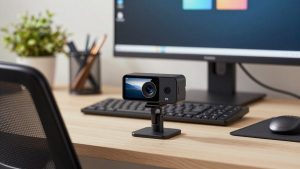
This is the safe default for work. Dual mics are good enough for a quiet room, autofocus locks in about a second, and the 78-degree field of view keeps you centered without showing your whole kitchen. On a laptop dock or a desktop with a DisplayLink dock – where USB bandwidth is tight – the C920s is far less fussy than 4K cameras.
Failure modes: It struggles with mixed lighting. If you sit with a bright window behind you, expect a white halo and a dark face. It has no real background blur on its own; that is done by Teams, which will tax an older laptop CPU. The built-in privacy shutter on the C920s is thin plastic and can pop off if you toss it in a bag daily.
Who should buy it: individual contributors, remote support staff, anyone who joins 3-6 hours of Teams per day and just needs to look clear and stay unmuted. Be honest with yourself: if your room is quiet and you face a wall, the cheaper option is fine. Don’t pay double for 4K you won’t use.
Best for shared desks and small rooms: C930e
The C930e’s 90-degree lens fits two people at a small desk without pushing the camera six feet back. RightLight 2 helps a bit with fluorescent overheads, and the tripod thread actually matters here – you can mount it on a small tripod on a conference table instead of balancing it on a monitor.
Trade-off: that wide view is unforgiving in messy home offices. Edges stretch, and autofocus will sometimes lock onto a bookshelf instead of you if you lean back. Audio pickup is wider too, so keyboard clatter and HVAC hum come through. In Teams, set Noise suppression to High and turn off the camera’s auto-focus if you sit still.
Who should buy it: hot-desking teams, front-desk PCs, and 2-person huddle spaces. For solo use on a 13-inch laptop, the C920s looks more flattering.
Best for home office and Mac: Brio 505
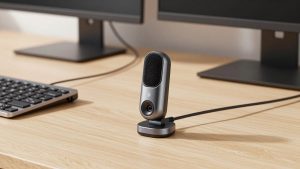
The Brio 505 is Logitech’s most Teams-friendly step up without going to 4K. You get selectable FOV (65/78/90 degrees), better auto white balance than the C920 series, and Show Mode for tilting down to a desk document – useful for walkthroughs in Teams. It works cleanly on Macs with Logi Tune for macOS, and Teams on Mac recognizes it immediately with no driver hunt.
What to watch: color can look a touch warm/red under warm LED bulbs. The USB-C to USB-A cable in the box is short; on a Mac mini tucked under a desk you may need a powered extension. The clip is designed for thin laptop lids and ultra-thin monitors – on thick curved gaming monitors it wobbles.
Browse the Brio 505 listings on Amazon if you want that adjustable field of view and a more modern sensor than the older 1080p models.
Best premium for presenters: MX Brio
The MX Brio is the only Logitech webcam where 4K makes sense for Teams work. Not because Teams streams 4K – it doesn’t – but because the larger sensor gives you cleaner 1080p after downscaling, plus 1080p60 for smoother motion if you whiteboard or demo hardware. Dual noise-reducing mics are noticeably better than the C920s, and manual exposure in Logi Tune actually holds settings between reboots.
Failure modes: file size and CPU load. If you run Teams + Outlook + 20 Chrome tabs on an older i5 laptop, 4K mode can cause fan spin and dropped frames. Use it in 1080p mode for daily calls. The aluminum body also runs warm after an hour; that’s normal, but don’t enclose it behind a monitor light bar with no airflow.
Who should buy it: team leads who present, trainers, sales engineers. If you only join to listen, save the money. Check the current MX Brio bundles on Amazon – kits with a headset often cost less than buying separately.
Teams settings that matter more than the camera
Before you return a “blurry” webcam, fix these. In Teams go to Settings > Devices and set the correct Camera, then turn on Noise suppression High and uncheck “Mirror my video” if text looks backwards. Under Effects, use Blur – Light rather than Heavy; Heavy creates edge flicker on every Logitech we compared.
Light yourself from the front, not from above. A $20 desk lamp bounced off a wall beats any sensor upgrade. Keep the lens at eye level – stack the monitor if needed – and sit 2 to 3 feet away. In Logi Tune, turn off RightLight Auto if your exposure pulses during screen share, and lock exposure manually.
For laptop users: plug the webcam directly into the laptop, not into a monitor hub, when troubleshooting. Many “camera freezes in Teams” issues are underpowered hubs, not the camera.
FAQ
Do I need a Teams-certified webcam?
Not strictly, but it helps in managed offices. Certified models like the C920e, C930e, Brio 505, and MX Brio are tested for mute sync, wake behavior, and Teams Rooms compatibility. If IT locks down USB devices, certified IDs are less likely to be blocked.
Is 4K worth it for Microsoft Teams?
Usually no. Teams caps most calls at 1080p, often lower on weak networks. Buy 4K for better low-light detail and cropping flexibility, not because colleagues will see 4K. A well-lit 1080p C920s often looks sharper than a 4K camera in a dark room.
Why do I look washed out or dark on Teams?
It is almost always backlight. Close blinds behind you or move to face the window. In Logi Tune, lower exposure by one step and set white balance to Auto. Avoid overhead-only lighting, which creates harsh eye shadows.
Will these Logitech webcams work on MacBooks?
Yes. All four picks are plug-and-play on macOS via USB, and Logi Tune for macOS adds FOV and firmware updates. On Apple Silicon Macs, use a direct USB-C adapter rather than a cheap hub to avoid disconnects during long Teams calls.