Last Updated: October 18, 2026
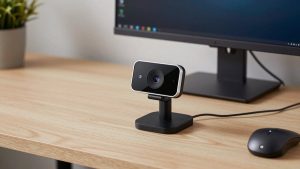
If you spend your day on Zoom, Teams, or Meet, 1080p 60fps sounds like the sweet spot: sharp enough to look professional, smooth enough that hand gestures and head movement don’t stutter. In practice, not all webcams that say 1080p 60fps on the box actually deliver it in a work call.
Many drop to 30fps in low light, in certain apps, or when you plug them into a hub. Others hit 60fps but with heavy sharpening, noisy autofocus, or washed-out color that looks worse than a good 1080p 30fps camera. For home office use, frame rate is only one part of looking clear. Focus behavior, exposure, field of view, and microphone pickup matter just as much.
📄 In This Review
When 60fps actually helps
For a normal sit-still meeting, you will barely see the difference between 30fps and 60fps. Where 60fps helps is motion: whiteboarding, holding up a product, demonstrating software with fast scrolling, teaching, or moving around during a presentation. It also makes the preview feel more natural, with less judder when you nod or turn to a second monitor.
It does not fix blur from a bad lens, grain in a dark room, or lag from a bad connection. If your office is dim and your camera has a small sensor, running it at 60fps can actually look worse, because each frame gets half the light compared to 30fps. That is why a lot of 1080p 60fps webcams automatically fall back to 30fps in the evening. It is not a defect, it is a trade-off to avoid a dark, noisy image.
Who it suits: presenters, trainers, sellers doing live demos, and anyone who moves a lot on camera. Who can skip it: if you sit 2-3 feet from the camera in Teams all day and rarely share physical objects, a clean 1080p 30fps image with good color will serve you better than a cheap 60fps sensor pushed to its limit.
What to check before you buy
See also: Best Monitor for MacBook Air: Two USB-C 4K Screens and Six Adapter-Dependent Alternatives • Best Monitor for MacBook Pro: Eight Listings Sorted by Cable, Sharpness and Scaling
First, check how 60fps is delivered. Some cameras do 1080p 60fps over MJPEG but switch to 720p or 30fps when the app requests H.264 or YUY2. On a Mac especially, this shows up as a camera that says 60fps in one app and 30fps in another. Look for explicit 1080p60 over USB 2.0 UVC without requiring a vendor app running in the background.
Second, focus type. Fixed-focus 1080p 60fps cameras are simpler and cheaper. If you sit at a fixed distance, they stay sharp and never hunt. Autofocus models are better if you lean in and out, hold things up close, or move around, but cheap autofocus is a common failure mode: it pulses every few seconds, breathes loudly through built-in mics, or locks onto the background. For work calls, fast, quiet autofocus with face priority is worth paying for.
Third, exposure and low light. A larger sensor with good auto-exposure beats extra pixels. Test points that matter: does a window behind you blow out your face, does overhead lighting turn your skin orange, and does the image fall apart at 6 p.m. with one lamp on? A physical privacy shutter, tripod thread, and a 65- to 78-degree field of view are more useful for a home office than digital zoom or background blur built into the camera.
Fourth, audio and mounting. Built-in dual mics are fine as a backup, but they will pick up keyboard clatter, fan noise, and room echo. If you type while talking, plan on a headset or USB mic anyway. Also check the clip: thin laptop lids, thick external monitors, and Mac Studio Displays all need different clamp tension. A wobbly mount ruins 60fps smoothness because the whole image shakes.
Which type fits a work setup
Think in three buckets rather than chasing one perfect model. Budget fixed-focus 1080p 60fps cameras are fine for a bright, dedicated desk where you do not move. Mid-range autofocus models are the safe default for most home offices, especially if you share a desk, get up to whiteboard, or take calls from different rooms. Premium low-light models make sense if you work early mornings, late evenings, or in a basement office without good daylight.
For most people shopping right now, browsing autofocus 1080p 60fps webcams will show you where the current middle sits on price, focus speed, and mic setup. If you are on a MacBook or Mac mini, also filter for plug-and-play UVC models and check recent reviews for 1080p 60fps webcams listed for Mac, because MacOS handles camera controls differently than Windows.
| Type | True 60fps reliability | Focus | Low light | Best for |
|---|---|---|---|---|
| Budget fixed-focus 1080p60 | Often drops to 30fps in dim rooms or via hubs | Sharp at 2-4 ft, soft up close | Noisy without a desk lamp | Bright home office, tight budget, sit-still calls |
| Mid-range autofocus 1080p60 | Usually stable in daylight, needs direct USB port | Good for lean-in and demos, can hunt if cheap | Usable with one lamp, better face exposure | Most hybrid workers, teachers, frequent presenters |
| Premium larger-sensor 1080p60 | Most stable, better shutter control | Faster, quieter autofocus | Cleaner evening image, less grain | Low-light rooms, client-facing calls, all-day use |
The honest trade-off: a $40 to $60 fixed-focus camera in a bright room can look 90 percent as good as a $120 camera on a sunny morning. The difference shows up at 7 a.m. in winter, with backlight from a window, or when you hold a document up to the lens. If those are your daily conditions, pay for better autofocus and exposure. If not, save the money and buy a $20 lamp.
Setup mistakes that kill 60fps
The most common failure we see is USB bandwidth. Plugging a 1080p 60fps webcam into a cheap dock alongside an external SSD, headset, and 4K monitor often forces the camera down to 720p or 30fps. Plug directly into the laptop or desktop for testing, then add the hub back. Use the short cable that came with the camera; long passive extensions are a frequent cause of flicker and disconnects.
Second is lighting position. Sitting with a bright window behind you forces the camera to darken your face to save the background. Close blinds or put a cheap daylight bulb in front of you, slightly above eye level. At 60fps you need more light than you think. If the image looks grainy, switch the camera software to 30fps at night rather than fighting it – you will look clearer.
Third is app settings. Teams, Zoom, and Meet can cap resolution to save bandwidth, apply their own low-light boost, or mirror touch-up filters that soften detail. Turn off HD auto-adjust once, set the camera to 1080p in the app, and test a recording locally before blaming the hardware. On laptops, also check that the OS has not defaulted to the built-in camera after an update.
If you just need a simple second camera for a shared desk or kids homework station, it is hard to justify the premium tier. In that case look at budget 1080p 60fps fixed-focus webcams and spend the savings on lighting and a stable mount. Smooth motion means nothing if the camera wobbles every time you type.
FAQ
Do I need 60fps for Zoom or Teams?
Usually no. Both platforms often compress to 720p or 30fps depending on bandwidth and meeting size. 60fps helps most for local recording, demos, and teaching, and for how smooth you feel on your own preview. Do not buy 60fps expecting others to always see 60fps.
Why does my 1080p 60fps webcam only show 30fps?
Three likely causes: low light causing auto fallback, a USB hub limiting bandwidth, or the app requesting a format that caps frame rate. Try more frontal light, plug directly into the computer, and check the camera utility for an explicit 1080p60 MJPEG or H.264 mode.
Is autofocus worth it for work calls?
Yes if you move, stand up, or hold objects close to the lens. No if you sit still at one desk – fixed focus is more stable and never pulses mid-sentence. Bad autofocus is worse than no autofocus, so read reviews specifically about focus hunting noise.
Will a 1080p 60fps webcam work with Mac?
Most modern UVC webcams work plug-and-play on Mac for video and mic, but advanced controls like field-of-view, exposure, and firmware updates may need a Windows PC or a Mac app from the vendor. Check that exposure and white balance look right in FaceTime and your work app before the return window closes.
Related Reviews & Guides

How to Choose Commercial Grade Office Chairs for Back Support: What Actually Matters
Best Webcam for Vtubing