Last Updated: October 18, 2026
If you use an external PC monitor, a clip-on USB webcam is still the simplest camera upgrade. Built-in laptop cameras are small, noisy in low light, and stuck at a bad angle once you dock. A monitor-mounted camera puts your eye line where it should be, and you do not have to think about tripods, capture cards, or camera apps running in the background.
For work calls, you do not need cinema quality. You need stable focus, clean exposure when a window is behind you, a microphone that does not pick up every keystroke, and a mount that actually stays on your monitor. Most returns and bad reviews come from those basics, not resolution.
📄 In This Review
What actually matters on a monitor
Resolution is the least useful spec on the box. A good 1080p sensor with decent low-light handling will look better on Zoom, Teams, and Meet than a cheap 4K sensor, because those apps compress everything to 720p or 1080p anyway. What you will notice day to day is autofocus speed, auto-exposure, and field of view.
For a single person at a desk, 65 to 78 degrees is the sweet spot. Wider than 90 degrees makes you look small and shows your whole room. Narrower than 60 degrees forces you to sit perfectly centered. If you share a monitor for small huddle calls, then an ultra-wide 100 to 120 degree camera makes sense, but it is a poor choice for solo calls.
Focus type matters more than people expect. Fixed-focus is fine if you sit 2 to 3 feet away and do not move much. Autofocus is better if you lean back, stand at a sit-stand desk, or hold documents up to the camera. The failure mode with cheap autofocus is hunting: it pulses in and out every few seconds, especially with a busy bookshelf behind you. That is distracting for everyone else.
Mount and fit cause most problems
See also: Best Monitor for MacBook Air: Two USB-C 4K Screens and Six Adapter-Dependent Alternatives • Best Monitor for MacBook Pro: Eight Listings Sorted by Cable, Sharpness and Scaling
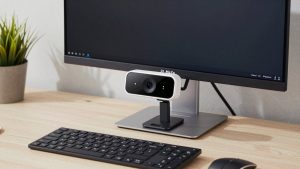
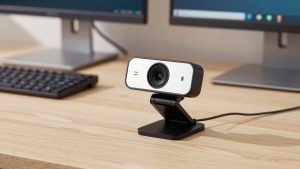
Most monitor webcams use a fold-out clip that grips the top bezel. It works well on flat 24 to 32 inch monitors with a bezel at least 0.5 inch deep. It fits poorly on three types of displays: ultra-thin gaming monitors with a sharp tapered back, curved ultrawides where the clip sits crooked, and laptops with a lid that is too thin to clamp.
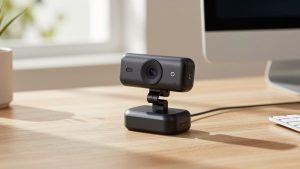
Check two things before you buy. First, whether the clip has a tripod thread on the bottom. That 1/4-inch hole lets you move it to a small desk tripod later if the monitor mount does not work. Second, whether it can tilt down enough. Many cheap clips point slightly up when mounted on a thick monitor, which gives everyone a view of your ceiling. A hinge with real downward tilt solves that.
Privacy shutter should be physical, not software-only. A sliding cover or twist cap is faster and more reliable than remembering to mute in the app. It also avoids the common failure where Teams says the camera is off but the light stays on.
Which type to buy for desk work
A basic 1080p webcam for monitor is enough for most office workers, support staff, students, and anyone who spends 2 to 4 hours per day on calls. Look for dual microphones with noise reduction, fixed focus or simple autofocus, and USB-A plug-and-play with no driver. The trade-off is soft detail in dim rooms and blown-out background if you sit with a window behind you.
Step up to a mid-range 1440p or better 1080p autofocus model if you present, teach, interview, or record Loom-style updates. You get faster exposure, less grain at 7am or 6pm, and a wider dynamic range. A good autofocus webcam with microphone for PC also holds focus when you move, which matters at a standing desk. The trade-off is price and heat: they run warmer and some stay warm even when idle.
Only buy 4K if you crop, stream, or want to look sharp on a large conference room screen. On a normal laptop or 27-inch monitor, no one will see the extra pixels after compression. A 4K webcam for desktop monitor also needs good light to show any benefit and uses more CPU and USB bandwidth. The cheaper option is genuinely fine for daily standups and one-on-ones.
| Type | Best for | Strength | Common failure |
|---|---|---|---|
| Basic 1080p, fixed focus | Daily Zoom/Teams, home office | Cheap, reliable, no drivers | Soft in low light, no flexibility if you move |
| Mid-range 1080p/1440p, autofocus | Presenting, teaching, standing desks | Better exposure, holds focus while moving | Autofocus hunting on busy backgrounds |
| 4K autofocus | Creators, recording, large rooms | Sharper crop, more detail in good light | Needs light and USB bandwidth, little benefit after compression |
| Ultra-wide 100-120 degree | Two people on one monitor | Fits everyone without moving camera | Solo user looks distant, more room visible |
Audio, light, and software
Built-in webcam mics are usable to about 3 feet in a quiet room. Beyond that they sound hollow and pick up keyboard, fan, and HVAC noise. If your PC is under the desk or you use a mechanical keyboard, plan on a USB headset or separate USB mic. Noise reduction helps, but it cannot fix a mic that is 5 feet away. It also clips the start of words when it is aggressive.
Light matters more than camera price. Face a window or put a $20 to $30 LED panel behind your monitor at eye level. Do not sit with a bright window directly behind you unless your camera has good backlight compensation, and even then it will make your face darker. Overhead ceiling lights alone create harsh shadows and grain.
Keep software simple. Most monitor webcams are UVC plug-and-play on Windows 10/11 and macOS. Brand utilities for background blur, auto-framing, and filters can help, but they are also a common failure point: they fight with Teams background effects, use CPU, and sometimes keep the camera locked so no other app can use it. If calls are for work, install the utility, set exposure once, then close it.
Setup that prevents returns
Mount the camera centered on the monitor you actually look at, not on a secondary screen. Put it as close to eye level as possible. If your monitor is on a tall arm, lower it so the lens is level with your eyes; looking up 10 degrees makes you look tired and doubles your chin on video.
Test field of view before a real meeting. Record a 20-second clip in the Windows Camera app or Photo Booth. Check that your head and shoulders fill about one-third of the frame, your eyes are near the top third, and the mic does not peak when you type. If focus pulses, move 6 inches farther back, simplify what is behind you, or lock focus in the camera app.
For curved ultrawides, use the tripod thread and a small weighted mini-tripod placed just behind the monitor. It sounds like a workaround, but it is steadier than a clip hanging crooked on a curve. For Mac mini or desktop PC users with a Studio Display-style monitor, confirm the clip opens wide enough for that thicker top bezel.
When the cheaper option is fine
If your calls are mostly internal, your room is reasonably lit, and you sit still, a basic 1080p fixed-focus model will last years. Spend the savings on light and a headset. You will look and sound better than someone with a 4K camera in a dark backlit room using built-in mics.
Pay more only for a specific problem: you move a lot and need fast autofocus, you present and need cleaner low-light exposure, you record training videos and want to crop, or you fit two people in frame. Do not pay more for digital zoom, beauty filters, or bundled ring lights you will never mount.
FAQ
Will any USB webcam work on a PC monitor?
Yes, if it is UVC compliant, which almost all current USB-A and USB-C webcams are. Plug it into the PC, not into the monitor USB hub if you have connection drops, and select it in Zoom or Teams settings. No driver is usually needed on Windows 10/11.
Why does my monitor webcam look up my nose?
The clip is sitting too high or cannot tilt down enough on a thick bezel. Lower the monitor to eye level, tilt the lens down 5 to 10 degrees, and sit a bit farther back. If it still points up, move it to a small tripod behind the monitor.
Is 4K worth it for Zoom and Teams?
Usually no for solo work calls. Those apps downscale to 720p or 1080p, so good 1080p exposure beats cheap 4K detail. Buy 4K only if you record locally, crop in, or show video on a large room display.
Do I still need a headset?
For more than a few calls per week, yes. Monitor webcam mics work in quiet rooms at close range, but a headset gives clearer voice, less keyboard noise, and fewer echoes when someone else talks. It is the biggest audio upgrade per dollar.