Last Updated: October 18, 2026
If you own a Mac Pro, you already know the problem: unlike a MacBook Pro or iMac, there is no built-in camera. Apple gives you massive processing power and Thunderbolt ports, but for Zoom, Teams, Meet, or Webex, you are on your own. That is actually an advantage, because the built-in cameras on most Macs are only 1080p and struggle in bad light. With a Mac Pro you can choose something better from the start.
📄 In This Review
What a Mac Pro actually needs from a camera
Mac Pro runs full macOS, so almost any modern UVC-compliant USB webcam will work without drivers. That is the key term to look for: UVC. If a camera requires a Windows-only app to enable 4K, autofocus, or noise reduction, avoid it. On a Mac it will fall back to basic 1080p with no controls.
You also want to think about ports. Newer Mac Pro towers have USB-A ports plus Thunderbolt 4 / USB-C. Most webcams still ship with USB-A cables. That is fine, just plug directly into the tower rather than through a cheap unpowered hub. Hubs are the number one cause of flicker, disconnects, and cameras that randomly revert to 720p mid-call.
Audio matters more than resolution. A lot of home office buyers chase 4K and then sound distant and echoey because they sit three feet from a tiny webcam mic in a hard room. If you do a lot of calls, plan on a separate USB mic or headset regardless of which camera you buy.
The three realistic options compared
See also: Best Monitor for MacBook Air: Two USB-C 4K Screens and Six Adapter-Dependent Alternatives • Best Monitor for MacBook Pro: Eight Listings Sorted by Cable, Sharpness and Scaling
For Mac Pro users, there are really only three setups that make sense. Everything else is a variation of these:
| Setup | Typical cost | Image quality | Hassle factor | Best for |
|---|---|---|---|---|
| iPhone as webcam via Continuity Camera | $0-$30 for mount | Excellent, especially in low light | Low, but phone is tied up | Most Mac Pro owners who already have a recent iPhone |
| Dedicated 4K USB webcam | $80-$250 | Very good, consistent | Very low, always ready | Daily Zoom / Teams users, shared desks, assistants |
| Mirrorless / DSLR + HDMI to USB capture | $400+ if you own camera, $800+ if not | Best, shallow depth of field | High, needs power, cooling, setup | YouTube, webinars, client-facing video |
Option 1: Use your iPhone with Continuity Camera
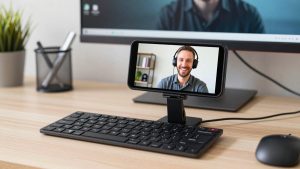
If you have an iPhone 11 or newer running recent iOS and a Mac Pro running macOS Ventura or later, try this first before you buy anything. Mount the iPhone on top of your monitor, connect with USB cable for reliability, and select it as the camera in Zoom or Teams. macOS treats it as a system camera.
In detailed research, a two-year-old iPhone beats almost every $150 webcam for skin tones, backlight handling, and low light. Desk Portrait and Center Stage are genuinely useful if you move around or demo products on a desk. Wired mode is noticeably more stable than wireless, with less latency and no battery drain panic mid-meeting.
The trade-offs are practical. Your phone is unavailable during calls, notifications can buzz through, and the phone gets warm on long wireless sessions. The rear ultra-wide used for Desk View looks soft in dim rooms. You will also need a mount. A simple iPhone MagSafe tripod mount for monitor that clamps to your display is more stable than magnetic-only pucks, especially with Pro Max phones.
Who this suits: solo Mac Pro users who already own an iPhone and do 2-5 calls per day. Who it does not suit: shared workstations, reception desks, or anyone who needs to walk away with their phone while leaving the Mac ready for the next call.
Option 2: A dedicated 4K USB webcam
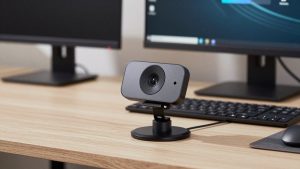
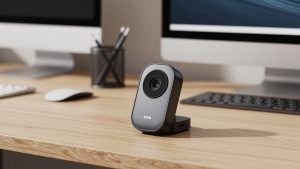
This is the right default for work. You leave it plugged in, it turns on instantly, anyone can use the Mac Pro without pairing a phone. Look for a true 4K sensor with autofocus, a physical privacy shutter, dual mics with noise reduction, and macOS support for firmware updates via browser rather than Windows-only software.
Do not overpay for specs you will not use. Most video platforms still deliver 720p to 1080p to other participants, even if your camera captures 4K. What you actually see from a better sensor is cleaner cropping, better digital zoom, and less noise in a home office with one window and overhead lights. A $120 to $180 4K USB webcam for Mac is usually the sweet spot. Above $250 you are paying for pro audio features or wide-angle conference modes you do not need at a desk.
Common failure modes to watch for: autofocus hunting when you lean back and a bright window is behind you, overexposure from auto-exposure, and harsh image when the camera defaults to 30fps in low light. Fix this by facing a window or putting a cheap soft LED panel behind your monitor, not by buying a higher resolution. Also mount the camera at eye level. Mac Pro users with a 32-inch display on a tall stand often end up looking up at the camera, which looks unflattering.
Be honest about audio: even good webcam mics pick up keyboard, fans, and room echo. The Mac Pro itself is quiet, but your room is not. If colleagues say you sound far away, a $50 to $100 separate USB microphone for home office will improve calls more than upgrading from 1080p to 4K.
Option 3: Mirrorless camera as a webcam
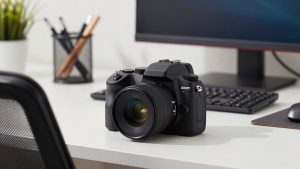
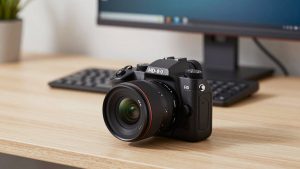
If you present to clients, teach, or record, a mirrorless camera with a clean HDMI output plus an HDMI-to-USB capture dongle gives you a look no webcam can match: sharp face, soft background, good performance in warm indoor light. On a Mac Pro you have the CPU headroom to run it at 1080p60 without breaking a sweat.
This is not plug-and-play, though. You need continuous power via dummy battery or USB-PD, you need to disable auto-sleep and overheating shutdown, and you need to lock exposure and white balance or your image will pulse when you share slides. Long calls can overheat smaller bodies after 60-90 minutes. Cables also add up: HDMI cable, capture device, power, tripod or monitor mount.
Only go this route if you already own a suitable camera and lens. Buying a new mirrorless body plus a 24mm or 35mm equivalent lens just for Zoom is poor value unless video is part of your income. For everyone else, an iPhone or good USB webcam gets you 85 percent of the quality with 10 percent of the fuss.
When the cheaper option is fine
If your calls are mostly internal standups with screen sharing, a basic 1080p autofocus webcam is fine. Good lighting will make a $70 camera look better than a $200 camera in a dark room. Spend $25 on a bias light or reposition your desk before you upgrade resolution.
Similarly, if you only take two calls a week on your Mac Pro and do the rest on a MacBook, do not buy a dedicated camera for the tower. Just use Continuity Camera with a cable you already own. Put the money toward better headphones or a wired Ethernet connection to the Mac Pro, which does more for call stability.
FAQ
Does Mac Pro have a built-in camera?
No. Mac Pro tower and rack models have no built-in camera or microphone. You need an external USB webcam, an iPhone via Continuity Camera, or a mirrorless camera with a capture device, plus a separate mic or headset for best audio.
Will any USB webcam work with Mac Pro?
Almost any UVC-compliant webcam works plug-and-play on macOS with Zoom, Teams, Meet, and FaceTime. Avoid models that require Windows software to unlock core features like autofocus or 4K. Check that firmware updates can be done on Mac or via browser.
Is 4K worth it for work calls?
Usually not for resolution alone, since most platforms compress to 1080p or lower. 4K sensors are worth it for better low-light performance, cleaner digital zoom, and sharper cropping. If budget is tight, a good 1080p camera with good lighting looks perfectly professional.
Why does my webcam keep disconnecting on Mac Pro?
It is almost always power or cable length. Plug directly into the Mac Pro’s USB ports, not a passive hub or monitor passthrough. Use the short cable that came with the camera, avoid extensions over 6 feet without active amplification, and quit camera utilities that fight over exclusive access.