Last Updated: October 18, 2026
Windows 10 is easy to shop for and easy to get wrong. Almost any modern USB webcam will work plug-and-play, but “works” and “looks good on Teams at 9am with a window behind you” are different things. If you are on a 3-5 year old Windows 10 laptop, the built-in 720p camera is almost always the bottleneck, and a $40-70 external webcam is the biggest upgrade you can make.
Don’t shop by megapixels alone. For work calls, sensor size, lens quality, autofocus behavior, and how it handles backlight matter more than 4K on the box. A good 1080p webcam with solid auto-exposure will beat a cheap 4K webcam in a dim home office every time.
📄 In This Review
What actually matters on Windows 10
Windows 10 supports USB Video Class (UVC) natively, so you rarely need to install drivers. Plug into USB-A or USB-C, open the Camera app to confirm, then select it in Teams, Zoom, Meet, or Skype. That simplicity breaks down in three places: USB hubs, old USB 2.0 ports, and Windows Hello.
If you use an unpowered hub or a monitor dock with two other devices on it, expect freezes, black screens, or the camera dropping to a lower resolution. Plug the webcam directly into the laptop for testing first. If you must use a hub, use a powered one and keep 4K cameras on USB 3.0 ports – they need the bandwidth. Also check cable length. Many webcams ship with a 4-5 foot cable that barely reaches a tower PC under a desk.
Do you need Windows Hello?
See also: Best Monitor for MacBook Air: Two USB-C 4K Screens and Six Adapter-Dependent Alternatives • Best Monitor for MacBook Pro: Eight Listings Sorted by Cable, Sharpness and Scaling
This is the one Windows-specific decision. Regular webcams cannot log you into Windows 10 with your face. For that you need an infrared (IR) webcam certified for Windows Hello, with a separate IR sensor.
Trade-off is real: Hello-capable webcams cost more, are bulkier, and the image quality per dollar is often worse than a non-Hello webcam at the same price. Buy one only if you actually use face login daily and hate typing a PIN. If your laptop already has Hello built-in and you use an external monitor with the lid open, you don’t need it on the external camera. If you dock with the lid closed, then an external 1080p webcam with Windows Hello IR makes sense, but test placement – it needs a clear straight-on view from 1-3 feet to recognize reliably with glasses or in low light.
1080p vs 4K for work calls
For most Windows 10 users, 1080p at 30fps is the sweet spot. Teams and Zoom compress video heavily anyway, and 1080p keeps CPU usage, lighting requirements, and price down. You get smoother performance on older i5 laptops that already struggle with screen sharing.
4K helps if you present, teach, or record and want to crop in, use digital zoom without getting mushy, or sit farther from the camera. Failure mode: in a dim room, many 4K sensors look noisier and darker than good 1080p sensors because the smaller pixels gather less light. You also need good upload and a computer that can handle it. Don’t buy 4K for a dim spare bedroom with a 2018 laptop and expect miracles – fix light first.
Be honest with yourself: if your calls are 30-minute check-ins with screen share, the cheaper option is fine. Spend the difference on a lamp behind your monitor and a quiet keyboard.
Which type suits you
Budget 1080p for daily calls: Best for office workers, students, and anyone replacing a grainy laptop camera. Look for fixed focus or simple autofocus, dual mics, 78-90 degree field of view, and a physical privacy shutter. Fixed focus is underrated – no hunting or pulsing during calls, and if you sit at a desk all day you don’t need to refocus. Downside is softer close-ups if you lean in.
Mid-range 1080p with better low-light and mics: Best for home offices, managers who talk all day, and people on evening calls. You pay for larger sensor, better auto white balance, noise-reducing mics, and smarter backlight compensation. This is where you notice fewer blown-out windows and less gray skin in mixed light. Still plug-and-play, still 1080p, just more consistent.
4K for presenters and creators: Best if you record trainings, livestream, or want a wide desk shot that you can crop. Look for 4K at 30fps plus 1080p at 60fps mode for smoother motion, tripod thread, and manual controls in software. Trade-off is price, heat, and pickiness about light and USB bandwidth. Pair a 4K webcam for home office with autofocus with a powered USB port and a key light, otherwise you paid for resolution you can’t use.
Quick comparison
| Type | Best for | Strengths | Watch out for |
|---|---|---|---|
| Budget 1080p, fixed focus | Daily Teams / Zoom, laptop replacement | Cheap, reliable, no focus hunting, works on USB 2.0 | Narrow dynamic range; mic picks up typing; soft in low light |
| Mid-range 1080p, autofocus + better mics | Home office, all-day talkers | Cleaner image in mixed light, clearer voice, stable exposure | Autofocus can hunt if you gesture a lot; costs 2x budget |
| 1080p with Windows Hello IR | Docked setups with lid closed | Face login + calls in one device | Bulky; image per dollar lower; Hello fails with bad angle / glare |
| 4K, wide lens | Presenting, teaching, recording | Sharper, crop-friendly, better for whiteboards | Needs light and USB 3.0; noisy in dark rooms; heavier CPU load |
Field of view, focus, and mics
Field of view decides how much room shows. 65-78 degrees frames just you – good for messy rooms and small desks. 90-100 degrees fits two people or a whiteboard but makes you small and shows more background. If you sit 2 feet away, don’t buy ultra-wide unless you want to look distant.
Autofocus sounds premium but is a common failure mode. Cheap autofocus breathes in and out when you move papers or lean back, which is distracting. If you sit still, fixed focus is calmer. If you demo products or move around, you need fast autofocus and you should test it in the Windows Camera app before a real meeting.
Built-in mics are fine for quiet rooms, terrible for mechanical keyboards, barking dogs, and echoey kitchens. If colleagues complain you sound distant, it’s usually mic distance and room echo, not resolution. Sit within 3 feet, turn on noise suppression in Teams/Zoom, and consider a cheap headset for all-day calls. A budget 1080p webcam with privacy shutter and dual mic is often enough if the room is quiet and the camera is close.
Setup mistakes that ruin image quality
Most bad webcam images on Windows 10 are lighting and placement, not the camera. Put the camera at eye level on top of your monitor, face a window or lamp, and don’t sit with a bright window directly behind you. Windows will expose for the window and turn you into a silhouette. Close blinds or shift 45 degrees.
In Windows Settings – Privacy – Camera, make sure desktop apps have access, or Teams will show black after an update. In Teams device settings, uncheck auto-adjust if it keeps pumping brightness, and set background blur only if your CPU can handle it – on older machines blur causes stutter that looks like a bad camera.
FAQ
Will any webcam work with Windows 10?
Yes, if it’s UVC-compliant, which almost all current USB webcams are. Plug it in, check the built-in Camera app, then select it in Teams or Zoom. If it drops out, try a direct USB port instead of a hub.
Do I need a Windows Hello camera?
Only if you want face login on an external setup, typically with a docked laptop and lid closed. A normal webcam won’t do Hello, even if the image is great.
Is 4K worth it for Teams and Zoom?
Usually not for normal calls, because the apps compress to 720p or 1080p anyway. 4K pays off for recording, cropping, or presenting detail. Good lighting helps more than 4K.
Why does my new webcam look worse than my phone?
Low light, backlight, and being too far away. Move closer, face light, kill backlight behind you, and wipe the lens. Phones do heavy processing – webcams need decent light to match it.
Related Reviews & Guides

6 Best Laptop Docking Stations With Stand 2026
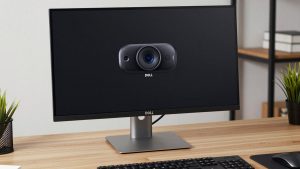
Best Webcam for Dell Monitor