Last Updated: October 18, 2026
If you use Zoom on a laptop all day, you already know the problem: most built-in laptop cameras are just good enough to show your face, but flat, grainy, and terrible in low light. You do not need a studio setup to fix it. A decent clip-on webcam solves 90 percent of complaints on Zoom — bad exposure, soft focus, and distracting background noise.
For Zoom specifically, resolution matters less than people think. Zoom compresses video heavily, especially in gallery view or on weak Wi-Fi. What actually reads as “clear” on the other end is good autofocus, decent dynamic range, and a microphone that does not pick up your keyboard.
📄 In This Review
What Zoom actually needs from a laptop camera
Zoom tops out around 720p for most group calls unless everyone meets specific conditions for HD. That means a 4K sensor does not automatically look better to coworkers. Where an external camera helps is in how it captures that 720p: better lens, faster exposure adjustment when you move or a cloud passes, and less smearing when you gesture.
Three specs matter for Zoom. First, autofocus, not fixed focus. Fixed-focus 720p laptop cameras are why you look soft when you lean back. Second, low-light correction. If your desk faces away from a window or you take early calls, this is the difference between a visible face and gray mush. Third, field of view around 78 to 90 degrees. Wider than that and you show half your home office; narrower and you feel cramped if you use an external keyboard and sit back.
Microphones are the hidden failure mode. Most webcam mics sound hollow in rooms with hard floors and pick up fan noise from the laptop itself. If you are on calls more than two hours a day, plan on a separate headset or USB mic anyway. Treat the webcam mic as backup, not primary.
Quick comparison: what type suits who
See also: Best Monitor for MacBook Air: Two USB-C 4K Screens and Six Adapter-Dependent Alternatives • Best Monitor for MacBook Pro: Eight Listings Sorted by Cable, Sharpness and Scaling
Most people fall into one of three groups: you want to look more professional without fuss, you present or teach and need to stay sharp while moving, or your built-in camera is broken or badly placed. Buy for that, not for spec sheets.
| Type | Best for | Strengths | Trade-offs |
|---|---|---|---|
| Keep built-in camera + better light | Occasional Zoom, good daylight | Free, no drivers, no desk clutter | Grainy in evening, fixed focus, bad angles on some laptops |
| Basic 1080p clip-on | Daily standups, job interviews | Big jump in sharpness, cheap, plug-and-play | Struggles with backlight, average mic, narrow dynamic range |
| Mid-range 1080p/1440p autofocus | Managers, teachers, client calls | Reliable focus, better low light, wider view options | Needs USB-A adapter on newer laptops, privacy shutter varies |
| 4K autofocus webcam | Presenters, hosts, content reuse | Stays sharp when you crop/zoom, best auto-framing | Overkill for Zoom alone, costs more, can expose weak lighting |
If you just want to look normal: basic 1080p
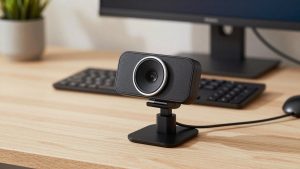
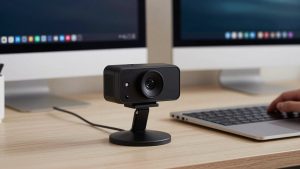
For most laptop Zoom users, the cheaper option is fine. A basic 1080p webcam for Zoom clipped to the top of your screen will beat any 720p built-in from the last five years, especially on Windows laptops where the built-in tuning is aggressive and waxy.
Look for true 1080p at 30fps, dual mics with noise reduction, and a physical privacy shutter. You do not need 60fps for Zoom — it just eats bandwidth and looks no better after compression. You do want a short, flexible mount that actually grips a thin MacBook Air lid without wobbling every time you type.
Failure modes to check: many cheap models hunt for exposure when you have a window behind you, turning your face dark. Sit facing the light, not with it behind you. Also, fixed-focus budget models are often sharp at 2-3 feet but soft beyond that. If you sit back with a laptop on a stand plus external keyboard, get autofocus instead.
For all-day calls: autofocus with good auto-exposure
If you lead meetings, teach, or interview, step up to a mid-range 1080p or 1440p camera with autofocus and larger sensor. This is where you see fewer focus pulses when you lean in to share screen, and less grain on 4pm calls when the room gets dim.
An autofocus webcam with microphone for work in this class usually adds smarter auto-white balance and a 78- to 90-degree switchable field of view. Use the narrower setting in a shared space or messy bedroom office; it crops out distractions without needing Zoom virtual backgrounds, which often flicker around hair and glasses.
Who it suits: home-office workers on Macs and ultrabooks where the built-in camera is either low-angle or always noisy. Who should skip it: if your office already has great front light and you only do two calls a week, you will not see enough difference to justify the price. Put the money toward a lamp instead.
For hosts and presenters: 4K with framing features
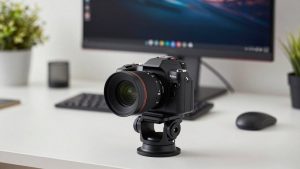
A 4K webcam for Zoom calls only makes sense if you present, record, or move around. The extra pixels let you use auto-framing or digital zoom and still send a sharp 1080p/720p feed to Zoom. If you whiteboard, demo products, or shift between sitting and standing, that tracking keeps you centered without constant adjusting.
Trade-offs are real. 4K shows bad lighting more honestly — uneven desk lamps create hot spots on foreheads. File sizes and CPU load are higher, which matters on older Airs and fanless laptops that already throttle on Zoom. Some 4K models also default to an overly wide 95-degree view that makes you look distant; set it to 78 degrees for one-person calls.
Failure mode I see often: people buy 4K expecting Zoom to look like YouTube. It will not. Zoom will still compress you. What improves is stability — less focus breathing, better color when office fluorescents mix with daylight, and cleaner cropping if you save the recording.
Laptop and Mac setup notes that matter more than specs
Mounting is half the battle on laptops. A camera designed for a thick monitor will slide on a thin laptop lid or block the screen when the lid is tilted. Look for a folding clip with a tripod thread underneath, so you can move it to a small tripod behind the laptop when using a laptop stand. Eye-level placement does more for looking professional than any sensor upgrade.
On Macs, check for native macOS compatibility without a required driver app. Most UVC webcams work plug-and-play in Zoom, but background blur, auto-framing, and firmware updates often need a vendor app that is Windows-only or Intel-only. If you use a MacBook with only USB-C, factor in a short USB-C to USB-A adapter or dock — a stiff adapter cable can drag a lightweight camera sideways.
Finally, test in Zoom, not just Photo Booth. In Zoom go to Settings then Video and uncheck Touch up my appearance for testing, set HD if available, and make a test recording at your usual call time. Check for fan noise ramping up after 10 minutes, which ruins audio more than any mic spec. A $25 light placed behind your laptop, aimed at your face, will often beat a $150 camera upgrade in a dark room.
FAQ
Do I need a 4K camera for Zoom?
No, for most people. Zoom usually shows you at 720p in groups. Buy 4K only if you want to crop in, use auto-framing while presenting, or reuse recordings elsewhere. Otherwise a good 1080p autofocus camera looks the same to coworkers.
Why do I look dark even with a new webcam?
It is almost always backlight. The camera exposes for the bright window behind you. Face the window or put a lamp behind your laptop. Close blinds behind you and retest in Zoom Video settings before returning the camera.
Will an external webcam work with MacBook Air and Pro?
Yes, if it is UVC-compliant, which most current clip-on webcams are. It will show up in Zoom without drivers. Advanced features like auto-framing controls may need the maker’s app, so check Mac support if you want those extras.
Should I use the webcam mic or a headset?
Use a headset or USB mic for calls over 30 minutes or in noisy rooms. Webcam mics sit far from your mouth and pick up typing, laptop fans, and echo. Keep the webcam mic as a backup when your headset battery dies.