Last Updated: October 18, 2026
Mid range for work webcams right now means $60 to $130. Below that you get basic 1080p with a small sensor and fixed focus. Above that you pay for 4K, larger sensors, or AI framing you may not need for Zoom and Teams.
For most home office calls, the sweet spot is not 4K. It is a well-tuned 1080p or 2K camera with good autofocus, honest color, and a microphone you can actually turn off. This is where you notice fewer washed-out faces, less grain at night, and less fiddling before every meeting.
📄 In This Review
When the cheaper option is fine
If you call in daylight, sit close to the camera, and use a headset or USB mic, a $35 to $50 basic 1080p webcam is fine. Your laptop’s network and lighting matter more than sensor size at that point. Do not upgrade just for a higher number on the box.
Upgrade to mid range when you have one of these problems: your face looks soft past arm’s length, the camera hunts for focus when you move papers, backlight from a window turns you into a silhouette, or night calls look noisy and orange. Those are lens, autofocus, and auto-exposure problems, and that is exactly what mid range fixes.
What to look for in this price band
See also: Best Monitor for MacBook Air: Two USB-C 4K Screens and Six Adapter-Dependent Alternatives • Best Monitor for MacBook Pro: Eight Listings Sorted by Cable, Sharpness and Scaling
Resolution is the least useful spec here. A good 1080p camera beats a cheap 4K camera for work calls because Zoom, Meet, and Teams compress video hard anyway. Look instead at focus type, field of view control, low-light behavior, and Mac and laptop compatibility.
Autofocus is worth it if you move, whiteboard, or show products. Fixed focus is fine if you sit still 2 to 3 feet away and want zero hunting. Field of view of 78 to 90 degrees suits one person. Wider than 95 degrees makes you small and shows your messy room. A physical privacy shutter is useful, but cheap sliding doors jam; a clip-on cap lasts longer.
For laptops and Macs, stick to UVC plug-and-play cameras that need no driver. That means USB-A or USB-C direct connection works in macOS, Windows, and ChromeOS without installing a control app. Avoid anything that requires Windows software to unlock 2K, background blur, or manual focus. On a Mac, you often cannot install that utility at all.
| Type | Typical price | Best for | Trade-off |
|---|---|---|---|
| Basic 1080p, fixed focus | $35 – $50 | Daylight calls with a headset | Soft at distance, weak low light |
| Mid-range 1080p, autofocus | $60 – $90 | Daily work calls, interviews | No extra cropping room |
| Mid-range 2K QHD | $80 – $120 | Sharp image, light cropping | Needs good light to look better than 1080p |
| Affordable 4K | $100 – $130 | Creators who crop or record locally | More heat, larger files, often soft in low light |
Best type for most workers: mid-range 1080p with autofocus
This is the safest pick for full-time remote work. You get faster autofocus, better auto white balance, and dual mics that are usable as a backup when your headset dies. Image tuning is usually calmer than budget cams, with less over-sharpening around glasses and hair.
Who it suits: analysts, managers, teachers, and anyone on calls 3 to 6 hours a day. If you sit in mixed light with a window to the side, this tier handles exposure shifts far better than a $40 stick cam.
Failure modes to check: some models pulse focus every 10 to 20 seconds if you have a busy bookshelf behind you. Others overexpose faces to lift a dark background. Before you buy a mid-range 1080p webcam with autofocus, check reviews specifically for focus hunting, mic hiss, and whether the mount holds on a thin laptop lid. A heavy camera on a weak clip will tilt down mid-call.
Best upgrade for sharpness: 2K QHD
2K QHD sits between 1080p and 4K, usually 1440p. On paper it sounds minor, but for work it is practical: text on a shared document behind you stays readable, and you can crop in 10 to 15 percent without falling apart. Files and CPU load stay lower than 4K, which matters on older laptops and MacBook Airs.
Who it suits: people who present, coach, or record training videos but do not want to manage 4K heat and storage. It is also good if your desk is deep and you sit 4 feet back.
Trade-off: in a dim room, many 2K sensors look no better than good 1080p. They need light to show detail. If your office has one overhead bulb and no lamp, buy a $20 desk lamp before you buy more pixels. When you shop for a 2K QHD webcam for work calls, prioritize models with adjustable field of view and exposure control that works over UVC, not just in a Windows app.
When affordable 4K makes sense, and when it does not
Affordable 4K in this price band is about recording flexibility, not live call quality. Your live Zoom image will still arrive as 720p or 1080p. Where 4K helps is local recording for YouTube, demos, or interviews where you crop to vertical or punch in on your face in editing.
For pure meetings, it is often worse value. Small 4K sensors can be noisier in low light, run warmer on long calls, and default to too-wide framing that makes you tiny. Autofocus can also be slower because there is more data to process.
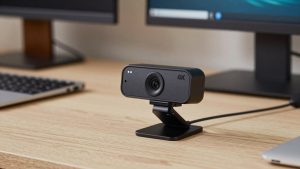
Buy it only if you record locally at least weekly and your computer can handle it. Otherwise stay at 1080p or 2K and spend the difference on light and audio. If you do want to compare options, browse a 4K webcam for home office and filter for tripod thread, manual focus lock, and real user clips in low light, not studio samples.
Setup tips for laptops and Macs
Mount height matters more than brand. Put the lens at or slightly above eye level, about an arm’s length away. Stack your laptop on books or use a separate monitor cam mount so you are not looking up your own nose. Keep a window or lamp in front of you, not behind you.
On Macs, test in FaceTime, Zoom, and Photo Booth before a real meeting. Some cameras default to 4:3 or mirrored preview until you set 16:9 in the meeting app. If the image is dark on a MacBook with an external display, unplug the hub and connect directly; underpowered hubs cause flicker and dropouts on high-resolution modes.
Turn off auto-framing for one-on-ones. It crops and wanders. Save it for moving around a room. And turn off the camera mic in system settings if you use earbuds, or callers will hear room echo from two live mics.
FAQ
Is 1080p enough for work in 2026?
Yes for live calls. Most meeting apps still deliver 720p to 1080p to viewers. A clean, well-exposed 1080p image looks better than a noisy 4K stream that gets compressed.
Do I need autofocus?
If you sit still at a desk, no. Fixed focus is sharper and never hunts. If you lean in and out, hold up documents, or pace, autofocus is worth the extra cost.
Why do I look grainy at night even on a good webcam?
Small sensors need light. Add a lamp in front of you and lower background brightness. No mid-range webcam can fix a dark room without making noise and soft skin tones worse.
Will these work with MacBooks without extra software?
Most UVC cameras will. Plug in over USB and select them in Zoom, Teams, or Meet. Avoid models where key features like 2K resolution or field-of-view adjustment only unlock in a Windows-only app.