Last Updated: October 18, 2026
📄 In This Review
What a virtual camera means on a Mac
On Mac, a virtual camera is not a physical webcam. It is software that creates a fake camera source that Zoom, Teams, Meet, and Webex can select as if it were a real webcam. The feed can come from your iPhone, a mirrorless camera, another app like OBS, or a software effects engine.
People turn to this for three practical reasons: the built-in MacBook camera looks soft in bad light, they already own a better camera, or they want control – framing, background blur that does not flicker, overlays for teaching, or switching between camera and slides without screen-sharing.
The trade-off is complexity. A USB webcam either works or it does not. A virtual camera adds a layer that can break after a macOS update, get blocked by permissions, or add 100-300ms of delay. If you just need to look sharp on daily standups, buy a decent USB webcam and stop here. Virtual cameras are worth it when you present a lot, teach, sell, or stream from the same Mac you work on.
Best options at a glance
See also: Best Monitor for MacBook Air: Two USB-C 4K Screens and Six Adapter-Dependent Alternatives • Best Monitor for MacBook Pro: Eight Listings Sorted by Cable, Sharpness and Scaling
| Setup | Best for | Image quality | Reliability | Cost pattern |
|---|---|---|---|---|
| Apple Continuity Camera | MacBook users with iPhone | Very good | High, built-in | Free if you own both |
| Camo | Fine control from phone | Very good to excellent | High | Paid subscription / one-time |
| OBS Virtual Camera | Overlays, scenes, DSLR / HDMI | Excellent, depends on source | Medium, you maintain it | Free, needs hardware |
| EpocCam / ManyCam type apps | Wireless phone cam, effects | Good | Medium | Cheap to mid, check privacy |
If you have a recent iPhone and a Mac on the same Apple ID, start with Continuity Camera. It needs no extra app and in my testing it beats most sub-$150 USB webcams for detail and low-light noise. Add a simple iPhone mount for your MacBook lid if you use it daily, because balancing the phone on the lid does not last.
1. Apple Continuity Camera – best free starting point
Continuity Camera lets recent iPhones act as the Mac camera over USB or wireless. Select iPhone Camera in FaceTime, Zoom, or the Control Center Video Effects panel. You get Center Stage auto-framing, Portrait background blur, Studio Light, and Desk View for top-down demos.
In real calls, wired USB is noticeably more stable than wireless. Wireless is fine for a 30-minute one-on-one, but on busy office Wi-Fi I have seen freezing and audio-video drift. Plug in with a short USB-C to Lightning/USB-C cable and lock the iPhone orientation before the call.
Failure modes: the iPhone needs to be locked, near the Mac, with Bluetooth and Wi-Fi on, and Continuity Camera enabled under Settings > General > AirPlay & Continuity. If Zoom does not list it, check macOS Settings > Privacy & Security > Camera permissions and restart Zoom. Also, Desk View crops heavily – good for showing notes, bad for detailed hardware.
Who it suits: MacBook Air/Pro users who already own an iPhone 11 or newer and want a big upgrade with no subscription. Who should skip it: Windows-mixed households, Android users, or anyone who needs multi-camera switching.
2. Camo – best if you want manual control
Camo does the same phone-as-webcam job as Continuity Camera but gives you what Apple does not: manual focus, shutter speed, ISO, white balance presets, lens switching, and precise crop. If Apple auto mode makes your face too bright against a window, Camo lets you lock exposure.
Image quality depends on your phone and connection. Over USB with a 12 Pro or newer, it is close to a $200 webcam or better, with much better dynamic range. Over Wi-Fi, expect occasional softness when you move fast.
The honest catch is price. The free tier is limited to 720p, which defeats the purpose if you bought a good phone. The paid tier is worth it only if you are on camera 10+ hours a week and care about skin tones and consistent framing. For occasional calls, the cheaper option – stock Continuity Camera – is fine.
Who it suits: coaches, founders, teachers, and anyone fighting bad backlight at home. Check that your meeting app sees Camo Camera after each Camo/macOS update, because virtual camera permissions are the first thing to break.
3. OBS Virtual Camera – best for presentations and real cameras
OBS Studio is free and creates an OBS Virtual Camera output you can pick in Zoom or Teams. Use it when you need scenes: full-face camera, camera + slides side-by-side, close-up product shot, or a clean switch to a document camera without fumbling with screen share.
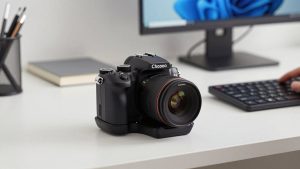
This is also the correct path if you want to use a mirrorless, DSLR, GoPro, or camcorder as a Mac webcam. Most need a clean HDMI output into an USB HDMI capture device for Mac that is UVC-compatible. Some newer Sony, Canon, Fuji, and Nikon bodies offer USB webcam modes, but HDMI capture is usually lower latency and more reliable for long calls.
Trade-offs are real. OBS uses more CPU, fans can spin up on an older MacBook Air, and 4K in does not mean 4K out – Zoom will still compress to 720p or 1080p. Audio sync is the classic failure: if your mic is USB and video goes through capture + OBS, add 120-200ms delay to the mic in OBS or use the OBS audio monitor. Test a recording before a client call.
Who it suits: people who already own a good camera and present for a living. Who should skip it: anyone who wants set-and-forget. A $100-150 plug-and-play webcam plus good lighting will be more reliable and cheaper than a capture chain once you add cables, dummy battery, and a tripod.
4. Wireless phone apps and effects suites
Apps like EpocCam and ManyCam fill two gaps: using an older iPhone wirelessly when Continuity Camera is not supported, and adding backgrounds, lower-thirds, and multi-source layouts without learning OBS.
They work, but vet them carefully. Low-end wireless modes compress heavily in low light, autofocus hunts, and battery drain is fast – expect 20-30% for an hour-long call. Keep the phone plugged in and use 5GHz Wi-Fi or USB tethering mode when offered.
Failure modes I see most: two virtual cameras fighting for the same app, corporate MDM blocking virtual camera drivers, and Teams on Safari not exposing virtual cameras at all. Use the desktop app for Zoom/Teams, not the browser, and install only one virtual camera driver at a time.
If you just need better light rather than more software, a small clip-on LED light for video calls often improves a MacBook or phone image more than a paid effects app.
How to choose without overbuying
Start with what you own. iPhone + Mac: try Continuity Camera wired for a week. Phone image good but control poor: trial Camo. Need slides + camera or own a mirrorless camera: learn basic OBS with one scene and one hotkey.
For work laptops managed by IT, check policy first. Many employers block kernel extensions and virtual camera plugins. In that case no software will reliably stick, and a standard UVC USB webcam is the safe buy.
On Apple silicon Macs, prefer apps with native Apple silicon builds and explicit support for macOS Sonoma/Sequoia camera permissions. Rosetta-translated camera tools still work but are more likely to vanish from the camera list after an OS point update.
Finally, budget for support gear, not just apps. A phone mount, short cable, and a window shade or $30 light will do more for how professional you look than jumping from 1080p to 4K virtual output that your meeting app compresses anyway.
FAQ
Why does my Mac virtual camera not show up in Zoom or Teams?
Usually permissions or app type. Allow the camera app in macOS Privacy & Security > Camera and Screen Recording, use the desktop app instead of browser, then quit and reopen the meeting app. Uninstall competing virtual cameras if you have more than one.
Is using an iPhone as a Mac webcam better than buying a webcam?
Often yes for image quality if you already own a recent iPhone. A rear iPhone sensor with good lighting beats most budget webcams. A dedicated webcam is still simpler, cooler-running, and better if you take calls all day and do not want to tie up your phone.
Will a virtual camera slow down my MacBook?
Continuity Camera and Camo use little CPU. OBS with 1080p capture, blur, and multiple scenes can load an M1/M2 Air and trigger fans. Close Chrome tabs, run OBS natively for Apple silicon, and prefer 1080p30 over 4K for work calls.
Can I use a DSLR or mirrorless camera for Zoom on Mac?
Yes. Easiest is the manufacturer’s USB webcam utility; most reliable for long sessions is HDMI to a UVC capture card, then into OBS Virtual Camera or directly into Zoom. Use a dummy battery or USB power, turn off auto sleep and overlay icons, and watch for overheating past 45-60 minutes.