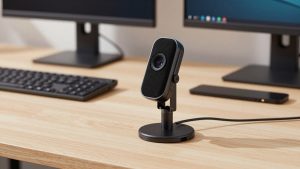
Last Updated: October 18, 2026
📄 In This Review
What low price actually buys
For PC use, low price right now means $19 to $45. Below $20 you mostly get 720p sensors in a 1080p housing. They will say 1080p on the box, but the image is soft, noisy in low light, and falls apart if you crop or use background blur. From about $30 to $45 you can get a true 1080p sensor at 30fps with usable color and a basic dual mic. That is the sweet spot if you just need to look clear on Zoom, Teams, or Google Meet.
I have tested a pile of these on Windows 10 and 11 desktops with no front camera. The difference between a $24 camera and a $38 camera is rarely resolution on paper. It is exposure control, focus consistency, and how the mount holds up after two months. Cheap mounts slip, cheap autofocus hunts, and cheap mics pick up keyboard clicks louder than your voice.
If your PC is a tower under a desk in a dim room, plan on the webcam needing help. No budget sensor can fix a dark room with a bright window behind you. A $35 webcam with a $15 desk lamp in front of you will look better than a $70 webcam backlit by a window.
What to prioritize on a budget
See also: Best Monitor for MacBook Air: Two USB-C 4K Screens and Six Adapter-Dependent Alternatives • Best Monitor for MacBook Pro: Eight Listings Sorted by Cable, Sharpness and Scaling
Ignore digital zoom, beauty filters, and 4K claims under $40. Prioritize three things: true 1080p at 30fps, predictable focus, and a mount that fits your monitor.
For focus, fixed-focus is often better at this price. It is set to be sharp from about 40cm to 2 meters. You sit down, you are in focus, it never breathes in and out. Cheap autofocus is the number one complaint I see. It looks sharp for two seconds, then pulses soft when you move your hands or lean back. If you sit still for calls and do not need to show documents up close, fixed-focus is more reliable and cheaper.
Second is light handling. Look for auto exposure that does not blow out your face when a window is nearby. You cannot tell this from specs. Check user reviews that mention offices, low light, or backlight, not just unboxings. A small lens with f/2.0 or f/2.2 is common, but software tuning matters more.
Third is audio and connection. Almost all budget PC webcams are USB-A 2.0 plug-and-play with UVC drivers, so Windows recognizes them without software. That is good. The mics will be thin and echo-prone in a large room. They are fine for one person at a desk 50-70cm away. If you are farther back or in a noisy house, plan to use a headset or USB mic anyway.
Budget types compared
This is where most buyers get stuck. The boxes look identical. The use case is different.
| Type | Typical price | Image in good light | Weak point | Best for |
|---|---|---|---|---|
| Basic 720p / upscaled 1080p | $19-$27 | Soft, watercolor detail | Falls apart with blur backgrounds, poor low light | Kids PC, backup camera, audio-first calls |
| True 1080p fixed-focus | $28-$40 | Clean enough for full-screen calls | No close-up focus, narrow dynamic range | Daily Zoom/Teams at a desk, home office |
| Budget 1080p autofocus | $35-$50 | Sharper up close when it locks | Focus hunting, louder mic processing | Showing paperwork, tutoring, close desk work |
| 1080p with ring light / privacy shutter | $35-$50 | Brighter face in dark rooms | Harsh light, bulkier clip | Night shifts, dorms, PCs in basements |
If you want a safe default, get a budget 1080p webcam for PC with fixed focus and a physical shutter. That combination fails the least. You give up close-up flexibility, but you avoid the pulsing focus that makes you look unprofessional.
Who should buy which
For office workers on a desktop PC: buy true 1080p fixed-focus. You sit in the same chair, same distance, same lighting. You need consistency, not features. Mount it on top of the monitor, set Windows Camera to 1920×1080, turn off auto low-light boost if your face looks smeary, and leave it alone. Cheaper is fine here if your room has decent front light.
For students and part-time freelancers: a budget autofocus model can make sense if you hold up notes, crafts, or hardware to the camera. Just know the trade-off. It will hunt when you move. A useful workaround is to lean in, let it lock, then hold still. Some models let you disable autofocus in OBS or the vendor app and use it as fixed-focus most of the time. If you never show objects up close, do not pay extra for autofocus.
For night owls and dim home offices: a model with a built-in light helps, but do not overrate it. Those tiny LEDs create a flat, shiny forehead look and drain USB power. A webcam with ring light for desktop is okay as a stopgap, but a cheap clip lamp bounced off a wall looks more natural. Only choose the lit version if you cannot add a lamp.
For shared family PCs: get the physical privacy shutter and a wide-enough field of view around 75 to 90 degrees. Wider than 90 degrees at this price usually means stretched faces at the edges. Fixed focus plus dual mics is enough for two people on a couch for school calls.
Common failure modes to check before you keep it
Test in the first week, because return windows matter more than warranties at this price. First, mount creep. Clip it to your actual monitor, tilt down slightly, tap the desk. If it slides or points at the ceiling after typing vibration, return it. A lot of budget clips are designed for thin laptop lids, not thick gaming monitors.
Second, USB power and cable length. Most cheap cameras ship with a 1.2 to 1.5m cable. On a tower PC under a desk, that can be tight and cause dropouts if stretched through a hub. Plug directly into the back USB port for testing. If Windows shows the camera freezing in Teams but working in Camera app, try another port before blaming the camera.
Third, microphone noise. Record 20 seconds typing while talking. Budget noise reduction often gates your voice and clips the first syllable. If coworkers say you cut in and out, switch to a headset and keep the webcam for video only. That is normal, not a defect, but you want to know on day one.
Fourth, fake specs. If you need to verify, open OBS or Windows Camera, set to 1080p, take a snapshot of text from 1 meter away. True 1080p will keep small text readable. Upscaled 720p will smear it. Also check frame rate in low light. Many drop to 15-20fps indoors and motion ghosts when you wave. Acceptable for talking heads, annoying for whiteboard demos.
When to spend more, and when not to
Do not spend more for 2K or 4K labels under $50. They are usually upscaled and add lag on older PCs. Spend more only for a specific problem: you present all day and need better dynamic range, you need 60fps for smoother motion, or you need a much better mic because you cannot wear a headset.
A realistic step up is $60 to $90 for a well-tuned 1080p/60 or 2K camera with larger pixels and better auto exposure. That is worth it if you are on camera four hours a day for client work. It is not worth it if you are mostly listening with camera on in a small tile.
If your PC already has USB-C only via a dock, check compatibility. Most budget cams include USB-A only. They work with a basic adapter, but some docks under-power them. If you use a Mac alongside PC, note that some vendor settings apps are Windows-only, though basic video still works on macOS.
Bottom line shopping move: filter for true 1080p, fixed focus unless you need close-ups, physical shutter, and a mount rated for monitors. Browse autofocus webcam under $50 options only if you regularly show documents, otherwise save the $10 and put it toward lighting.
FAQ
Is a $25 webcam good enough for work calls?
Sometimes. For audio-first meetings where your tile is small, yes. For daily client-facing calls on a large screen, spend $30 to $40 for true 1080p. The jump in sharpness and exposure stability is noticeable and worth it.
Why does my cheap webcam look blurry even at 1080p?
Usually low light, cheap autofocus hunting, or a dirty plastic lens cover. Add front light, sit 50-80cm away, disable beauty smoothing, and clean the lens. If it still pulses in and out, switch to fixed-focus or lock focus in software.
Do I need 4K on a budget PC webcam?
No. On a sub-$50 camera, 4K is almost always upscaled and can stutter on older CPUs. A clean 1080p at 30fps with good exposure looks better and uses less bandwidth in Zoom and Teams.
Will a low-price webcam work with Windows 11?
Yes, if it is UVC-compliant, which almost all are. Plug directly into a USB port, allow camera access in Settings under Privacy and Security, then select it in Teams or Zoom. If it freezes, try a different USB port and avoid unpowered hubs.
Related Reviews & Guides

Best Laptop Webcam Built In
Best Webcam and Microphone for Mac