Last Updated: October 18, 2026
📄 In This Review
Why most webcams fall apart in low light
Test any laptop webcam at 9pm with one ceiling light on and you will see the same pattern: grainy shadows, soft detail, faces that look gray or orange, and motion that smears when you move your hands. That is not just your webcam being cheap. Small sensors need a lot of light, and video calls make it worse because Zoom, Teams, and Meet all add compression on top.
In a home office this matters more than resolution. A 4K sensor in a dark room will often look worse than a good 1080p sensor, because it is trying to squeeze more pixels out of too little light. If you work early mornings, evenings, in a basement, or in a room with a single overhead light behind you, low-light performance should be your first filter, not 4K on the box.
What actually helps in the dark
See also: Best Monitor for MacBook Air: Two USB-C 4K Screens and Six Adapter-Dependent Alternatives • Best Monitor for MacBook Pro: Eight Listings Sorted by Cable, Sharpness and Scaling
Three specs matter most. First is sensor size and pixel size. Larger sensors collect more light per pixel, which means less noise. This is why some premium webcams look dramatically cleaner at the same 1080p output. Second is lens aperture, usually listed as f/2.0 or f/2.8. Lower is better for low light, but the difference between f/2.0 and f/2.4 is smaller than good exposure tuning.
Third is auto-exposure and noise reduction. Good firmware will hold your face bright without blowing out a lamp in the background, and keep motion at 30 fps instead of dropping to 15 fps to gather light. Bad firmware does the opposite: it brightens everything, adds a waxy smoothing filter, and lags when you move. You cannot tell this from a spec sheet. Look for reviews with real dark-room samples, not daylight stills.
What does not help as much as people think: 4K, 60 fps, and digital zoom. In low light, most webcams drop to 1080p or 720p internally to control noise anyway, and 60 fps needs twice as much light as 30 fps. Autofocus is useful, but in dim rooms cheap contrast autofocus will hunt and pulse. Fixed focus can actually be more stable if you sit at a desk all day.
Quick comparison: which type suits you
There is no single best low-light webcam. A night-shift worker in a windowless room needs something different than someone who just gets a dark background on cloudy afternoons. Use this to narrow it down before you shop:
| Type | Low-light strength | Trade-off / failure mode | Best for |
|---|---|---|---|
| Premium large-sensor 4K webcam | Cleanest image at dusk, better dynamic range, usable digital zoom | Expensive, needs USB 3.0, can over-smooth skin in auto mode | Daily calls in dim home office, presentations |
| Mid-range 1080p with autofocus and HDR | Bright face without much noise, stable 30 fps | Autofocus may hunt in very dark rooms, HDR can look flat | Most remote workers, laptops and Macs |
| Budget 1080p fixed-focus | Acceptable if you add a small light, simple and reliable | Grainy in true low light, poor backlight handling | Occasional calls, kids homework desk, second computer |
| Webcam + small USB video light | Biggest improvement for the money, truer colors | One more thing on desk, can cause glare on glasses | Anyone with overhead-only lighting |
What to buy for low light work calls
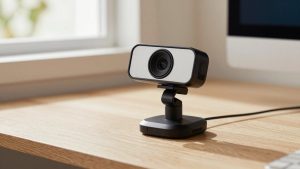
If calls are your job and your room is often dim, get a 4K webcam with a larger sensor. You will not use 4K on most calls — Zoom will deliver 720p or 1080p anyway — but the larger sensor gives you cleaner 1080p with less speckle in shadows. The trade-off is price and fussiness. These cameras run warmer, they prefer a direct USB 3.0 port rather than an old hub, and the default auto-framing can be distracting. Turn off auto-framing and digital background blur for work if your computer is older; both add noise in low light.
For most people, the sweet spot is a mid-range 1080p webcam with autofocus that is tuned for indoor exposure. In side-by-side tests, a well-tuned 1080p camera at $80-$140 often beats a cheap 4K camera at night because it holds 30 fps and does not over-sharpen grain. Who should skip it? If you sit very close and wear glasses, test for focus hunting. In a really dark room, set it to fixed focus or manual focus around 60-80cm and leave it there.
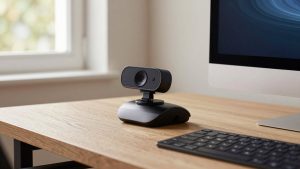
Be honest about the cheap option: if you only do two or three calls a week and your room is dim but not dark, a basic 1080p fixed-focus webcam is fine. Do not expect miracles past about 7pm in winter. The image will be softer and backgrounds will go muddy, but your face will be readable. Spend the savings on light instead. A small USB video light placed behind your monitor at 20-30% brightness will improve a $45 webcam more than upgrading to a $150 webcam in the same dark room.
Notes for laptop and Mac users
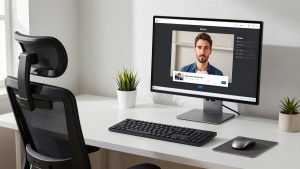
Built-in laptop cameras, including recent MacBooks, have improved, but they still use tiny sensors to fit in thin lids. They rely heavily on software brightening, which looks okay in a well-lit office and grainy at home at night. If you use an external monitor with the laptop closed, an external webcam is almost mandatory — otherwise you are calling from a side angle in the dark.
On Macs, check two things: USB compatibility and software control. Some webcam settings apps are Windows-only, so you get stuck with default exposure that is too dark or too contrasty on macOS. Look for cameras that are UVC-compliant and store settings on the device, or that have a Mac app for exposure, flicker, and field of view. Also watch for 50Hz/60Hz flicker under LED ceiling lights. If you see banding, change the anti-flicker setting to 50Hz in the US or 60Hz depending on your lights, or add a steady desk light to dominate the exposure.
Setup matters more than you think
Before you return a webcam for being bad in low light, fix placement. Face a window or lamp, do not sit with a bright window behind you. Put your main light at roughly monitor height, slightly to one side, not directly overhead. Overhead-only lighting creates eye shadows that no sensor can fix. Close blinds behind you at night to avoid reflections that force auto-exposure to darken your face.
Then lock settings. Set resolution to 1080p30, not 4K or 60 fps, for evening calls. Turn off auto low-light boost if it makes motion laggy. Reduce sharpening and turn down background blur strength. If your app allows, add a very light fill in Zoom or Teams rather than maxing it — heavy touch-up plus heavy noise reduction is what creates that plastic, waxy look.
FAQ
Is 4K better than 1080p for low light calls?
Usually no. In dim rooms most 4K webcams output a noisier image or drop to 1080p internally anyway. Choose sensor size and exposure quality over the 4K label, unless you need to crop or digitally zoom during presentations.
Why does my webcam look fine in the preview but bad on Zoom?
Meeting apps recompress video and often cap resolution to save bandwidth. Grain and softness get amplified. A cleaner source image with good light and locked 1080p30 will survive compression better than a maxed-out 4K feed in the dark.
Do I need a ring light for evening work calls?
You need some frontal light, but not necessarily a big ring light. A small dimmable panel at low brightness behind your monitor is enough for most home offices and causes less glare on glasses than a bright ring close to your face.
Will an external webcam work with my MacBook in clamshell mode?
Yes, if it is USB UVC-compliant. Plug directly into the Mac or a powered hub, select it in FaceTime or Zoom settings, and check whether exposure controls require a Mac app. Avoid models where key settings are Windows-only.