Last Updated: October 18, 2026
If you are broadcasting live from a home office — coaching calls, webinars, YouTube Live, Twitch talk, live selling, church services — you do not need a cinema camera. You need clean 1080p, stable autofocus, good audio sync, and something that does not overheat or drop frames after 40 minutes. Most failed live streams I have seen were not about resolution. They were about bad light, bad framing, and a camera that hunted for focus.
For this guide I am staying inside the site scope: USB webcams and plug-and-play camera setups that work with a laptop or Mac for work-style broadcasting. No SDI switchers, no camcorders that need separate recorders.
📄 In This Review
What actually matters for live
Recorded YouTube forgives a lot. Live does not. Your camera has to hold exposure when you move, keep your face sharp when you lean in to read chat, and stay connected for an hour without throttling.
Prioritize this order: 1) stable autofocus and auto-exposure, 2) 1080p60 or good 4K-downscaled 1080p, 3) usable low-light performance, 4) standard UVC compatibility with Zoom, Teams, OBS, StreamYard, Riverside, and Ecamm. Resolution comes last. A sharp, well-lit 1080p feed beats a noisy, laggy 4K feed every time.
Failure modes to watch for: webcams that over-sharpen faces and make text behind you shimmer, cameras that default to 30fps in low light and make hand movement look choppy, and mirrorless cameras that overheat and shut off mid-stream. If you plan streams over 60 minutes, heat and USB stability matter more than specs.
The three practical routes
See also: Best Monitor for MacBook Air: Two USB-C 4K Screens and Six Adapter-Dependent Alternatives • Best Monitor for MacBook Pro: Eight Listings Sorted by Cable, Sharpness and Scaling
Most home-office broadcasters end up in one of three camps. Pick the camp first, then pick a product.
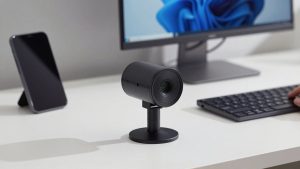
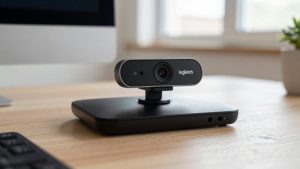
1. Simple USB webcam, 1080p60. This is fine for talking-head streams, Q and A sessions, office hours, and guest interviews. You plug it in, it shows up in OBS or Teams, you go live. No dummy battery, no capture card, no extra power brick. The trade-off is a small sensor, so backgrounds look flat and low light gets grainy. For most work-style streams, that is acceptable.
2. 4K USB webcam used in 1080p. You are not buying this to stream in 4K — YouTube Live and most webinar tools will compress you to 1080p anyway. You buy it for better lenses, larger sensors, and digital zoom without falling apart. You can crop to chest-up framing and still look sharp. The trade-off is price, more CPU load, and sometimes aggressive noise reduction that makes skin look waxy. Only worth it if you need framing flexibility or you also record local 4K for repurposing clips.
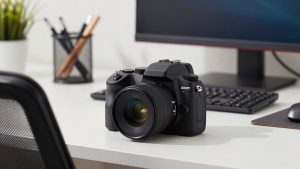
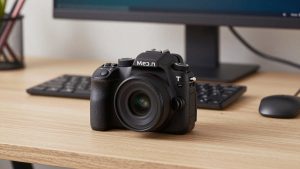
3. Mirrorless or compact camera as a USB webcam. This is for hosts who live on camera: daily streamers, coaches selling from live, creators who want real background blur and better color. Image quality is a clear step up, especially with a 24mm to 35mm equivalent lens at f/2.8 or faster. The trade-offs are real: you need continuous power, you need to disable auto-shutoff and in-body sleep, and some cameras overheat in 4K or crop heavily in video mode. On Macs, check that the manufacturer’s webcam utility supports Apple silicon and your macOS version before you buy.
Quick comparison
| Setup | Best for | Strengths | Weaknesses |
|---|---|---|---|
| 1080p60 USB webcam | Webinars, meetings turned live, interviews | Cheap, reliable, no heat issues, works with any laptop | Flat image, noisy in dim rooms, little zoom headroom |
| 4K USB webcam (stream in 1080p) | Solo hosts, live sellers, teachers | Sharper crop, better mics and autofocus, good for recording + live | Costs more, needs good light and USB 3.0, can look over-processed |
| Mirrorless as webcam via USB | Daily broadcasters, coaches, creators | Best skin tones, real depth of field, interchangeable lenses | Overheat risk, battery/power hassle, more settings to get wrong |
| Laptop built-in camera | Backup only | Always there | Bad angle, noisy, unflattering for a hosted show |
What to buy for each type of broadcaster
If you stream twice a month for work — team town halls, client workshops, panel moderation — do not overbuy. A solid 1080p 60fps webcam for streaming on a small tripod at eye level is enough. Spend the savings on light. A $40 softbox or window light to your side will improve you more than jumping from $120 to $280 on the camera. Look for 1080p60, a standard tripod thread, and a physical privacy shutter. Avoid fixed-focus cheap models; you will lean in and out and go soft at the worst moment.
If you are the face of a weekly live show and you crop tightly, step up to a 4K webcam for streaming and run it at 1080p in OBS or StreamYard. Use the wider field of view to show your desk product or whiteboard, then punch in to 1.5x for Q and A. Turn off auto-framing if you move a lot — it causes slow drifts that viewers find distracting live. Also force manual exposure if your window changes during a long stream, or your face will pulse bright and dark when clouds pass.
If you already own a mirrorless Sony, Canon, Fujifilm or Panasonic body, try it first before buying anything. Most recent bodies offer a mirrorless camera webcam utility with dummy battery setup over USB-C with no capture card needed for 1080p. Test a full-length dry run: 90 minutes, with the battery eliminator,IBIS on, face-tracking AF on, 1080p30. If it stays cool and OBS sees it after sleep/wake, you are done. Only add an HDMI capture dongle if you need 4K, clean HDMI without overlays, or you see USB dropouts.
Mac-specific note: M1/M2/M3 laptops handle one 4K webcam plus screen share fine in OBS, but two 4K USB cameras plus a virtual camera to Zoom can spike CPU and fans. If you use Ecamm Live or OBS virtual camera into Teams/Meet, start at 1080p30 for all sources. It is far more stable, and viewers cannot tell the difference after platform compression.
Light, audio, and framing beat camera upgrades
Live platforms compress hard. Twitch at 6000 kbps and LinkedIn Live at 720p will erase fine detail anyway. What survives compression is contrast and stillness: a face with even light, a non-cluttered background, and a locked-off camera that does not wobble.
Put the camera at eye level, about arm’s length away. Nose to top-of-frame with a little headroom looks professional. Do not use a wide angle from below — laptop-on-desk angle makes you look tired and makes gestures huge. A stack of books or a $25 desk mount fixes this instantly.
For audio, do not rely on the webcam mic for a hosted broadcast. It picks up room echo and keyboard clicks, and live noise suppression makes you sound robotic. Even a basic USB dynamic mic 6 inches from your mouth will outperform any camera mic. If you must use camera audio as backup, turn off competing noise removal in both the camera app and Zoom/Teams or you will get double-processing.
Common live failure I see: streamer adds a 4K webcam, ring light directly behind the monitor, and virtual background all at once, then wonders why the MacBook throttles and drops frames. Add one thing at a time. Use a real background with depth — a shelf 6 feet behind you — instead of blur plus virtual background, which costs CPU and flickers around hair live.
When the cheaper option is fine
If your audience watches mostly on phones, if you go live for under 30 minutes, or if you share slides most of the time, stay with good 1080p. No one will pay more attention because you upgraded to 4K. They will stay because audio is clear and you start on time without tech fiddling.
Upgrade only when you have a specific pain: you need to zoom without pixelation, your current camera loses focus when you demo a product, or you stream daily and want better color that holds up in clips. Otherwise, keep the webcam and buy a better light and mic arm.
FAQ
Do I need 4K to broadcast live?
No for most people. Stream in 1080p or 720p even if you own a 4K camera, because platforms compress heavily. Buy 4K only if you want sharper digital zoom or you also record locally for editing later.
Can I use a mirrorless camera for 2-hour streams?
Sometimes, but test heat first. Use a dummy battery for continuous power, set the camera to 1080p, turn off auto power-off, and do a full 2-hour test recording. Some bodies overheat in 4K or in warm rooms and shut down without warning.
Why does my webcam look great in preview but bad live?
That is usually low upload bandwidth or platform compression, not the camera. Hardwire with Ethernet if you can, close cloud backup during the stream, and lock exposure and white balance so the image does not pump. Adding more light also reduces the noise that compression exaggerates.
Will any USB webcam work with Mac and OBS?
Most UVC webcams do, but check the companion app. Some auto-framing, background blur, and firmware update tools are Windows-only. If you are on Mac, choose a camera that stores settings on-device or has a Mac app, otherwise you will be stuck with defaults.