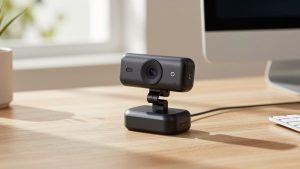
Last Updated: October 18, 2026
If you need a camera for work calls on a PC and don’t want to overthink it, budget is good news. For most Zoom, Teams, and Google Meet calls, a $30 to $60 webcam looks perfectly fine. You don’t need 4K, you don’t need AI tracking, and you don’t need studio lighting. You need sharp-enough 1080p, a mic that doesn’t sound harsh, and autofocus or well-set fixed focus that keeps your face clear.
I’ve tested a lot of cheap webcams in real home offices – mixed daylight, overhead LEDs, cluttered background, laptop fan humming nearby. The difference between a bad budget camera and a good one isn’t resolution on the box. It’s how it handles low light, how it deals with backlight from a window, and whether the microphone picks up every keystroke.
📄 In This Review
What a budget camera actually gets you on PC
Almost every budget PC webcam is 1080p at 30fps over USB-A. Plug it in, Windows recognizes it as a USB Video Device, and Teams or Zoom just works. No drivers needed in most cases, which is exactly what you want for work.
What changes with price is the lens and sensor tuning. The cheapest 1080p cameras around $25-$35 usually use a small sensor with fixed focus. In good light they look okay. In a dim spare bedroom at 5pm in winter, they get grainy, soft, and slow – your face smears when you move. Colors also skew red or washed out under warm bulbs.
Spend $40-$65 and you typically get a larger aperture, better auto-exposure, and either autofocus or a better fixed-focus lens set for desk distance. That is the sweet spot for PC work. You get less noise, more stable exposure when you lean back, and dual microphones with basic noise reduction that actually help on calls.
Below that price, the cheaper option is fine if you only do one or two calls a week, you have decent daylight, and you already use earbuds with a mic. If you’re on calls 3+ hours a day, spend the extra $15. Your coworkers will notice the difference more than you will.
What to prioritize for work calls
See also: Best Monitor for MacBook Air: Two USB-C 4K Screens and Six Adapter-Dependent Alternatives • Best Monitor for MacBook Pro: Eight Listings Sorted by Cable, Sharpness and Scaling
Resolution matters less than the listing suggests. A well-tuned 1080p camera beats a cheap “2K” camera almost every time. Many budget 2K cameras just upscale a 1080p sensor and add more noise. For work, prioritize these in order:
1. Exposure and low-light handling. This is the number one failure mode. Cheap cameras blow out your face if you sit near a window, or turn you into a silhouette if the window is behind you. Look for auto light correction and a lens around f/2.0 to f/2.4. If your office is dim, this matters more than anything else.
2. Focus type. Fixed focus is simpler and never hunts, but you have to sit in its sweet spot, usually 60cm to 120cm. If you lean in to read, you go soft. Autofocus keeps you sharp if you move, fidget, or show documents to the camera, but cheap autofocus can pulse or hunt in low light. For desk work where you stay put, good fixed focus is fine. For teaching, whiteboarding, or holding up products, get autofocus.
3. Microphone quality. Almost no budget webcam mic is great, but some are usable. Single-mic cheap models sound thin and pick up room echo. Dual-mic models with noise reduction are noticeably better at cutting keyboard clicks and fan hum. If you already wear a headset or earbuds for calls, you can ignore this and save money.
4. Mount and field of view. For PC monitors, you want a clip that actually grips and a tripod thread underneath. A 75 to 85-degree field of view is ideal for one person. Wider than 90 degrees shows your whole messy room and makes you look small. Most budget cams don’t have a real privacy shutter – a clip-on cover is a plus.
Budget categories compared
Instead of chasing a single “best” model, it helps to think in three budget tiers. This is how they actually perform on a Windows PC in a home office:
| Type | Typical price | Focus | Low light | Mic | Best for |
|---|---|---|---|---|---|
| Basic 1080p fixed-focus webcam | $25-$35 | Fixed, 60-120cm sweet spot | Weak, grainy under warm LEDs | Single mic, echoey | Occasional calls with earbuds |
| Daily-driver 1080p with autofocus | $40-$60 | Autofocus, better for movement | Decent with auto exposure | Dual mics, basic noise cut | Remote workers on Teams/Zoom daily |
| Budget 2K webcam | $55-$75 | Autofocus | Mixed, sharper in daylight only | Dual mics, varies widely | Daylight office, cropping into frame |
Which budget option should you buy?
Get the basic 1080p fixed-focus type if you want the cheapest thing that works. This suits students, anyone who mostly joins with camera off and turns it on for 15 minutes, or PC users who already have a good USB headset. Image is fine in daylight 2-3 feet from the screen. Failure mode: sit too close and your face is soft; use it at night with only a monitor glowing and you will look muddy. Pair it with a $15 desk lamp bounced off a wall and it punches well above its price. If that’s you, browse budget 1080p webcams for PC and pick a simple plug-and-play model with a privacy cover.
For most full-time home office work, get a daily-driver 1080p model with autofocus and dual mics. This is the honest best value for PC. You stay sharp when you lean in, exposure doesn’t swing wildly when you move, and you can take a quick call without hunting for earbuds. It’s also more forgiving on older laptops and desktops because 1080p30 needs very little CPU or USB bandwidth. Look at autofocus 1080p webcams with dual mics if you’re on calls every day and want the safest pick.
Only consider budget 2K if you have good light and want a tighter crop. The extra pixels help if you sit farther back and want to crop in, or if you share detailed screen-plus-face layouts. But in dim rooms many budget 2K sensors look noisier than good 1080p because the pixels are smaller. They can also default to higher exposure that makes motion blur worse. Failure mode I see a lot: someone buys 2K for a dark basement office, then wonders why 1080p from a coworker looks cleaner. If your desk faces a window or you have a key light, check 2K webcams for PC video calls and read reviews specifically about low light, not daylight sample shots.
A note for Mac users who also use PC: most of these UVC webcams work on both, but mic tuning and companion software are often Windows-only. If you switch machines, set exposure on the PC first, then just use plug-and-play on Mac.
Cheap fixes that matter more than spending more
Before you return a budget camera, fix setup. Put the camera at eye level on top of your monitor, about arm’s length away. Don’t put a bright window behind you – turn 90 degrees or close blinds. Face a soft light source: a window in front of you or a cheap lamp bounced off a wall beats any sensor upgrade.
In Windows, open Camera settings and turn off auto HDR if your face looks washed out. In Zoom and Teams, enable noise suppression for the mic and turn off “touch up” filters that add softness. If autofocus hunts, add more light – hunting is almost always a light problem, not a broken lens. And if audio echoes, switch mic input to your earbuds. Even a good budget webcam mic will echo in a bare room with hardwood floors.
Common failure to watch: USB hubs. Cheap unpowered hubs cause freezes, black screens, or the camera dropping to 720p. Plug directly into the PC for testing. If the image improves, your hub was the bottleneck.
FAQ
Is 1080p enough for work on PC?
Yes for almost all Teams, Zoom, and Meet calls. Those platforms compress video heavily anyway. Good 1080p with clean exposure looks better than cheap 2K or 4K in real meetings, especially in low light.
Do I need autofocus?
Not if you sit still at a desk. Fixed focus is fine and avoids focus pulsing. Get autofocus if you move around, show documents, or lean in and out a lot during calls.
Can I just use my laptop’s built-in camera?
You can, but most budget external webcams beat 720p laptop cameras. You get a higher mounting position, wider compatibility with desktop monitors, and usually better mics. If your laptop camera looks grainy after dark, a $40 external is a clear upgrade.
Why does my budget webcam look bad at night?
Lack of light, not megapixels. Add a soft lamp in front of you, turn off strong lights behind you, and keep distance around 2-3 feet. If it’s still grainy, that’s the sensor limit – that is when stepping up to a better 1080p model helps.
Related Reviews & Guides



Best CPUs for Office Work in 2026: Fast, Quiet Options

Best Webcam for Interviews