Last Updated: October 18, 2026
📄 In This Review
What Rs 1,500 Actually Gets You
Under 1,500, you are shopping in the budget webcam zone. That means 720p to 1080p resolution, plastic lenses, small sensors, and basic dual microphones. No real 4K, no optical zoom, and no great low-light performance, no matter what the box claims.
For office work this is usually enough. Zoom, Meet, Teams and Skype will cap or compress your video anyway. What matters more than the resolution number is focus behavior, exposure control, and how the microphone handles keyboard noise and room echo. A stable 720p image with clean audio looks more professional than a smeary interpolated 1080p image with harsh audio.
If your laptop already has a decent built-in camera, usually 2020 or newer MacBook, ThinkPad, XPS or similar, a sub-1,500 external camera will not always beat it for image quality. Buy external in this range for better placement, a wider field of view, or because your built-in camera is broken, grainy, or stuck at a bad angle.
Quick Comparison: The Three Real Options
See also: Best Monitor for MacBook Air: Two USB-C 4K Screens and Six Adapter-Dependent Alternatives • Best Monitor for MacBook Pro: Eight Listings Sorted by Cable, Sharpness and Scaling
Almost everything under 1,500 falls into one of these three buckets. Use this to narrow it down before you look at listings.
| Type | Typical Video | Focus | Microphone | Best For |
|---|---|---|---|---|
| Basic fixed-focus 720p / 1080p | 720p real, 1080p often upscaled | Fixed, sharp from 60cm to 2m | Basic mono or dual, thin sound | Daily calls, students, backup cam |
| Budget 1080p with autofocus | True 1080p at 30fps in good light | Autofocus, hunts in low light | Dual mic with noise reduction | Home office, interviews, teaching |
| Wide-angle 1080p with tripod mount | 1080p, softer at edges | Fixed or autofocus | Dual mic, picks up room echo | Two-person desk, demos, small rooms |
1. Basic Fixed-Focus Webcam: The Safe Cheap Pick
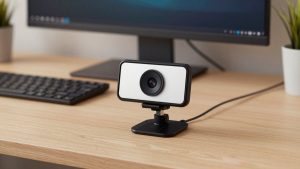
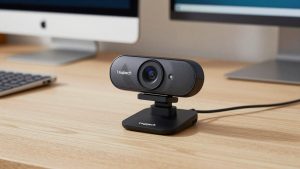
This is the honest workhorse of the category. A simple 1080p fixed-focus webcam for laptop usually costs the least and fails the least. No autofocus motor to hunt, no software to install, just plug in over USB-A and select it in Zoom or Teams.
Trade-off is sharpness range. Fixed focus is typically set for about arm’s length. If you sit very close, under 40cm, your face can look soft. If you lean back more than 2 meters, detail drops. For a normal desk setup, that is fine.
Failure modes to expect: harsh white balance under tube lights, washed-out face if you have a window behind you, and a clip mount that loosens on thin laptop lids. Check that the mount has rubber pads and that the cable is at least 1.2m long. Short cables force awkward laptop placement.
Who suits it: students, call-center style work, second computer setups, and anyone who just needs to be visible and understood. If your calls are mostly internal check-ins, do not spend more. The cheaper option is fine here.
2. Budget 1080p Autofocus Webcam: Best For Home Office
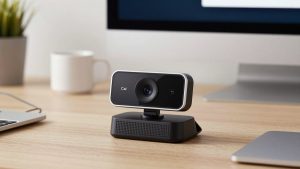
If you present to clients, teach, or interview, autofocus is worth the small step up within this budget. A true budget autofocus 1080p webcam with microphone keeps whiteboards, documents you hold up, and face movement sharper than fixed-focus models.
The catch is low light. In a dim bedroom with only a ceiling light, budget autofocus will pulse in and out. You will look like you are drifting in and out of focus every few seconds. The fix is not a more expensive camera, it is more light on your face. A 30-dollar desk lamp placed behind the camera does more than jumping to the next price tier.
Microphones in this group are also better on paper but still limited. They use aggressive noise suppression that clips the start of words and makes you sound compressed. Fine for meetings. Not fine for recording a course or podcast. If audio matters, use earbuds or a separate USB mic and disable the webcam mic.
Who suits it: home-office workers on Windows laptops and older MacBook Airs with grainy 720p FaceTime cameras. Look for 1080p at 30fps, UVC plug-and-play support for macOS, and manual exposure in the seller specs if you use backlight.
3. Wide-Angle Webcam With Shutter and Tripod Mount
The third useful type is a wider 90 to 110-degree webcam with a privacy shutter and a standard tripod thread at the bottom. Field of view matters if you share a desk, show a notebook or keyboard, or use a small room where the camera sits close to you.
Trade-off: wide angle makes everything smaller and exaggerates room mess and edge distortion. Faces stretch near the corners. If you sit alone, choose 75 to 90 degrees, not 110 degrees. You will look larger and the background will be less distracting.
A physical privacy shutter is genuinely useful at this price because many budget cameras lack a reliable activity LED. A wide angle webcam with privacy shutter solves that without tape over the lens. The tripod mount is also practical for Mac mini, desktop, or TV-top setups where a laptop clip does not help.
Failure modes: plastic tripod threads that crack, shutters that slide open in a bag, and mounts that tilt down under the camera weight. If you mount it high, test the tilt joint before a real call.
Setup Tips For Laptops and Macs
Most sub-1,500 webcams are UVC compliant, which means they work on Windows 10/11 and macOS without drivers. On Mac, you select the camera inside Zoom, Meet or Photo Booth. There is usually no settings app. If a listing advertises a Windows-only settings utility for zoom, beauty filter or background blur, assume those features will not work on Mac.
For laptops, mount the camera at eye level. Stack your laptop on books if needed. Put your key light in front of you, not behind you. Keep the camera 60 to 80cm away for the sharpest image. In Zoom, turn on HD video and turn off low-light adjustment if your face looks waxy. In Teams, disable mirror and check that echo cancellation is on if you use the webcam mic.
Do not buy based on interpolated resolution claims like 1080p up to 4K or 5MP photos. Look for real specs: 1920×1080 at 30fps, fixed or auto focus type, lens field of view, USB 2.0 UVC, built-in dual mic, cable length, and mount type. If a listing hides frame rate and focus type, skip it.
What to Avoid Under 1,500
Avoid any camera that requires a driver CD or unknown exe to work. That is a red flag for stability and for office laptops with locked-down USB policies. Avoid ring-light built into the webcam too. Those tiny LEDs create harsh hotspots on glasses and do almost nothing beyond 50cm.
Also avoid paying extra for digital zoom, face tracking or background replacement at this price. Digital zoom is just cropping. Budget tracking is jerky and will lose you mid-sentence. Use Teams or Zoom background blur instead, but note that older dual-core laptops will stutter with it on.
When the cheaper option is fine: if you take two to three calls a day, sit in decent daylight, and already own earbuds with a mic, buy the cheapest fixed-focus 1080p camera from a seller with easy returns. Save the difference for lighting or a longer USB extension.
FAQ
Is 1080p under 1,500 real 1080p?
Sometimes. Many are 720p sensors upscaled to 1080p. Check for 1920×1080 at 30fps with sample stills in reviews, not just the title. Even true 1080p will look like 720p once Meet or Zoom compresses it.
Will these webcams work with MacBook?
Mostly yes if they are UVC plug-and-play over USB. You may need a USB-C adapter. Advanced settings apps are often Windows-only, so what you get on Mac is basic auto exposure and auto white balance.
Do I need autofocus for office calls?
No, if you sit still at a desk. Fixed focus is more stable and has fewer focus-hunting failures. Choose autofocus only if you move, hold objects up to the camera, or stand and walk during calls.
Why does my new webcam look worse than my phone?
Phones have much larger sensors and heavy processing. Budget webcams have tiny sensors and weak low-light handling. Add frontal light, face a window, and keep bright windows out of the frame behind you to close the gap.