Last Updated: October 18, 2026
If you use an HP laptop for work, you already know the problem: the built-in camera gets you on the call, but it is flat, grainy in low light, and unflattering. HP calls most of them HD TrueVision cameras, and on newer Pavilion, Envy, EliteBook and ProBook models they are technically 1080p, but the sensor is tiny and there is almost no processing help.
For 2026, the practical move is still the same: keep the built-in HP camera as a backup, and buy a small external webcam for daily calls. You do not need to spend a lot to beat it. What matters is auto-exposure that does not blow out your face, a microphone that does not pick up the whole room, and a mount that actually stays on an HP lid.
📄 In This Review
What actually beats an HP built-in camera
Almost any current external 1080p webcam with autofocus and dual microphones will look cleaner than an HP integrated camera in Zoom, Teams, and Meet. The difference is largest in a home office with one window or overhead LEDs, where HP laptop cameras tend to go noisy or waxy.
Do not chase 4K unless you present, record, or crop your video. For standard 1-on-1s and team standups, 1080p at 30fps is sharper on the other person’s screen and far less demanding on older HP laptops. 4K helps if you want to zoom in slightly to hide a messy room, or if you want better still detail for demos.
| Setup | What to get | Resolution to target | Best for |
|---|---|---|---|
| Budget fix for HP Pavilion / Victus | Basic 1080p fixed-focus webcam with privacy shutter | 1080p30 | Daily Teams / Meet calls in good light |
| Home office upgrade for Envy / ProBook | 1080p autofocus webcam with dual mics and auto light correction | 1080p30 / 1080p60 | All-day calls, low light, glasses wearers |
| Presenting / coaching / recording | 4K autofocus webcam with larger sensor | 4K30, used at 1080p | Webinars, Loom videos, detailed demos |
| Hot-desking / travel | Compact 1080p webcam with short cable and clip mount | 1080p30 | EliteBook users who move desks often |
Best budget fix: 1080p with privacy shutter
See also: Best Monitor for MacBook Air: Two USB-C 4K Screens and Six Adapter-Dependent Alternatives • Best Monitor for MacBook Pro: Eight Listings Sorted by Cable, Sharpness and Scaling
If your HP camera looks washed out and coworkers say you sound distant, this category solves 80 percent of it. Look for a basic 1080p webcam with privacy shutter that is USB-A plug-and-play. No drivers on Windows 11, no HP support assistant needed.
Trade-offs: fixed focus means you need to sit 2 to 4 feet away. Closer than that and text on a document you hold up will smear. Microphones in this tier are usable in a quiet room, but they pick up keyboard clicks and fan noise. If you type while unmuted on an HP with loud fans, use a headset.
Failure mode to know: cheap mounts slip on thin HP Envy lids and point at your ceiling. Test the clip before an important call. If it wobbles, mount it on a small tripod behind your laptop instead.
Who it suits: students, part-time remote workers, anyone who takes 2-3 calls per day in daylight. The cheaper option is fine here. Do not pay extra for digital zoom or beauty modes.
Best for home office: 1080p autofocus with good mics
This is the sweet spot for most HP desktop and laptop owners working from home. An autofocus model with dual noise-reducing mics and automatic low-light correction will hold focus when you lean in to show paperwork and will keep exposure stable when clouds pass.
Search for a mid-range 1080p autofocus webcam from HP or another work-focused brand. HP’s own 1080p office webcams fit well here because they tend to have simple controls, a physical shutter, and cables long enough to reach an HP tower under a desk.
Trade-offs: 1080p60 sounds better on paper but often looks darker in a dim room than 1080p30, because each frame gets less light. If your office is dark, lock the camera to 30fps in the app settings. Also check field of view. 78 to 84 degrees is ideal. Wider than 90 degrees pulls in doorways and distracts on 1-on-1 calls.
Failure mode to know: autofocus hunting. Some units pulse in and out when you have a bookshelf behind you. If that happens, turn off continuous autofocus in the camera utility and set focus once, or move 6 inches farther from a busy background.
Who it suits: full-time remote workers on EliteBook, ProBook, or HP All-in-One desktops who live in Teams, Zoom, or Webex.
When 4K makes sense on an HP
Buy 4K only if you record training, sell over video, or want to crop. A 4K autofocus webcam for office work will give you cleaner downscaled 1080p and more headroom to digitally zoom without falling apart.
Trade-offs are real. 4K needs good light and a newer machine. On a 4- to 5-year-old HP Pavilion with a spinning hard drive or 8GB RAM, 4K in Teams can stutter or overheat the chassis. Most people should run the camera at 1080p and let the better sensor do the work. You also need more upload bandwidth, especially if two people are on calls in the same house.
Failure mode to know: over-sharpened skin and blown highlights under HP office fluorescents. Turn sharpness down one notch and face a window or a cheap 5600K desk light rather than sitting under a downlight.
Who it suits: managers who present weekly, coaches, creators making courses from a home office. For everyone else, put the price difference toward lighting or a wired headset.
Using the same camera with HP and Mac
Many households mix an HP work laptop and a personal MacBook. Most USB UVC webcams work on both without software, which is why this category is safe. Macs handle exposure a bit differently, so a camera that looks good on HP may look slightly cool or dark in FaceTime.
If you swap machines daily, get a camera with on-device settings memory and a USB-C adapter in the box. Avoid models that require a Windows-only app to turn off auto-framing. You will lose that control on macOS.
Setup that matters more than megapixels
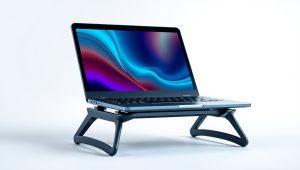
Put the camera at eye level. Stack your HP laptop on books or a stand so the external webcam sits on top of an external monitor, not looking up your nose. Sit facing soft light, not with a bright window behind you. In Windows Camera settings, disable HDR video if your face looks haloed.
For HP laptops specifically, plug the webcam directly into the laptop, not into a cheap unpowered hub shared with a drive and headset. That is a common cause of freezing at 1080p. And close HP Camera-related background effects in Teams if video lags; background blur is GPU-heavy on integrated graphics.
FAQ
Is the built-in HP TrueVision camera good enough for work?
It is usable for occasional calls in bright light, but external 1080p cameras are visibly cleaner in low light and have better mics. If you take calls daily, upgrade. If you take one call a week, save your money.
Do HP webcams work with Zoom, Teams, and Meet?
Yes. Modern HP and third-party USB webcams use the standard UVC protocol, so Windows 10 and 11 recognize them instantly in Zoom, Teams, Meet, and Webex with no extra driver.
Should I buy 1080p or 4K for my HP laptop?
Most HP laptop owners should buy 1080p autofocus. Choose 4K only if you record video, present often, or want to crop the frame. On older HP models, 4K can cause stutter unless you run it at 1080p.
Why does my HP camera look dark or grainy?
Small sensor plus backlight. Face a window or lamp, move away from bright light behind you, wipe the lens, and turn off background effects. If it is still grainy after that, an external camera with auto light correction will help more than any settings tweak.
Related Reviews & Guides
ScanSnap IX1300 Review (2026): Is It Worth Buying?
Best Webcam for Mac Laptop