Last Updated: October 18, 2026
If you spend up to $200 on a webcam for work, you are not paying for gimmicks. You are paying for a cleaner image in bad office light, reliable focus, and a mic that does not make you sound like you are in a hallway. Below that price, most webcams are fine in daylight and rough after 5pm. Above that price, you get into real 4K sensors, larger lenses, and better auto-framing.
For most home office workers on Zoom, Teams, or Meet, the sweet spot is actually $90 to $150. You should only push close to $200 if you present a lot, record training videos, or sit in a dim room with no window.
📄 In This Review
What to buy under $200
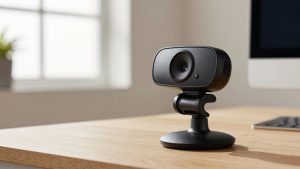
A premium 4K webcam with a 1-inch type or large 1/2-inch sensor is the best all-rounder if you do client calls all day. Look for 4K30 or 1080p60, dual noise-reducing mics, and a real privacy shutter. In practice, you will use it in 1080p most of the time because 4K makes files huge and taxes older laptops, but the larger sensor still gives you cleaner 1080p.
A low-light optimized 1080p/1440p webcam is better if your desk faces away from a window or you take evening calls. These often beat cheap 4K models after dark because they use bigger pixels and less aggressive sharpening. The trade-off is softer detail in good light and less cropping headroom.
A basic 1080p business webcam for $60 to $90 is fine if you are mostly a participant, not a presenter. If your face is one of nine boxes on screen, no one can tell you spent $180. Save the money and buy a lamp.
Compare the three approaches
See also: Best Monitor for MacBook Air: Two USB-C 4K Screens and Six Adapter-Dependent Alternatives • Best Monitor for MacBook Pro: Eight Listings Sorted by Cable, Sharpness and Scaling
| Type | Typical price | Best for | Watch out for |
|---|---|---|---|
| Premium 4K work webcam | $140-$199 | Presenting, interviews, recording | Runs warm, needs good USB port, software for full settings |
| Low-light 1080p/1440p webcam | $110-$170 | Dim home offices, evening calls | Softer daylight detail, autofocus can drift |
| Basic 1080p office webcam | $60-$90 | Daily standups, school, second computer | Blows out windows, weak mic range past 4 feet |
| AI-framing / tracking webcam | $150-$199 | Solo creators who move around | Framing hunts during group calls, needs firmware updates |
When a $150-$200 4K model makes sense
This is the category to browse if image quality is part of your job. A good 4K webcam for video calls will hold skin tones steady when a cloud passes, keep text on a whiteboard readable behind you, and let you crop from 4K to 1080p without turning to mush.
Concrete trade-offs: autofocus is the most common failure. On many models it pulses every 20-30 seconds if you lean back and forward, which is distracting on a sales call. Fix it by switching to manual focus at 2-3 feet in the vendor app and leaving it there. Heat is second. Small 4K bodies get hot after 60-90 minutes and some will drop to a lower frame rate to cool down. Give it air and do not mount it on top of a warm monitor.
Who it suits: managers, coaches, therapists, freelancers who meet clients on camera. Who should skip it: if your laptop is 4-5 years old with only USB 2.0 ports or you use a cheap dock, you may not sustain 4K or even clean 1080p60. You will get stutter and blame the webcam. A 1080p model plus wired ethernet will look better.
If your room is dark, prioritize sensor over resolution
Most home offices fail on light, not pixels. A north-facing room with one ceiling light reads as cave-light to a small sensor. Low-light models use a wider aperture, larger pixels, and stronger temporal noise reduction. The result is less grain and less flicker under LEDs.
Failure mode to know: noise reduction smears motion. If you gesture a lot, your hands will ghost. Also, auto white balance can go orange under warm bulbs. Set white balance to 4000-4500K manually in the app if you use warm lamps. And do not sit with a bright window directly behind you – no sub-$200 webcam has enough dynamic range to save that. Close blinds or put a $25 LED panel in front of you.
This type suits apartment workers, night-shift workers, and anyone on calls after sunset. If you already have a key light, you do not need it. Buy the sharper daylight 4K option instead.
AI framing sounds great, often annoys coworkers
Auto-framing webcams that follow you and keep you centered are useful if you stand, pace, or demo at a whiteboard alone. For normal seated calls, turn tracking off. I have seen it slowly zoom in and out when a second person walks behind, or cut off a colleague who leans in. That is worse than a static frame.
If you want one, check two things before buying: does tracking work without the vendor software running, and does it work on Mac? Many features are Windows-only or require an always-on background app that eats 5-10% CPU on a MacBook Air. For shared desks, a wide 90-95 degree field of view with no tracking is more reliable than tracking.
Laptop and Mac specifics
Built-in MacBook and most ThinkPad/XPS cameras are now decent in good light, but they are still tiny sensors with aggressive processing. An external webcam helps most with angle and framing – you can raise it to eye level instead of staring down at a laptop.
On Macs, avoid models that lock resolution, zoom, and HDR behind a Windows-only utility. You want plug-and-play UVC compliance: 1080p should work in FaceTime, Zoom, and Teams with no driver. For M1/M2/M3 Airs, prefer 1080p30 or 1440p30 over 4K30 to avoid fan noise and dropped frames. Also check the mount. Many clip mounts assume a thick external monitor and wobble on a thin MacBook lid. A small tripod on a stack of books is steadier.
For Windows laptops, make sure background blur is handled once, not twice. If you enable blur in both the webcam app and Teams, edges will shimmer and CPU use will spike. Use Teams blur and leave the webcam image clean.
Microphones: even the best sub-$200 webcam mics are usable only within 3 feet in a quiet room. They pick up keyboards and echo in hard rooms. If you talk more than 15 minutes a day, a $30 USB headset or a dedicated USB microphone for home office will improve how people hear you more than any camera upgrade. Do not buy a $199 webcam for its mic alone.
How to get $200 quality from a $120 setup
Mount at eye level, about 24-30 inches away. Clean the lens with a microfiber cloth – office dust softens the image more than compression does. Set exposure manually if you can; auto-exposure will pump up and down when you share screen.
Light matters most. A window in front of you beats any sensor. Second best is a cheap 10-inch LED panel at 30% brightness, slightly above camera height. Do not use overhead-only light, it carves shadows under eyes. If you buy one accessory with your webcam, make it light, not a fancy mount. Shoppers comparing options for a full desk will often pair a midrange camera with an LED video light for home office and look better than a $199 camera in a dark room.
Finally, test before a big meeting. Record 30 seconds in your actual meeting app, not just the vendor preview. Check for focus hunting, fan noise, and that your name is not echoing. Update firmware once, then leave it alone on work machines.
FAQ
Is 4K worth it under $200 for Zoom and Teams?
Usually not for resolution alone, because most calls are delivered in 720p to 1080p. It is worth it for the better lens and sensor that often come with 4K models, which give you cleaner 1080p. If you never record, a good 1080p model is fine.
Why does my expensive webcam look worse than my phone?
Phones do heavy computational processing and have larger sensors. Webcams prioritize low latency and plug-and-play compatibility. Add front light and turn off auto settings, and the gap shrinks a lot.
Do I need Windows software to use these on Mac?
Basic video should work without software. Advanced features like HDR, manual focus, framing, and firmware updates often need the vendor app, which may be Windows-only or Intel-only. Check Mac support before you buy if you use a MacBook full-time.
What fails first on sub-$200 webcams?
Autofocus motors that hunt, clip mounts that loosen, and cables that are too short or too stiff for a monitor arm. Buy from a listing with easy returns and test focus, heat, and mic range in the first week.