Last Updated: October 18, 2026
Mac desktops are a specific problem: Mac mini, Mac Studio, and Mac Pro have no built-in camera, and even the iMac’s built-in camera is fixed in place with a wide, unforgiving angle. If you take calls from a Mac desktop, you need an external webcam that behaves well with macOS, handles a desk setup, and doesn’t require Windows-only software to look decent.
The good news is you don’t need to spend much to beat Apple’s built-in cameras. The bad news is a lot of webcams advertise features on the box that only work on Windows. Here’s what actually matters on a Mac desktop.
📄 In This Review
What goes wrong with webcams on Mac
Most modern USB webcams are UVC-compliant, which means they work plug-and-play on macOS with FaceTime, Zoom, Teams, Meet, and Webex. You plug them in, select them in the app, and they work. The failure mode is everything around that basic image.
Many brands put autofocus tuning, auto-framing sensitivity, background blur without Zoom, HDR strength, and firmware updates inside a Windows-only app. On Mac, you get the default tuning forever. That is fine if the default tuning is good, and annoying if it hunts for focus, over-sharpens your face, or blows out a window behind you.
Second issue: USB bandwidth and hubs. Mac desktops often run the webcam through a Studio Display, Thunderbolt dock, or USB hub. 4K webcams in particular can stutter, drop to lower resolution, or disconnect on a crowded hub. If you get choppy video at 4K, plug directly into the Mac first before you blame the camera. A short, good USB-C to USB-C or USB-A cable fixes more “bad webcam” problems than people expect.
Third: microphone expectations. Almost every webcam mic sounds thin and picks up keyboard and room echo on a wood desk. It is usable as a backup, but if you do calls all day, plan on AirPods, a USB headset, or a cheap USB desk mic. Don’t pay extra for a webcam because it claims “studio mics.”
What to look for for a Mac desktop
See also: Best Monitor for MacBook Air: Two USB-C 4K Screens and Six Adapter-Dependent Alternatives • Best Monitor for MacBook Pro: Eight Listings Sorted by Cable, Sharpness and Scaling
For a fixed desk, prioritize a larger sensor and good auto-exposure over raw resolution. A good 1080p image with clean low-light performance looks better on Zoom and Teams than a noisy 4K image, because those apps compress you to 720p or 1080p anyway.
Look for plug-and-play UVC operation with on-device controls – either physical privacy shutter, or buttons/dials for exposure – so you aren’t dependent on software. macOS Camera settings in System Settings are minimal. Zoom and Teams can adjust some exposure, but they can’t fix a camera that constantly breathes focus.
Mounting matters more on desktops than laptops. You will likely clamp to a Studio Display, Apple Studio Display-style thin bezel, or a 27-32 inch third-party monitor. Cheap clips slip off curved backs or thick monitor housings. A standard 1/4-inch tripod thread on the bottom is genuinely useful because it lets you put the camera on a small desk tripod at eye level instead of looking up at your chin.
For framing: if you sit still 2-3 feet from the screen, skip auto-framing. If you present, stand up, use a whiteboard, or move around, auto-framing / auto-tracking saves you. Just know it can be jumpy, and on Mac you often can’t adjust how aggressively it crops.
| Option type | Typical image | Mac hassle factor | Best for |
|---|---|---|---|
| Budget 1080p USB webcam | Good in daylight, soft in dim rooms | Low – usually true plug-and-play | Daily standups, kids’ school, second Mac |
| Mid-range 4K plug-and-play | Sharper, better auto-exposure | Medium – check hub bandwidth | Most Mac mini / Studio home offices |
| Large-sensor / low-light webcam | Cleaner in evening, more natural blur | Medium – bigger file, needs direct port | Dim offices, night calls, glasses wearers |
| iPhone as webcam via Continuity Camera | Often best image quality | Higher – mount + battery + occasional disconnect | iMac / Mac mini users who already own iPhone |
Best for most Mac desktops: simple 4K USB webcam
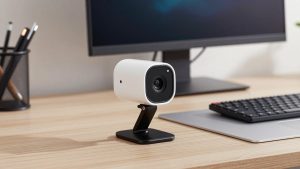
For a Mac mini or Mac Studio on a monitor, a straightforward 4K webcam for Mac with fixed good defaults is the safest buy. You get enough resolution to crop slightly, decent autofocus, and no drivers to install.
Trade-offs: true 4K only matters if you record locally with QuickTime or Photo Booth. On live calls you will be downscaled. Also, many 4K webcams default to an overly wide 90-degree field of view that shows your whole messy office. Look for one with 65-78 degree modes selectable without software, or at least a narrower default.
Failure mode I see a lot: autofocus pulsing when you lean back and type. If you gesture a lot or have a busy bookshelf behind you, a webcam with face-priority AF is worth more than extra pixels. If your camera has no Mac app, test it in Zoom with your normal backlight – window behind you, overhead light on – and return it if faces go dark.
This suits remote workers doing 3-6 hours of calls per day who want to set it once and forget it.
When the cheaper 1080p option is fine
If your calls are mostly internal 30-minute check-ins, a basic 1080p USB webcam for Mac desktop is honestly fine. In good front light – a window in front of you or a $20 desk lamp bounced off a wall – a $35-60 camera looks 80% as good as a $150 camera to everyone else.
Where cheap falls apart: evening calls, backlight, and glasses glare. Small sensors smear detail, make skin waxy, and struggle with mixed warm lamp + cool monitor light. Cheap auto white balance can also turn orange under home LEDs.
Buy cheap if you control your lighting and sit close. Don’t buy cheap if your desk faces away from windows and you take calls after 6pm. In that case lighting or a larger sensor helps more than software sharpening.
Upgrade pick for dim home offices
Mac desktops often live in spare bedrooms or basements with one overhead light. If you look grainy or grey, don’t chase more resolution. Chase a larger sensor and f/2.0 or faster lens.
These cameras collect more light, so you get less noise, better skin tones, and less aggressive sharpening halos around glasses. The downside is shallower depth of field – lean forward and back and focus may drift – and they run warmer. Give them airflow, don’t bury them behind a monitor.
This is the right choice for night-shift workers, teachers recording lessons in winter, and anyone whose background is a bright window. Pair it with a lamp in front of you, not behind the monitor, and turn off HDR if faces look washed out.
Don’t overlook: iPhone as your Mac desktop webcam
If you already own a recent iPhone, Continuity Camera is often better than any sub-$200 webcam, especially in low light. Mount the iPhone on top of your display, connect via USB cable for reliability, and select iPhone as camera in FaceTime or Zoom.
Trade-offs are practical, not image quality. You need a solid iPhone MagSafe monitor mount for Continuity Camera, and cheap magnetic mounts slip on thick monitors. Wireless mode can lag or overheat on long calls, and notifications/interruptions go to the phone doing camera duty. Wired USB solves most of that and keeps it charged.
Who this suits: Mac mini users who take 1-2 calls a day and don’t want another gadget, or anyone who wants Center Stage auto-framing and Desk View without buying a specialized webcam. Who should skip it: all-day call workers who need their phone free, or shared family desktops where pairing breaks.
Setup that matters more than the camera
Put the lens at or slightly above eye level, about arm’s length away. On a 27-inch or larger monitor, center-mount is fine; off-center looks shifty on 1:1 calls. Set field of view to 65-78 degrees for head-and-shoulders, not 90+ unless you need to show a room.
Face a light source. Close or sheer-cover a window behind you. In Zoom, turn on “Adjust for low light” only as a last resort – it just adds noise reduction smear. In Teams, disable auto-brightness hunting if your image pumps brighter/darker when you share screen.
If audio echoes, your webcam mic is hearing your Studio Display or external speakers. Switch to headphones even if you keep the webcam for video. That single change improves perceived professionalism more than 4K.
FAQ
Do I need drivers or software on Mac?
No for basic video and mic – choose UVC plug-and-play. You only need vendor software for auto-framing tweaks, background effects, or firmware updates, and that software is often Windows-only. If you need those controls, check Mac support before you buy.
Why does my 4K webcam stutter on Mac Studio or mini?
Usually USB hub bandwidth, not the Mac. Try a direct port on the Mac, use the included short cable, close other high-bandwidth USB devices, and drop the app to 1080p. Live calls rarely benefit from full 4K anyway.
Is the iMac built-in camera good enough?
For casual calls, yes, especially on newer 24-inch iMacs. Buy external if you want eye-level framing on a stand, narrower field of view, better low-light, or you wear headphones and move around. An external on a tripod also avoids the permanent up-the-nose angle on a high desk.
1080p or 4K for Zoom and Teams?
Buy for sensor quality and autofocus, not the number on the box. Both apps compress heavily, so a clean, well-exposed 1080p feed beats a noisy 4K feed. Choose 4K if you also record locally or want cropping flexibility.
Related Reviews & Guides
Webcam for PC Low Price
ScanSnap IX1300 vs Canon Imageformula R40: Which Should You Buy in 2026?