Last Updated: October 18, 2026
Shopping for a cheap webcam for a laptop feels like it should be simple, but most budget listings look identical: 1080p, autofocus, built-in mic, $25 to $40. In practice, there is a big difference between one that gets you through Zoom without complaints and one that leaves you blurry, dark, and echoing.
The good news: if your laptop camera is cracked, grainy, or stuck at 720p, you do not need to spend $100+ to see a real upgrade. A basic external 1080p webcam with decent auto-exposure is fine for most office calls, classes, and interviews. The trick is knowing which corners are okay to cut, and which ones will annoy you every day.
📄 In This Review
When a cheap webcam is actually enough
A budget webcam makes sense if your calls are mostly one-on-one or small team meetings in a reasonably lit room. If you sit facing a window or have a desk lamp in front of you, even a $30 camera can look sharp. Your coworkers will see you clearly, screen share will be readable, and you will sound acceptable if you are in a quiet room.
It is also the right call if this is a backup or occasional-use camera. For travel, for a second laptop, or for a kid’s school laptop, spending more rarely pays off. Laptop USB ports, hotel Wi-Fi, and Teams compression will flatten image quality anyway. A simple plug-and-play camera you can toss in a bag beats a fragile premium one you are afraid to carry.
Where cheap is not enough: if you present to clients all day, record training videos, stream, or work in a dark room. Budget sensors struggle in low light, budget mics pick up keyboard and fan noise, and budget autofocus hunts when you move. In those cases you are better off putting the money toward lighting and audio first, then a mid-range camera.
What you actually get for $25 to $50
See also: Best Monitor for MacBook Air: Two USB-C 4K Screens and Six Adapter-Dependent Alternatives • Best Monitor for MacBook Pro: Eight Listings Sorted by Cable, Sharpness and Scaling
Almost every cheap webcam advertises 1080p at 30fps. Take that with skepticism. Many use a smaller sensor that technically outputs 1080p but looks soft, especially in warm indoor light. Real sharpness depends more on the lens and processing than the number on the box.
Expect fixed focus or slow autofocus. Fixed focus is not necessarily bad — if you sit 2 to 3 feet away and do not move much, it stays sharp and never hunts. Cheap autofocus is worse: it pulses in and out when you lean forward, show paper, or have movement behind you. If you fidget or demo products with your hands, fixed focus is often calmer.
Expect usable but thin audio. Built-in mics on budget cameras are fine for quiet home offices, but they pick up room echo, typing, and laptop fans. If others say you sound distant, sit closer than you think — 18 to 24 inches — and turn down speaker volume to avoid echo. For daily standups, a headset will still beat any webcam mic.
Common failure modes: overexposed window behind you turning you into a silhouette, orange skin tones under old bulbs, and a choppy image on older laptops with USB 2.0 hubs. None of these mean the camera is broken. They mean you need light in front of you, not behind, and a direct USB port instead of a cheap hub.
Cheap vs built-in vs mid-range: quick comparison
Before you buy, it helps to see what you are upgrading from and what you are skipping.
| Option | Typical price | Image in good light | Low light | Mic quality | Best for |
|---|---|---|---|---|---|
| Old laptop 720p camera | $0 | Soft, noisy | Poor | Hollow, picks up fan | Emergency use only |
| Budget 1080p USB webcam | $25-$50 | Clear enough for work | Grainy but usable | Okay in quiet room | Students, temp workers, travel |
| Mid-range 1080p/1440p webcam | $70-$120 | Sharper, better color | Noticeably cleaner | Less echo, fuller | Daily client calls, managers |
| Phone as webcam + mount | $15 mount if you own phone | Often best image | Best of the group | Use headset instead | Interviews, recordings on tight budget |
If you already own a recent iPhone or Android, try that first. Continuity Camera on Mac and many free PC apps turn your phone into a much better camera than any $35 webcam. The downside is battery drain, calls interrupting video, and fiddling with mounts. For a permanent desk setup, a dedicated 1080p webcam for laptop is less hassle.
Which type of cheap webcam to buy
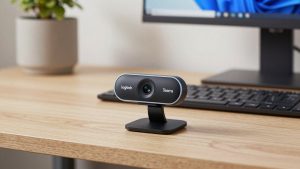
1. Basic 1080p fixed-focus bar: best for most laptop users. Look for 1080p/30fps, USB-A, UVC plug-and-play (no driver), dual mics, and a privacy shutter. Clips directly to the laptop lid. It suits office workers, students, and anyone who wants to plug it in and forget it. Trade-off: no framing flexibility and weaker low-light performance. Check the field of view — 75 to 80 degrees keeps you centered without showing your whole room. Wider 90-degree budget models can make you look small and warp the edges.
2. Small autofocus model with tripod thread: best if you move around. If you whiteboard, lean back in a chair, or switch between desk and couch, autofocus helps. Only buy one with reviews mentioning stable focus, not hunting. Look for a standard tripod mount so you can put it on a mini tripod for webcam at eye level. Trade-off: more moving parts, slightly higher price, and you will still need light.
3. Kit with light or headset instead of a better camera: best value upgrade. A $30 webcam plus a $20 USB desk light often looks better on Zoom than a $100 webcam in a dark room. Same with audio: a cheap wired headset fixes more complaints than any camera upgrade. If people cannot hear you clearly, they will think your video is bad too. If you work on a MacBook with only USB-C, remember to budget for a simple USB-C hub or buy a camera with USB-C in the box.
What to avoid: no-name 4K cameras under $40, cameras that require a custom driver app to reach 1080p, and anything without a physical privacy cover or a clear LED indicator. Those 4K claims are usually upscaled 1080p or lower, and they run hot and drop frames on older laptops.
Setup tips that matter more than the model
Put the camera at eye level. Laptop lids sit too low, so stack the laptop on books or use a stand and add an external keyboard if you can. Being slightly above eye level is unflattering for no one; shooting up your nose is unflattering for everyone.
Face your light source. A window or lamp 2 to 3 feet in front of you, slightly to one side, will do more than any sensor upgrade. Close blinds behind you. Turn off overhead-only lighting if it casts shadows. In Zoom or Teams, disable touch-up and auto low-light correction first, then judge the image — those filters hide focus problems until you record.
For Mac users: most budget UVC webcams work in FaceTime, Zoom, and Teams on macOS without software, but the fancy companion apps for background blur or manual focus are often Windows-only. Test mic selection after plugging in — macOS sometimes sticks with the internal mic. For work laptops with locked-down USB settings, a basic driverless model is safer than one that needs admin rights to install utilities.
Finally, test before an important call. Record 30 seconds talking and typing, then watch it. If focus breathes, switch to 720p mode or move back a few inches. If audio echoes, lower speakers to 60% and sit closer. These two-minute fixes solve most cheap webcam complaints.
FAQ
Is a $30 webcam better than my laptop’s built-in camera?
Usually yes, if your built-in is older 720p. You get a sharper image, better color, and a more flattering angle when you mount it higher. If you have a 2022 or newer MacBook or premium Windows laptop with 1080p, the difference is smaller — try better lighting first.
Do I need 4K for work calls?
No. Zoom, Teams, and Meet compress video heavily, usually to 720p or 1080p. 4K helps only if you crop or record locally for YouTube. For meetings, a stable 1080p/30fps image with good exposure looks better than a stuttery budget 4K feed.
Why do I look dark even with a new webcam?
Backlight. A bright window or lamp behind you forces auto-exposure to darken your face. Move the light in front of you, close curtains behind you, and keep the camera out of direct sun. A small USB video light for laptop calls fixes this for most people.
Will a cheap webcam work with Mac and Windows?
Most will. Look for UVC / plug-and-play with no driver required. It should work in Zoom, Teams, OBS, and browsers on both systems. Advanced features like digital zoom, AI framing, or firmware updates may be Windows-only, so check that note if you use a Mac.
Related Reviews & Guides
6 Best Adjustable Laptop Computer Stands 2026

Ergonomic Chair: Top Picks Compared in 2026