Last Updated: October 18, 2026
- What Teams actually needs from a camera
- Quick picks by setup
- Best for most people: a simple 1080p webcam with real autofocus
- Best home office upgrade: 4K webcam used at 1080p
- Best if you move around: auto-framing camera
- Best for small Teams rooms: wide-angle conference camera
- Setup matters more than price
- FAQ
If you use Microsoft Teams all day for work, the camera matters more than the microphone specs suggest. Teams compresses video hard, crops aggressively on some layouts, and punishes cameras with slow autofocus and bad backlight handling. You do not need cinema quality. You need a camera that locks focus fast, holds exposure steady when a window is behind you, and does not drop frames when your laptop gets hot.
Most built-in laptop cameras fail at exactly that. They are usually 720p or upscaled 1080p with tiny sensors, fixed focus, and no real low-light handling. They are usable if you have good front light, but in a dim home office or late call, you look grainy and washed out. A decent external webcam fixes 80 percent of that for little money.
📄 In This Review
- What Teams actually needs from a camera
- Quick picks by setup
- Best for most people: a simple 1080p webcam with real autofocus
- Best home office upgrade: 4K webcam used at 1080p
- Best if you move around: auto-framing camera
- Best for small Teams rooms: wide-angle conference camera
- Setup matters more than price
- FAQ
What Teams actually needs from a camera
Teams tops out at 1080p for one-to-one and group calls in most work setups, and many meetings still run at 720p because of bandwidth limits or IT policy. That means a 4K sensor does not give the other side 4K. What it gives you is a cleaner, sharper 1080p image after downscaling, plus room for digital zoom and auto-framing without falling apart.
Prioritize these in order: reliable autofocus, good auto-exposure with backlight compensation, 30 fps that stays at 30 fps, and a usable 78 to 90-degree field of view. Dual noise-reducing microphones are nice, but Teams echo cancellation and a headset will matter more. Certified for Teams is helpful for plug-and-play, but not required — Teams uses standard UVC drivers, so almost any modern USB webcam works on Windows and Mac.
The most common failure modes I see: cameras that hunt for focus every time you lean forward, cameras that blow out your face when you sit in front of a window, and wide-angle conference cameras that make one person at a desk look tiny. All are avoidable if you buy for your actual setup.
Quick picks by setup
See also: Best Monitor for MacBook Air: Two USB-C 4K Screens and Six Adapter-Dependent Alternatives • Best Monitor for MacBook Pro: Eight Listings Sorted by Cable, Sharpness and Scaling
| Type | Resolution / FOV | Best for | Watch out for |
|---|---|---|---|
| Budget 1080p webcam with autofocus | 1080p30, 78-82 degrees | Daily Teams calls at a desk, laptops and desktops | Struggles in dim rooms, narrow dynamic range |
| Mid-range 4K webcam | 4K30 / 1080p60, 85-90 degrees | Home office where you want to look sharp on large screens | Needs good USB bandwidth, can run warm |
| Auto-framing webcam | 1080p or 4K, auto-zoom and track | People who pace, whiteboard, or move between desk and standing | Tracking can be jumpy in Teams Together Mode |
| Wide conference camera / all-in-one | 110-120 degrees, with mics and speaker | Small huddle rooms with 2-4 people | Overkill and distant-looking for solo desk use |
Best for most people: a simple 1080p webcam with real autofocus
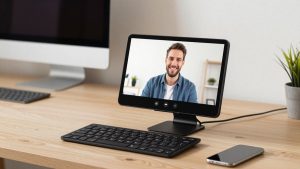
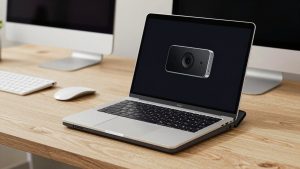
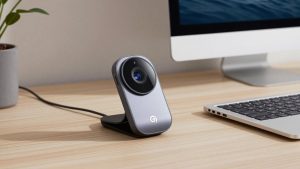
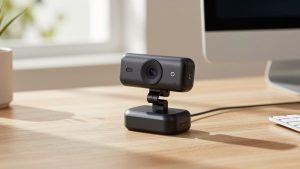
If you sit at a desk 2 to 3 feet from the screen and take 3 to 6 Teams calls a day, this is the sweet spot. The cheaper option is genuinely fine here. A basic 1080p webcam with autofocus for Teams will look clearly better than any built-in laptop camera, as long as it has autofocus and not fixed focus.
Check the specs before you buy: autofocus (not fixed focus), 1080p30 minimum, dual microphones, and a physical privacy shutter. Fixed-focus budget cameras are the main trap. They are sharp at exactly one distance and soft everywhere else. If you lean in to share something, you go blurry for two seconds — very distracting in Teams.
Who it suits: office workers, students, anyone on a work laptop with limited USB ports. Who should skip it: if your office is dark or you are backlit all day, spend a bit more for a larger sensor and better HDR. A $35 to $70 camera plus a $20 desk lamp in front of you will beat a $150 camera in a dark room.
Best home office upgrade: 4K webcam used at 1080p
A mid-range 4K webcam does not send 4K in Teams, but it is still worth it if you are on camera 4+ hours a day. Downscaled 4K-to-1080p looks cleaner, handles glasses glare and facial detail better, and lets you use 2x digital zoom without turning to mush. That matters if you want a tighter head-and-shoulders crop without moving the camera.
Look for a 4K webcam with autofocus and noise reduction that can do 1080p60 as well as 4K30. The 60 fps mode is useful if you gesture a lot or show physical documents — motion stays smooth. Trade-off: 4K mode uses more CPU and USB bandwidth. On older laptops and MacBook Airs with hubs, stick to 1080p mode in Teams settings to avoid dropped frames and fan noise.
Failure mode to know: some 4K cameras default to a very wide 90+ degree view that shows your whole messy office. Set the field of view to 78 or 82 degrees in the vendor app, mount the camera at eye level, and turn off over-aggressive beauty filters. They smear text if you hold up a notebook.
Best if you move around: auto-framing camera
If you stand, pace, or switch between sitting and a whiteboard during Teams meetings, autofocus alone is not enough. You want auto-framing — the camera digitally follows you and keeps you centered. It is genuinely useful for trainers, managers doing standups, and anyone in a deep desk where a fixed camera leaves too much headroom.
The trade-off is control. Auto-framing can reframe at the wrong moment, especially when someone walks behind you. In Teams gallery view this looks like constant zoom pulsing. Buy one with adjustable tracking speed and a way to turn tracking off quickly, ideally with a button or remote. If you mostly sit still, save money and skip this feature.
Best for small Teams rooms: wide-angle conference camera
One person at a desk should not buy a 120-degree conference camera. You will look small and far away, and Teams will compress the wide shot even more. But for a huddle room with 2 to 4 people around a small table, a wide-angle camera with built-in mics makes sense. Look for a wide angle conference webcam for Teams rooms with ePTZ presets so you can lock a room-wide shot and a tighter speaker shot.
Key trade-offs: integrated speakers sound convenient but often cause echo in small glass rooms. If IT allows it, pair the camera with a separate speakerpuck in the middle of the table and mute the camera speaker. Also check cable length — many conference cameras ship with a short 5-foot USB cable that will not reach a wall-mounted PC. You will need an active USB extension.
Setup matters more than price
Before returning a camera that looks bad in Teams, fix three things. First, light your face from the front — a window or cheap LED panel behind your monitor, not overhead alone. Second, raise the camera to eye level; looking up at your chin makes any camera look worse. Third, in Teams go to Settings – Devices – Camera and turn off Teams auto low-light boost if your vendor app already does noise reduction, otherwise you get double processing and waxy skin.
For Mac users: most UVC webcams work plug-and-play in Teams for macOS, but vendor tuning apps are often Windows-only. If you need to change field of view or disable autofocus hunting, set it once on a Windows PC if you can, as settings usually stick on the camera. For work laptops with locked-down USB ports, prefer a camera that needs no software at all and stores no special drivers.
FAQ
Do I need a Teams-certified camera?
No, for personal desk use. Certification mainly guarantees plug-and-play behavior and mute sync with Teams. Any UVC-compliant USB webcam will show up in Teams on Windows and Mac. Certification matters more for shared meeting rooms where IT wants guaranteed compatibility.
Is 4K worth it if Teams only shows 1080p?
Often yes for daily presenters, no for occasional callers. You do not get 4K on the other end, but you get sharper 1080p, better digital zoom, and cleaner low light. If you only take two calls a week from a bright room, a good 1080p camera is fine and runs cooler.
Why do I look blurry when I move in Teams?
Usually slow autofocus, low light forcing a slow shutter, or Teams reducing resolution to save bandwidth. Add front light, set the camera to 1080p instead of 4K, close background apps using the camera, and avoid USB hubs if possible. If focus still hunts, switch to manual focus at your seating distance.
Can I use a mirrorless camera or phone as a Teams camera?
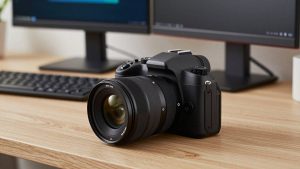
Yes, and image quality can be excellent, but it adds failure points: HDMI capture, batteries, overheating, and extra software. For work reliability, a dedicated USB webcam you can leave plugged in is less stressful than a creator setup you have to rig before every standup.